SECTION 3
OPERATING THE ASTROJET M1
24
Media – Choose a type of media or
different size media than the
document was originally designed
for. Type: Chart at right lists the
media profiles associated with the
type of media chosen. Sizes: 21 sizes
are available. The document is
automatically resized to fit the new
media. You can also create and save
a Custom Size to suit your needs.
NOTE: Do not exceed maximum
paper size for the Printer.
Color Selection – Set Printing for
Color, Composite Black (uses all
colors to print Black), or Black Only
(uses only Black ink).
Print Quality – Select Normal or Best. Normal is 1600 x 800 dpi, checking the “Half Speed”
box slows printing for higher quality on glossy stock. Best setting is 1600 x 1600 dpi, for use
when high quality images are required.
My Print Settings – Access your saved custom print settings for various jobs.
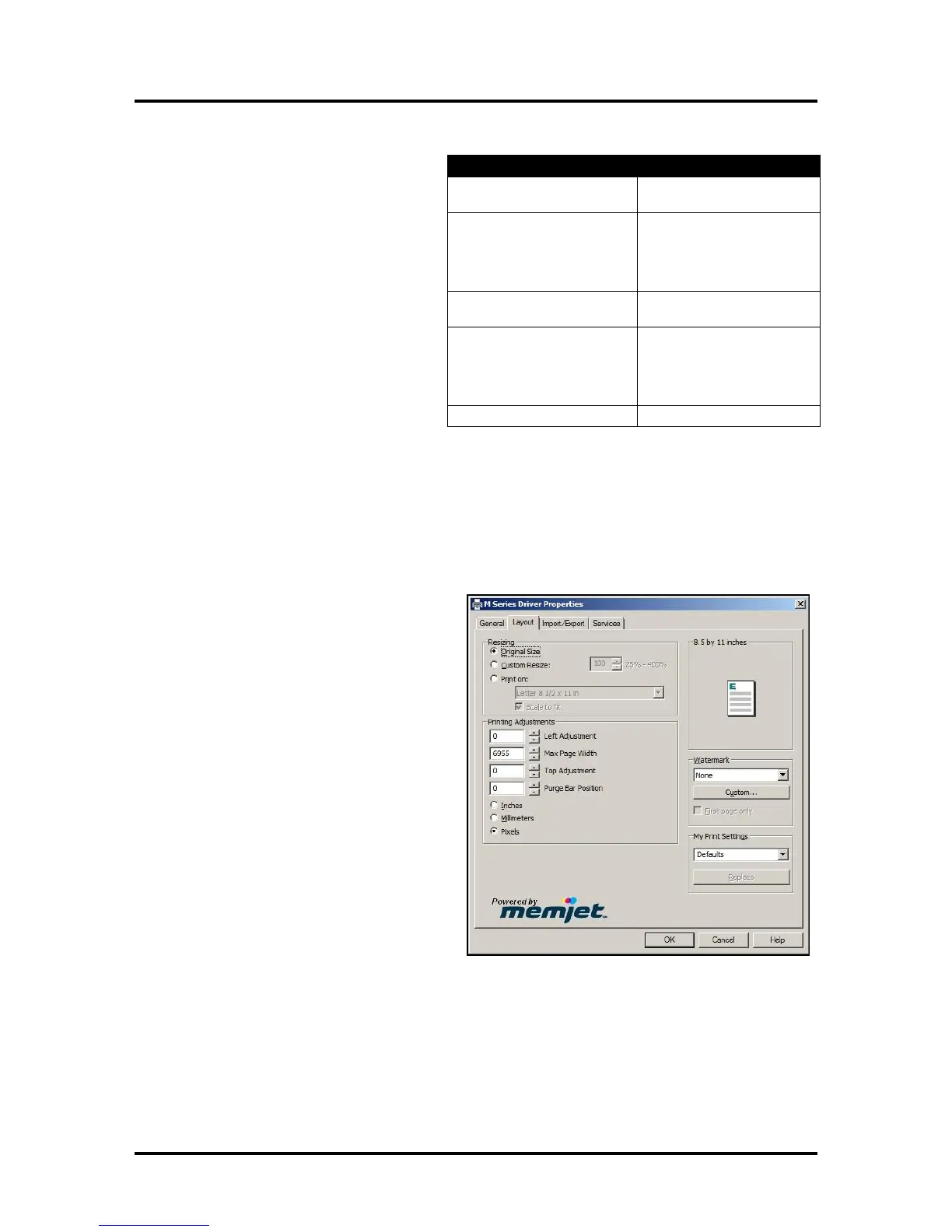
Layout Tab
Layout allows you change how the document
prints without changing the original document.
Resizing – Specify Original Size or
Custom Resize: Resizes the original as
a % of normal size. The Printer prints
the document in the size you selected
regardless of the paper size selected.
Print on: Specify the particular size of
paper that you want to print on
regardless of the size of the original
document. Checking “Scale to Fit”
automatically resizes the document to fit
on the new page size.
Printing Adjustments – Make minor
positioning changes to the print area in
relation to the media if needed. You can
also set the measurements to be in
Inches, Millimeters or Pixels.
NOTE: Printing Adjustments only
works when Print Area is less than the
full print width (less than 8.5/215.9mm
wide). See “Using Layout Tab Printing Adjustments” on next page.
Plain Paper
Bright White Paper
Presentation Paper
Postcards Matte
Brochure Matte
Labels Matte
Other Inkjet Paper Matte
Premium Matte Coated Paper
Premium Inkjet Paper
Premium Photo Paper Matte
Photo Paper Semi-gloss
Photo Paper Glossy
Labels Glossy
Postcards Glossy
Brochure Glossy
Premium Photo Paper Glossy


 To Next Page