SECTION 3
OPERATING THE ASTROJET M1
33
Updating Firmware
Get the latest version of firmware for your Printer.
NOTE: Use this procedure to update the firmware
AFTER you have updated the Printer Driver. The
Printer Driver update procedure is included with an
“Update Package” which includes both updated
Printer Drivers and firmware updates).
How to download new firmware:
1. When you are notified that new firmware is
available for your Printer, download the
“*.bin” file and save it to your desktop.
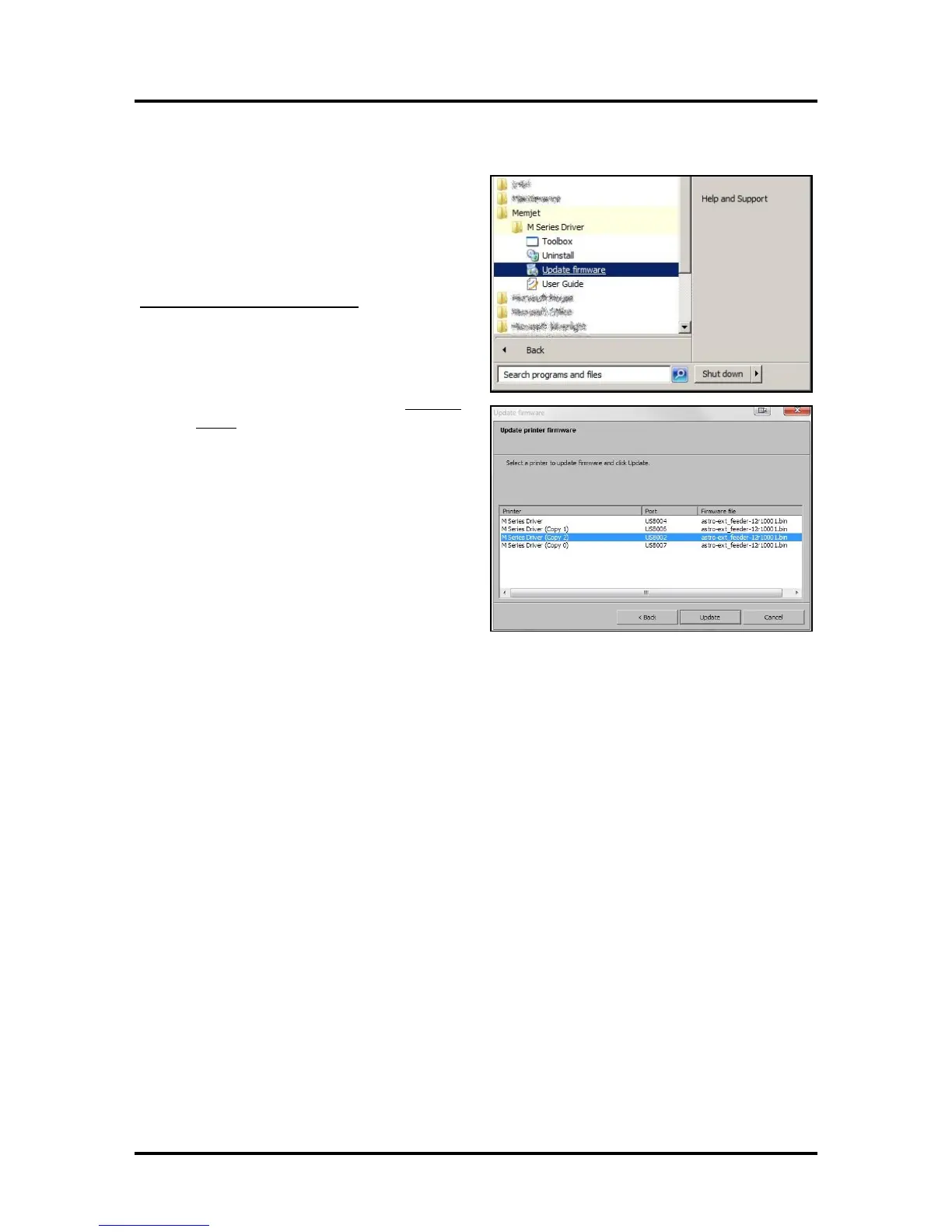
2. From the Start Menu, open All Programs.
Open the “Memjet” folder, then “M Series
Driver”. Click “Update Firmware”.
3. Click the “Browse” button. Find and select
the file you just saved to your desktop.
Click “Open”.
4. When the “Update printer firmware”
window opens, select the M Series printer
you want to update. NOTE: You can only
update one printer at a time.
5. Click “Update”. DO NOT touch the
Printer until the firmware is loaded! A
message appears on the screen warning you
not to unplug or shut off the Printer.
6. Once the firmware finishes loading (about 5-10 minutes), the Control Panel lights and the Printer
shuts OFF, then restarts automatically to complete the installation.


 To Next Page