SECTION 4
MAINTENANCE
51
Shipping or Transporting the Printer
If you have to ship or transport the Printer for any reason, the unit will have to be prepared. Once the
Printer is prepared, carefully package the Printer, Printhead Cartridge, Service Station and Ink Tanks in
their original packaging.
Deprime the System
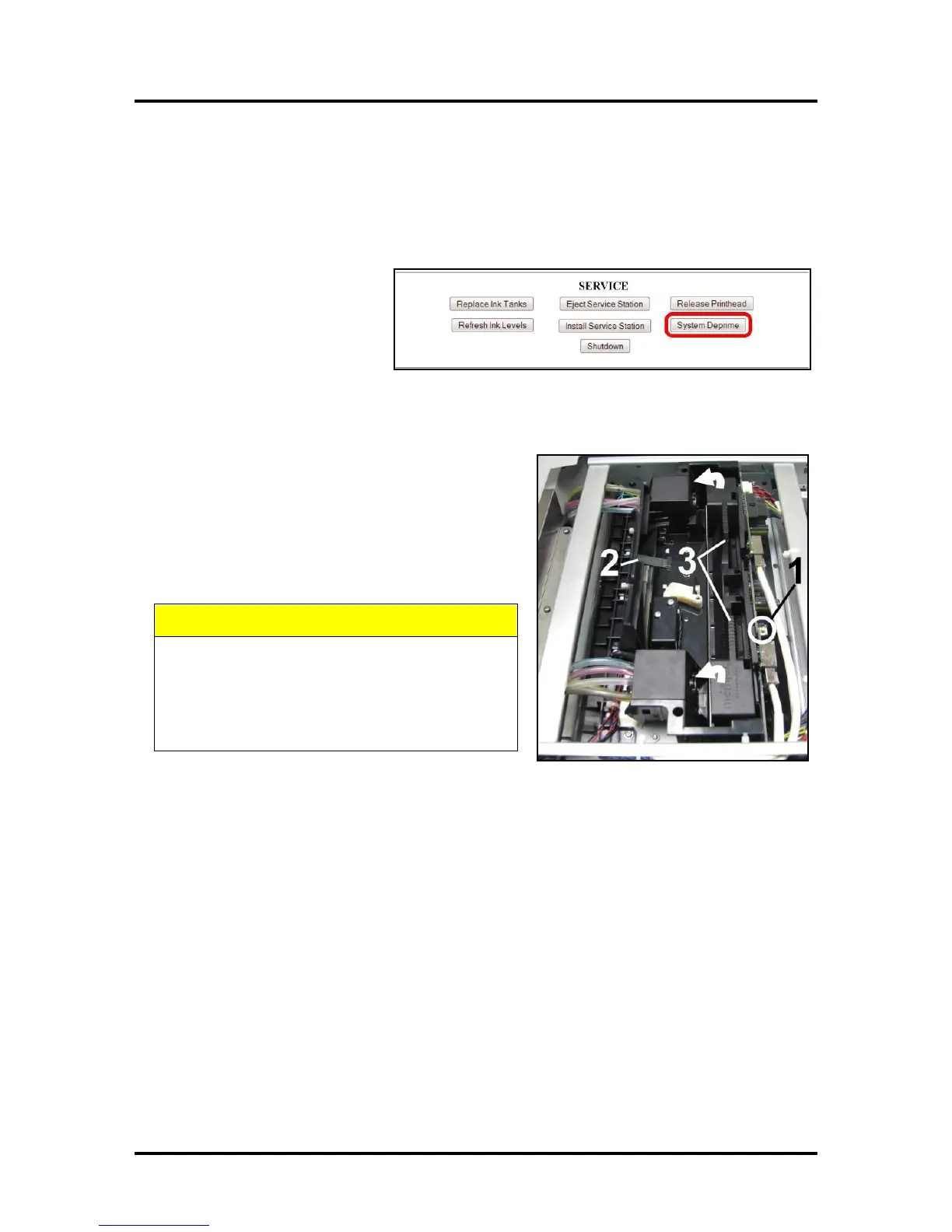
1. Depriming forces all of the
ink to return to the Ink
Tanks. Open the Toolbox
User Interface screen and
click “System Deprime”.
Remove the Printhead Cartridge
1. Open the Top Cover. Press the Printhead Latch
Release Button [1]. The Printer pumps any ink in
the system back into the Tanks. Then the Printhead
Latch pops open [2].
NOTE: You can perform this same function
from your computer by clicking the “Printhead
Release” on the User Interface screen in the
Printer Toolbox.
DO NOT PRY OR MANUALLY LIFT THE
PRINTHEAD LATCH OR THE LATCH MAY
BREAK. ONLY OPEN THE LATCH USING THE
RELEASE BUTTON ON THE PRINTER OR THE
PRINTHEAD RELEASE COMMAND IN THE
PRINTER TOOLBOX.
2. Make sure the Printhead Latch is fully opened to retract the ink lines. Remove the Printhead
Cartridge by tilting it toward the ink lines [3], then carefully lift it out of the Printhead
Compartment.
3. Pack the Printhead Cartridge area with absorbent towels to catch any ink drips or spills. Carefully
pack the Cartridge using the original packaging.


 To Next Page