In STANDARD mode:
Depending on the speaker or speaker system selected during
configuration, a suitable type of filter will be available.
E.g.: For the Front Woofer, only Low Pass or Band Pass will
be available. For Front Mid-Hi, only High Pass and Band
Pass will be available, etc.
STANDARD MODE
Full Range Low Pass High Pass Band Pass
Tweeter x x
Midrange x
Woofer x x
Mid-Hi x x
Subwoofer x x
Full x x x x
FILTER
TYPE ->
EXPERT MODE
Full Range Low Pass High Pass Band Pass
Tweeter x x x x
Midrange x x x x
Woofer x x x x
Mid-Hi x x x x
Subwoofer x x x x
Full x x x x
FILTER
TYPE ->
In EXPERT mode:
Any speaker system selected has any type of filter available.
When a filter is selected, some optimized cut-off frequencies
are set by default to avoid breaking the speakers.
E.g.: If you select Low Pass for a tweeter, the default frequency
is suitable for a woofer but not for the tweeter, which
could be damaged.
WARNING: In EXPERT mode, pay careful attention to the filter
selection. Speakers have mechanical limits that must not be
exceeded, otherwise it could lead to permanent damage.
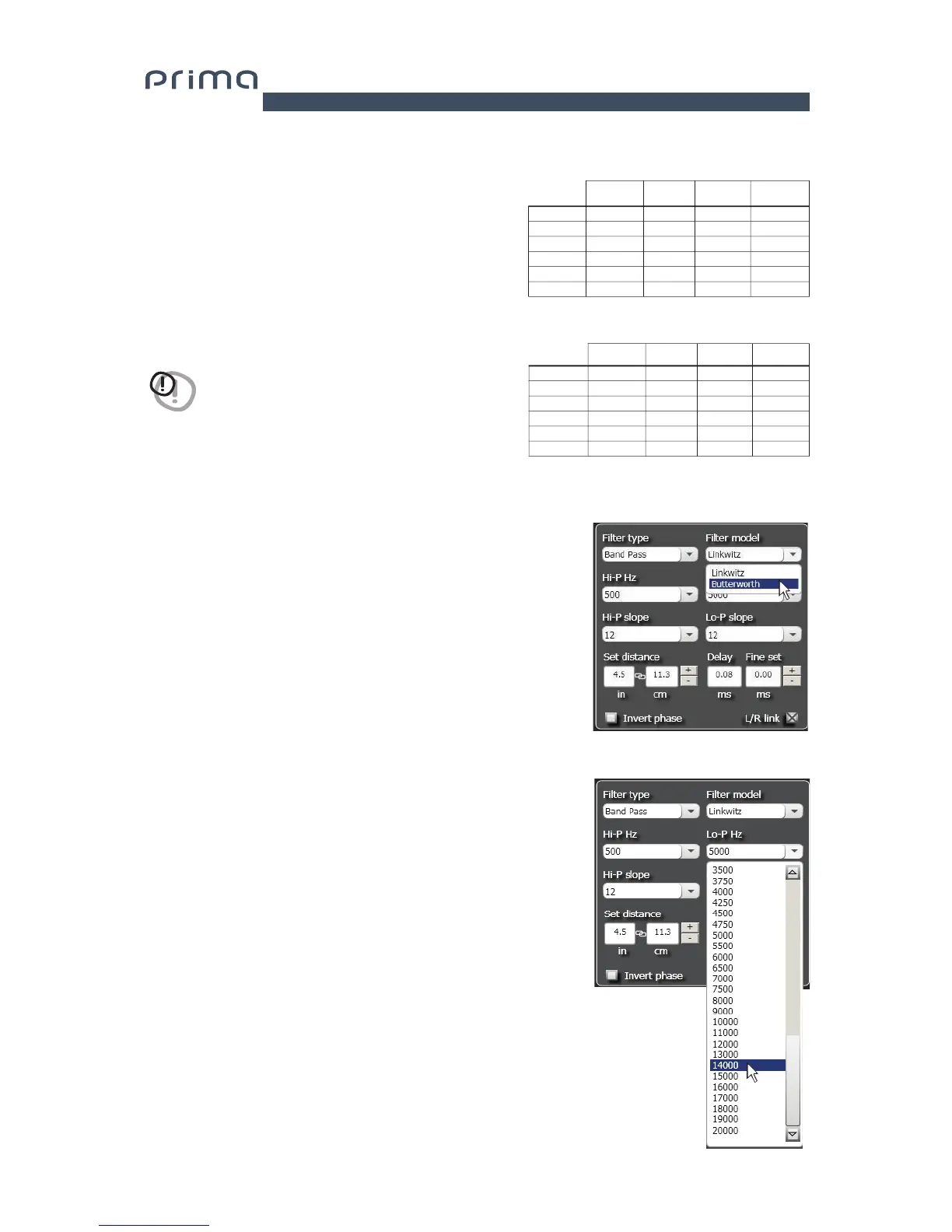
4. Filter Model: lets you select the type of filter to be applied.
- Linkwitz (default)
- Butterworth
When launching AP8.9 bit software, Linkwitz is proposed as the filter
model for the speaker or speaker group connected to the related
channel. To apply the opposite (Left/Right), enable the Xover L/R Link.
If you change the model to Butterworth, the change will be applied.
5. Cut-off frequencies
- Hi-P Hz 10 ÷ 20000: High-Pass filter
- Lo-P Hz 10 ÷ 20000: Low-Pass filter
If you select the Band-Pass filter, both the
Hi-P Hz and the Lo-P Hz boxes will be enabled to be able to set the
band frequency.
You can select the cut-off frequency by:
- clicking on the related drop-down menu, selecting the frequency
range that includes the value to be set and then clicking on the
actual value.
- clicking on the related drop-down menu, selecting the pre-chosen
frequency range and then moving from value to value using the
arrow keys (up / down) on the PC keyboard.
- clicking twice on the related drop-down menu and then moving
from value to value by scrolling with the mouse.
7


 To Next Page