46
Error Messages
The error windows in this section may appear while using MultEQ Pro. Please contact Audyssey
Technical Support if you request additional troubleshooting assistance.
Device Not Connected Error
This error message appears when MultEQ Pro does not detect a connection between the product and
your laptop. Make sure the USB cable is securely connected.
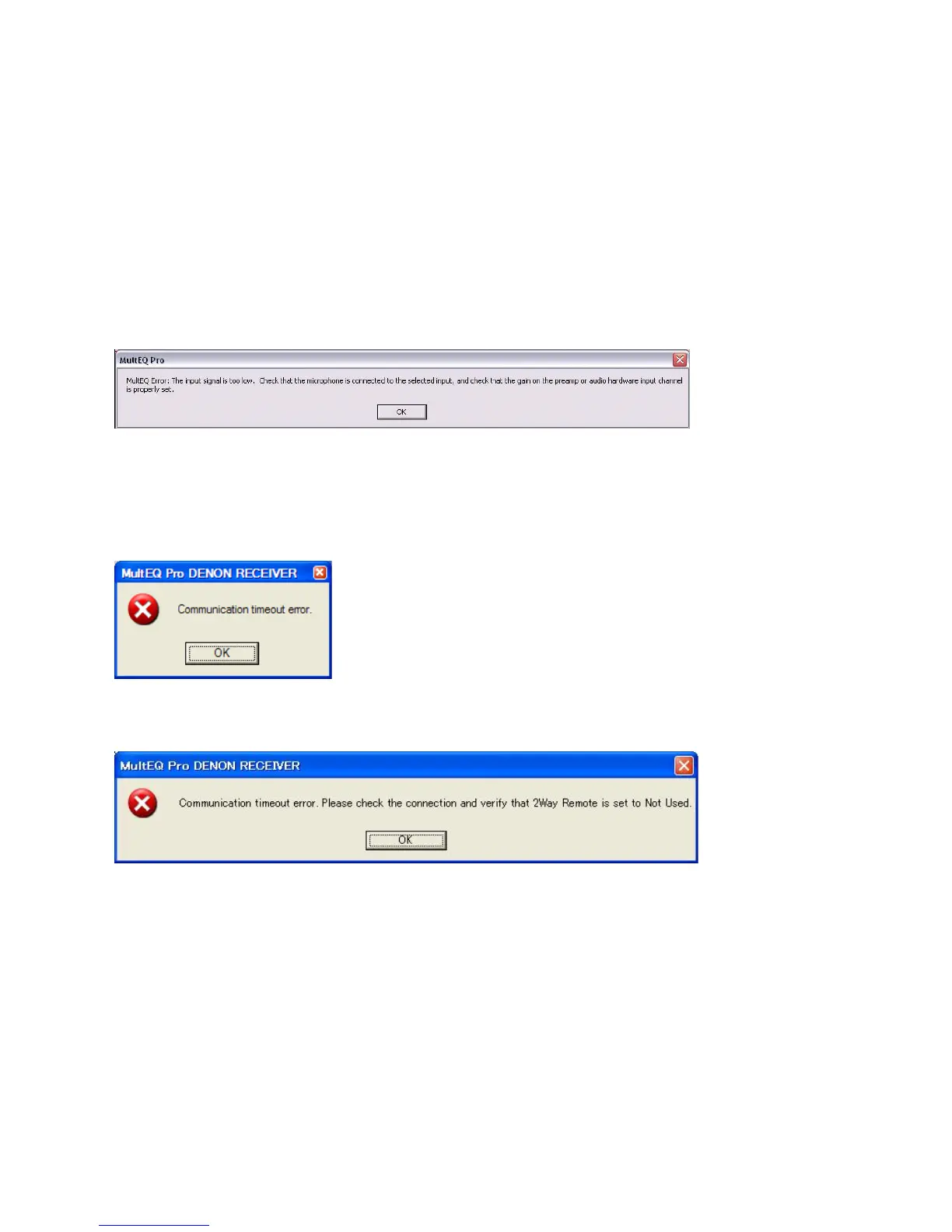
Input Signal Too Low
This window appears when MultEQ Pro does not detect a strong enough input signal to record a
measurement. Check that the microphone is connected to the selected input. The preamp gain of the
most recent installer kits are fixed and never require adjustment.
USB Connection Failure (Connection Time Out)
This message appears when MultEQ Pro does not detect a connection to the product. Check the USB to
RS232 connection and try again.
Note: 2 Way Remote setting can cause USB Connection Timeout
When MultEQ Pro is connected using the RS232 to USB cable, 2 Way remote should be set to “Not Used”
in the Denon receiver front panel menu. If it is set to “Used,” a connection time out error will result and
calibration will not begin.
To check this setting on the Denon receiver, follow these instructions:
Open the front flip cover and press the “MENU” button (to the lower left of the circular pad). Use the
controls to scroll the menu up or down to highlight, “Manual Setup.” Press the Right directional or Enter
button.
Scroll up or down to highlight, “Option” and click the Right directional button to select it. Press the up or
down buttons to highlight, “2Way Remote” and click the Right directional or Enter button to select it.


 To Next Page