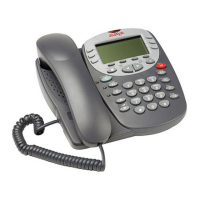
Page 6 - Call Appearance Keys The 5402 Telephone
Call Appearance Keys
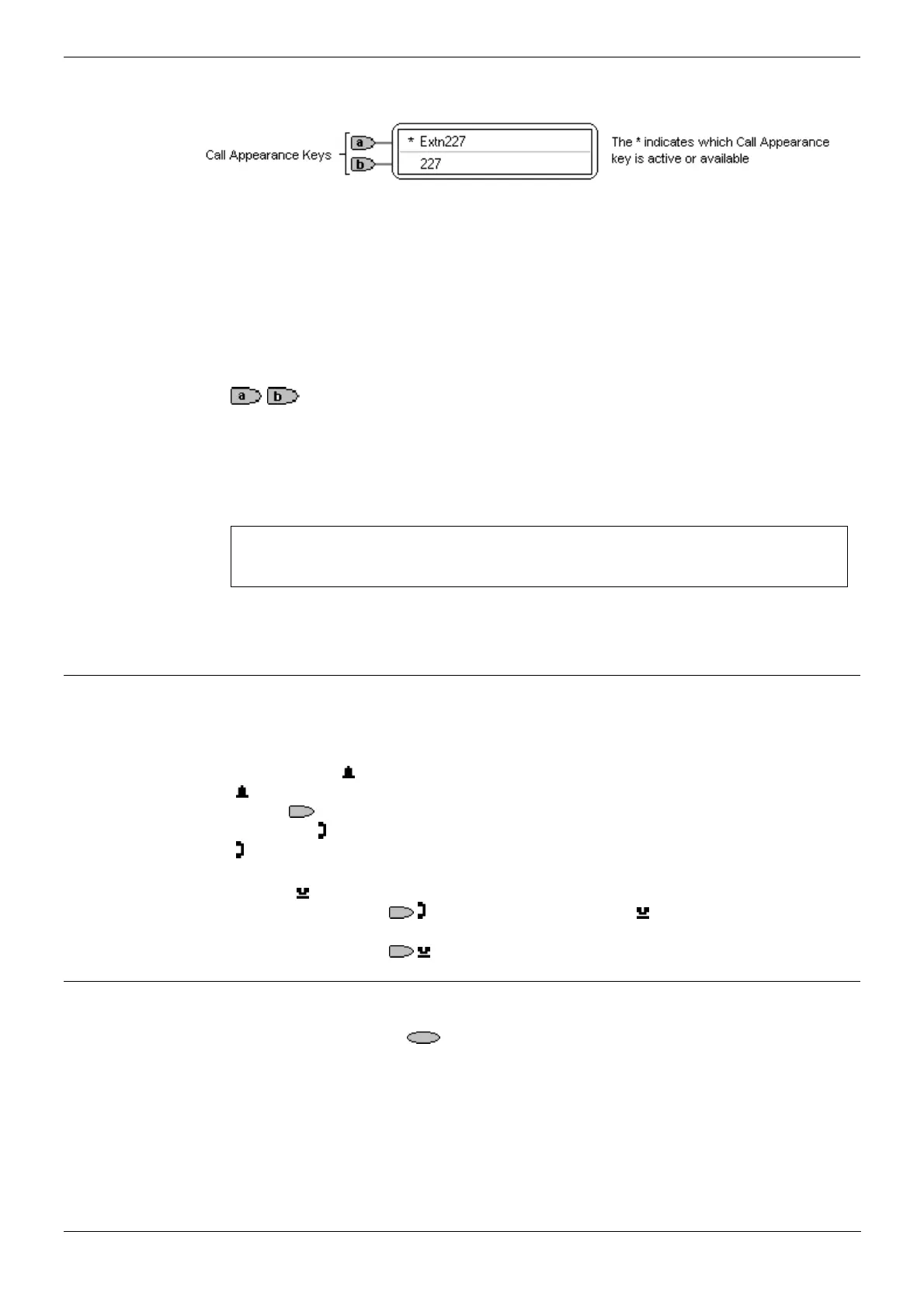
The main call handling screen contains two buttons set as 'Call Appearance' keys.
For details of Bridged, Line and Call Coverage Appearance Keys set-up and their
operation, refer the IP Office Key and Lamp Operation manual.
CAUTIONS:
1. Having two Call Appearance keys is very useful. When holding a call you can
answer/make another call and then switch between calls or transfer or conference.
If you are set to receive call waiting indication, the waiting call is shown against the
next call appearance key.
2. Although your System Administrator can replace the Call Appearance Keys
/ with:
• A Bridged Appearance
• A Line Appearance
• Call Coverage Appearance
• System Features
This would severely restrict the use of features such as conference and transfer.
It is for these reasons that it is strongly recommended that
all Call Appearance keys remain at their default settings.
3. Early models of the 5402 telephone will not, on IP Office R3.0 with Call
Appearance keys, respond with the full and correct displays in all cases. Consult
your System Administrator for details.
Call Appearance Key Icons
The icons displayed against the Call Appearance Keys allow you to determine the
status (for example, on Hold) of each call. Icons also indicate whether a feature has
been activated for a particular button.
• Incoming Call:
A
symbol next to a call appearance key indicates an incoming call. Pressing the
adjacent
key answers the call and puts any other current call on hold.
• Connected:
A
symbol next to a call appearance key indicates that it is the currently connected
call. The caller's telephone number (if available) is also shown.
• On Hold:
Pressing the adjacent
key puts the call on hold, a symbol next to a call
appearance key indicate a call on hold and an H is also shown on the display.
Pressing the adjacent
key takes the call off hold.
System Features
System Features can be set against dial pad digits by your System Administrator and
are accessed by use of the
Feature key.
For Key and Lamp mode of operation these System Features must not be set against
the Call Appearance keys. See the CAUTIONS in Call Appearance Keys on page 6.
Refer to Feature Key on page 10 for details of the System Feature that can only be
allocated to you by your System Administrator and to System Features on page 31 for
details of System Features that you can always access yourself by dialing short
codes, e.g. *17 to listen to your VoiceMail messages.
Page 6 - The 5402 Telephone IP Office (R3.0) 5402 User’s Guide
Call Appearance Keys 40DHB0002UKFC – Issue 1 (5th February 2005)



 To Next Page