23
How does SmartFrame Work
Manual frame: Press and hold down the button and will pop up on the top left
corner of the Image screen. This indicates for all participating users to sit facing towards the
camera to allow it to detect all faces present. After 3 to 5 seconds, the camera will calibrate and
automatically zoom to include all users to fit in the screen.
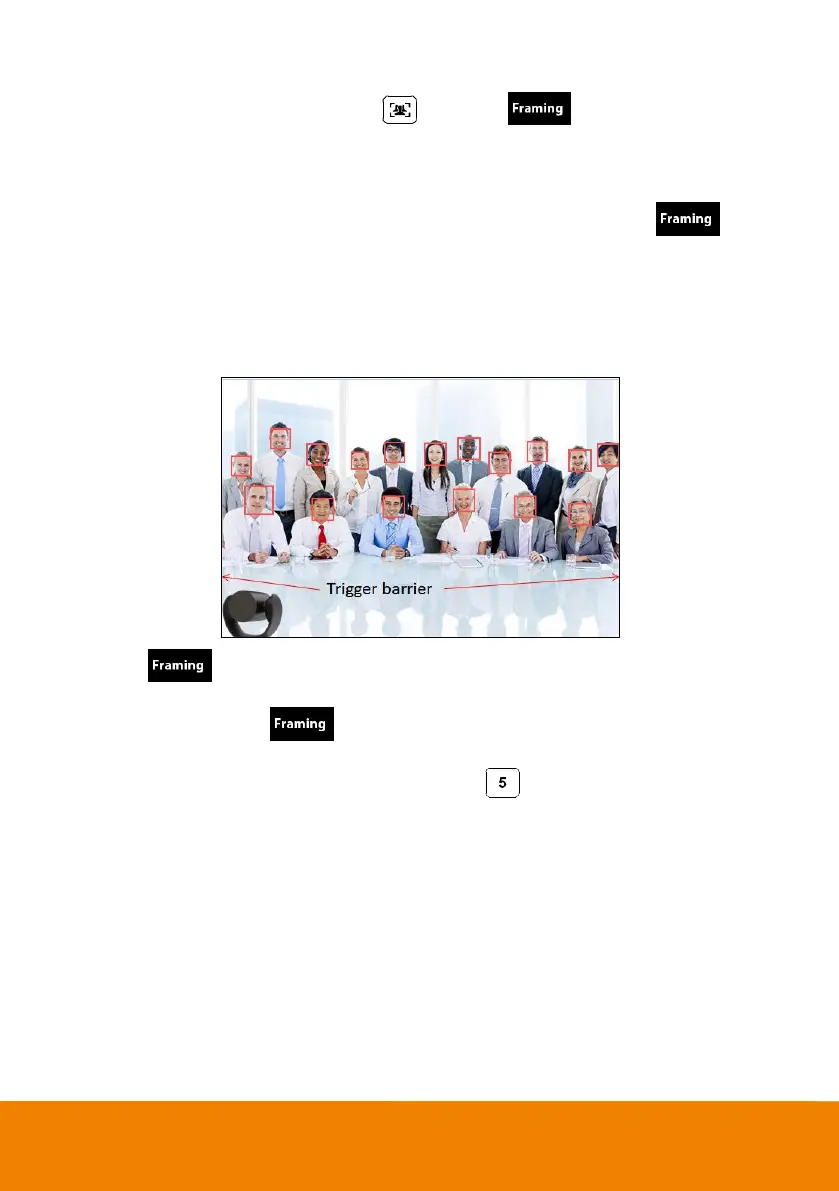
Auto frame: When switching to auto framing mode for the first time, you will see pop-up
on the top left corner of the Image screen. The camera will begin detecting participants and include
everyone in the screen. Once all the participants are in frame, the camera will keep the image
stable by not completing any action until subjects move in or out of the screen. When people touch
the sides of the screen, it will trigger the camera and automatically switch to wide view mode to
detect and frame all the participants again.
You will see message each time the framing function is triggered.
[Note]
a. If you wish to remove the message, please go to the PTZApp and change the “On
Screen Menu” setting to OFF.
b. To switch SmartFrame function, press and hold number button on the remote to switch
on/off. You can also adjust the Tracking mode setting to turn SmartFrame on/off on the PTZApp.



 To Next Page