59
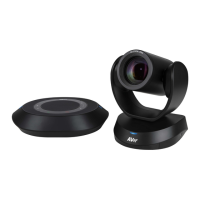
FW Update: Allows the user to update the VC520 Pro camera’s firmware.
1. Click” FW Update”.
2. A dialog will display the current firmware version and available new firmware version (internet
connection is required).
3. To auto update, click “Auto Update” and update process will start. The new firmware will be
downloaded first; then, the new firmware will be uploaded to the camera.
[Note] Please make sure camera, power, and laptop/PC are all well connected and stay
connected during the entire process.
4. To update the firmware manually, click “Manual Update” and locate the new firmware to start
the process.
Troubleshooting: Collect more system information for troubleshooting before you contact AVer
technical support.



 To Next Page