22
A320 PersonAl Mixer User GUide
Channel Mute
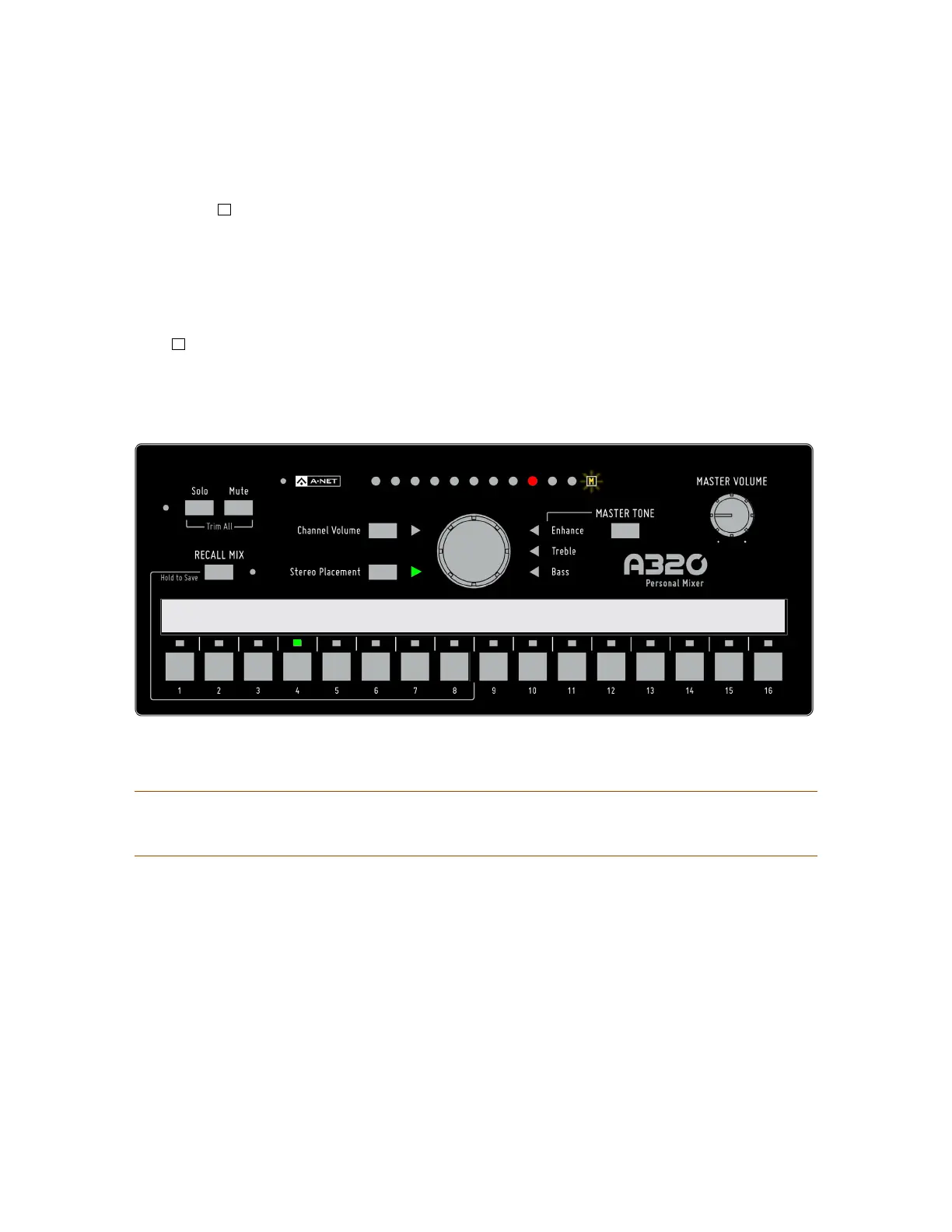
Any mix channel on the A320 can be muted. To mute the selected channel, press the Mute button. The
yellow Mute
M
icon blinks to indicate that the channel is muted in the current mix as long as the channel
is selected (or whenever the channel is re-selected). The Mute setting for each channel will be saved when
you store a mix preset.
Any number of mix channels may be muted while making a mix. To mute additional channels in the current
mix, simply select a channel’s mix button and then press the Mute button.
To unmute a channel, select the channel first (its green LED above the channel button will light and the
Mute
M
icon will be flashing) and then press the Mute button. The channel can be heard again in the mix.
While muted, a channel’s Volume and Stereo Placement settings can still be edited, but these changes will
not be heard until the channel is unmuted.
M
Bass Voc 1 Voc 2 Gtr Drum Mix Gtr2 Keys Organ Piano Loops Perc Click
Stereo Stereo Stereo Stereo
Channel 4 is muted; the Mute LED is ashing as long as Channel 4 is selected.
P
tip: To clear a mix, press the reCAll MIx button and then press the Mute button. Refer to “Clear
a Mix” on page 33 for more information.


 To Next Page