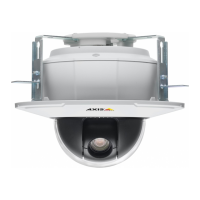
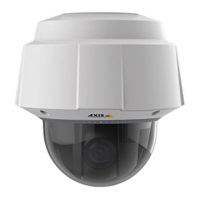
AXIS P5512 PTZ Dome Network Camera
Video and Audio
White balance
White balance is used to make colors in the image appear the same regar dless of the color temperature of the light source. The Axis
product can b e set to automatically identify the light source and compensate for its color. Alternatively, select the type of light
source from the drop-down list. For a description of each available setting, see the online help
.
Exposure Settings
Configure the exposure settings to suit the image quality requirements in relation to lighting, frame rate and bandwidth
considerations.
Exposure control - These settings is used to adapt to the amount of light used. Automatic is the default settings can be used in most
situations. T he shutter speed is automatically set to produce optimum image quality.
Maxexposuretime-Select the maximum exposure time from the drop-down list. Increasing the exposure time will improve
image quality, but decrease the frame rate. There may also be an i n crease in motion blur. Checking Allow slow shutter decreases
the shutter speed in low light to improve image brightness.
Enable Backlight compensation - Enable this option if a bright spot of light, for example a light bulb, causes other areas in
the image to appear too dark.
Max gain - Measured in decibels (dB), gain describes the amount of amplification applied to a signal, in this case the visual
information in the image. A high le vel of amplification may provide a better image in ve ry low light situations. A high gain will also
increasetheamountofimagenoise.
IR cut filter
The IR cut filter prevents infrared ( IR) light from reaching the image sensor. In poor lighting conditions, for example at night, o r
when using an IR lamp, set the IR cut filte r to Off. This increases light sensitivity and allows the product to “see” infrared light. The
image is shown in black and white when the IR cut filter is off.
If using a utomatic Exposure control,settheIRcutfilter to Auto to automatically switch between On and Off accordingtothe
lighting conditions.
Image settings
Autofocus enabled - Automatic focusing is enabled by default. If the focus position is changed manually using the focus bar,
autofocus will be disabled even if enabled here. In this case, use the PTZ control panel to enable autofocus, see PTZ Controls, on page
9 . If required, the focus control can be disabled under PTZ > Advanced > Controls.
ImagefreezeonPTZ-Select All movem ents to freeze the image while the camera is moving during a pan, tilt or zoom operation.
Once the camera reaches its new position, the view from that position is shown. Presets freezes the image only when the camera
moves between preset positions.
Overlay
Overlays can be used to pr
ovide extra information and are superimposed over the video image. With overlay text it is possible to
include date and time or view the current b it rate as overlay text.
To include the current bit rate as overlay text go to Video & Audio > Video Stream > Overlay Settings,selecttheInclude text check
box option, and enter the code #b in the field. See the online help
for supported formats.
Overlay image
An overlay image can be used to provide extra information, or to mask a part of the video image.
To use your own image, such as a logo, fi rst upload the image to the Axis product. Go to Video & Audio > Overlay Image,browsefor
anduploadtheimagefile on the computer. The filecanthenbeselectedfromtheUse overlay image drop-down list.
17



 To Next Page