AXIS P5512 PTZ Dome Network Camera
Events
To configure the Gatekeeper, follow the online instructions under Events > Gatekeeper.
Motion detection
Motiondetectionisusedtogenerateanalarmwhenevermovementoccurs(orstops)intheview. Upto10IncludeandExclude
windows can be configured:
• Include windows — target specific areas within the whole video image
• Exclude windows —define areas within an Include window that should be ignored (areas outside Include windows
are automatically ignored)
Once configured, motion detection windows appear in the list of available triggers fo r triggered events. See Set up a triggered
event, on page 28.
Note
Using the motion detection feature may decrease the product’s overall performance.
Set up motion detection
To set up a motion detection Include Window, follow these instructions:
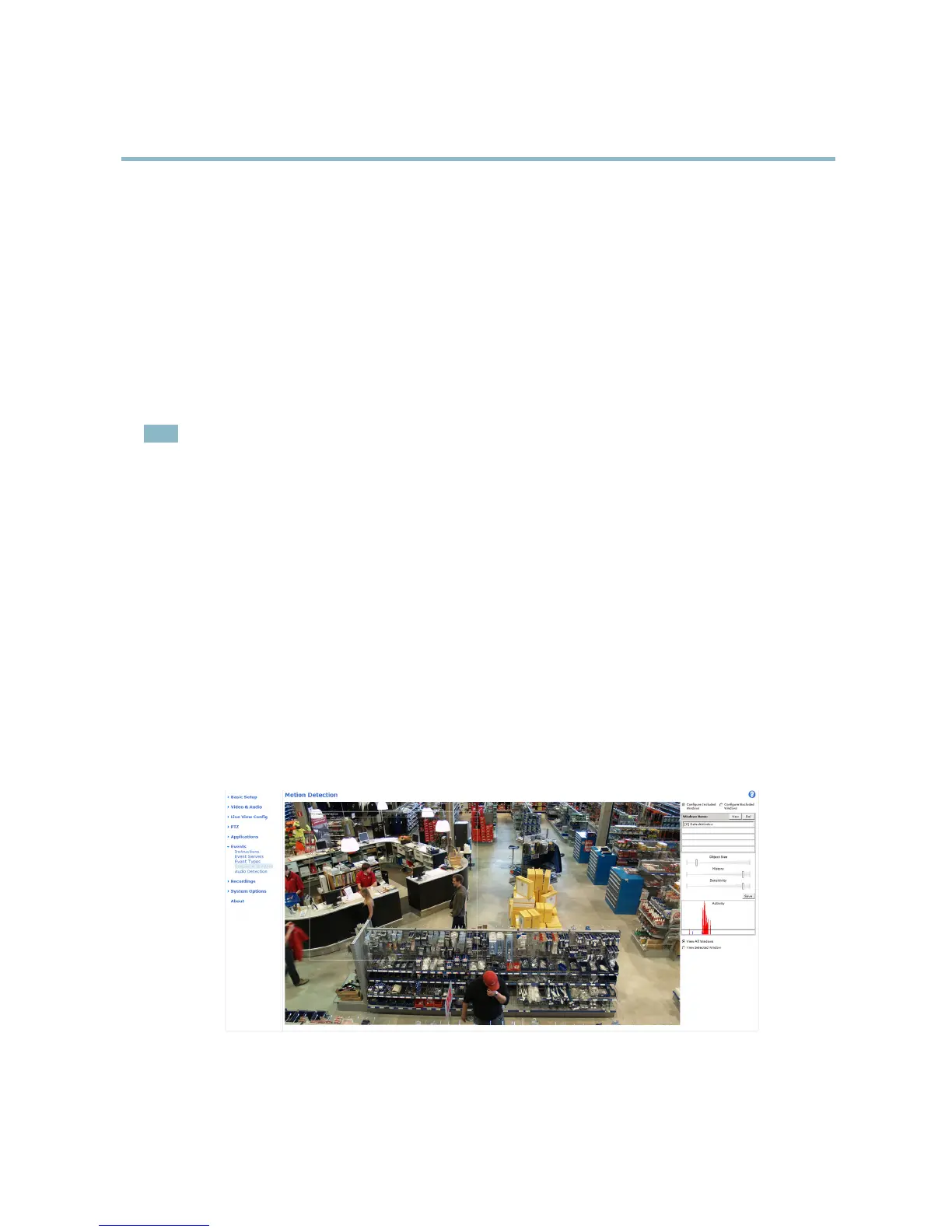
1. Go to Events > M otion Detection.
2. Select the Configure Included W indows option and click New. Select the new window in the list of windows and enter
adescriptivename.
3. Adjust the size (drag the bottom right-hand corner) and the positio n (click on the text at the top and drag to the desired
position) of the active window (window with red frame).
4. Adjust the Object Size, History and Sensitivity profi le sliders (see Motion detection parameters for details). Any detected
motion within an active window is indicated by red peaks in the Activity window.
5. Click Save.
To exclude parts of the include window, select the Configure Excluded Windows and position the exclude window within the
include windo w.
To delete an include or exclude window, select the window in the list of windows and click Del.
Motion detection parameters
The parameters controlling motion detection are described in the table below:
30



 To Next Page