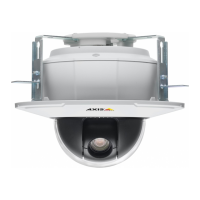
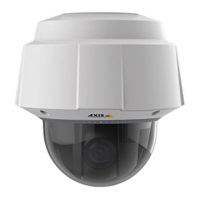
AXIS P5512 PTZ Dome Network Camera
Applications
Applications
Third party applications can be uploaded to and installed on the Axis pro duct. For more inf ormation, go to www.axis.com/applications
To up load an application, go to Applications > Packages, click Browse to locate the file and then click Upload Package. Click on the
uploaded application’s name to open the menu options Settings, License and About.Forconfigurati on instructions, please refer to
the documentation provided with the a pplication.
Most applications need a license to run. To install the license, select the License menu option. If the product is connected
to the Internet, Automatic Installation appears in the web page. If the product is not connected to the Internet, go to
www.axis.com/applications to acquire a License key. You will need a license cod e and the product’s serial number (found on the label
and under System Options > Support > System Overview) to receive a license key.
Installed Applications lists installed applications with information about the version a nd the vendor, the status of the application
(running or not running), and information about the license.
Use the Start and Stop buttons to start and stop the application.
To generate a log file for the application, select the application and click Log.
Note
It is recommended to run one application at a time. Avoid running applications when motion detection is active.
26



 To Next Page