AXIS P5512 PTZ Dome Network Camera
PTZ (Pan Tilt Zoom)
PTZ (Pan Tilt Zoom)
Preset positions
A preset position is a predefined view that can be used to quickly steer the camera to a specific location. Preset positions can
be accessed in several ways:
• By selecting the preset from the Preset positions drop-down list in the Live View Page.
• When setting up Events. See pag e 27.
• When setting up Guard Tour. See page 23.
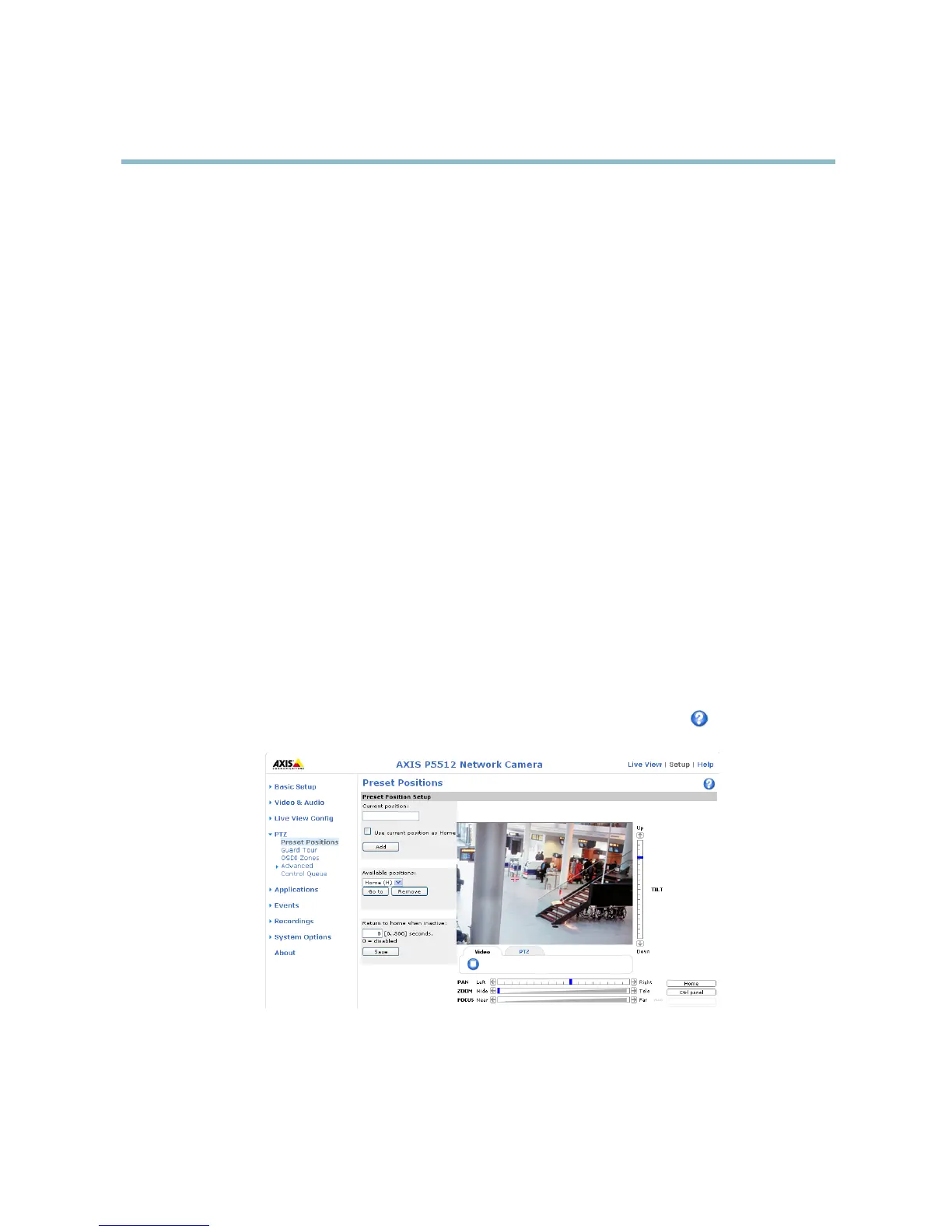
To add a preset position:
1. Go to PTZ > Preset Positions.
2. Use the pan, tilt and zoom controls to steer the camera view to the desired position.
3. Enter a descriptive name in the Current position field.
4. If required, select Use current position as Home.
5. Click Add. The camera’s position and focus settings are saved as a preset position.
The Hom e position is readily accessible by clicking the Home button on the Live View page and in the Preset Positions se
tup window.
To set a customized home position, select Use current position as Home when adding a preset position. The u
ser-defined home
position will have (H) a dde d, for example, Entrance (H). The default Home position, called “Home”, will still be available.
The product can be configured to return to the Home position when the PTZ functionality has been inactive for a specified length
of time. Enter the length of time in the Return to home when inactive field and click Save.Setthetimetozerotopreventthe
product from automatically returning to the Home posi
tion.
To include the preset position name in the over
lay text, go to Video & Audio,selectInclude overlay text and enter the modifier #P in
the field. For more information about modifiers, see File Naming & Date/Time Formats intheonlinehelp
.
Guard Tour
A guard tour displays the video stream from different preset positions, one-by-one, in a predetermined order or at random and for
configurable time periods. The enabled guard tour will keep running after the user has logged off or closed the browser.
23



 To Next Page