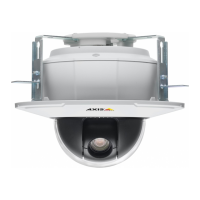
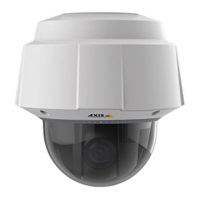
AXIS P5512 PTZ Dome Network Camera
Video and Audio
• Red — The signal is distorted
Encoding - Select digital audio encoding format.
• G711 is an unlicensed standard codec that is useful when integrating audio into a VoIP system.
• G726 is an unlicensed speech codec that is most commonly used within the security industry.
• ACC requires a license f or both encoding and decoding. AAC is the least comp licate d and most widely used codec. If
achieving the best possible aud io quality is a priority, AAC is the recommended codec to use. An AAC license is included
in the Axis product.
Sample rate - The number of times per second the sound is sampled. A higher sample rate will provide better audio quality, but
also requires a greater bandwidth.
Bit rate - Set the required bit rate depending on the selected encoding. A higher bit rate will give better audio quality. A lo wer bit
rate may have latency or delay, but will require less b andwidth.
For more information about these settings, please see the online help
.
Audio Output
An external speaker can be connected to the product’s Audio-out connector. Configure the audio output settings under Video
&Audio> Audio Settings.
Note
A multi-co nnector cable (available from Axis; Multi-Connector Cable (so ld separately) ) is req uired when connecting external
audio equipment to the Axis product.
Output gain - Control the volume (dB Full Scale) of the line audio output. The output can be u
sed with high impedance headphones or
connected to another amplifier with speakers. If the sound is too low, choose a higher dB. If the sound is too high, choose a lower dB.
Audio Clips
An audio clip is a sound file that can be played either when an event occurs or manually from the Live View page. Audio clips can
be uploaded to the product or recorded by a microphone connected to the product.
You can add, play, download, modify and remove audio clips from Video & Audio > Audio Clips. For more information see the
online h elp
.
Note
Audio clips cannot be used if the product’s audio functionality is enabled. The audio functionality is enabled on the Audio
tab under Video & Audio > Video Stream.
19



 To Next Page