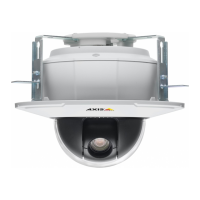
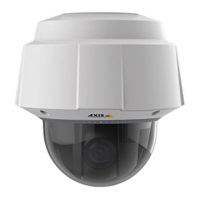
AXIS P5512 PTZ Dome Network Camera
Events
Set up a scheduled event
A scheduled event can be activated at preset times, in a repeating pattern on selected weekdays.
The f ollowing example describes how to confi gure the Axis product to upload images from pre-programmed time periods.
1. Go to Events > Event Types and click Add scheduled.
2. Enter a descriptive name for the event, for example Scheduled email upload.
3. Set the Priority — high, normal or low.
4. Set the Activation Time parameters (24h clock) for the event. For example, select Recurrence pattern and let the event
start on Sundays at 13.00 with a duration of 12 hours.
5. Set the When Activated parameters, that is, define what the product should do when the event is activated. To upload
images, select Save stream and enter the required information. See Save stream.
6. Click OK to save the event.
Save stream
To upload images to an FTP or H TTP server, save the video stream to the SD card or send images by email, check the Save stream box.
Pre-trigger and post-trigger buffers are useful when checking to see what happened immediately before and after a trigger. All
uploaded images are JPEG images.
Image frequency - Set the image frequency to a desired frame rate. The frame rate will be the best possible, but might not be as
high as specified, especially if uploading via a slow connection.
Include pre-trigger buffer - Images stored internally in the product from the time immediat ely pre ceding the trigger. Check the box
to enable the pre-trigger buffer and specify the buffer length in seconds, minutes or hours.
Include post-trigger buffer - Images stored internally in the product from the time immediately after the trigg er. Check the box to
enable the post-trigger buffer and specify the buffer length in sec
onds, minutes or hours.
Note
• Pre-trigger and post-trigger buffers will be lost if the c
onnection to the event server fails.
• The maximum length of the pre-/post-trigger buffer depends on the video image size and selected frame rate.
• I f the pre- or post-buffer is too large for the product’s internal memory, the frame rate is reduced and individual images
may be missing. If this occurs, an entry is created in the product’s log file.
Continue image upload (unbuffered) - Upload video images for a fixed length of time or fo r as long as the trigger is active.
Select type - Upload images to an FTP or HTTP server, send images by email or save the video stream to the SD card.
Create folder - Images uploaded to FTP and HTTP servers can be saved to designated folders. Folders can, for example, be named
using the current date and time, see File Naming & Date/Time Formats intheonlinehelp.
Base file name - Used to name all uploaded images. Add a suffixoruseyourownfile format to give the images unique names, s ee
File Naming & Date/Time Formats in the online help.
Use stream profile - Select the stream profile to upload, send as email or save to the SD card. When saving to the SD card, the video
format must first be selected. For information on stream profiles, see Stream Profiles, on page 16.
Gatekeeper
The Gatekeeper monitors a n area such as an e ntrance gate. It can pan, tilt and zoom in, and take a snapshot of, for example, a
face, triggered by movement in the area. The camera will then automatically return to the home position and continue to overview
the monitored area.
29



 To Next Page