User’s Guide 4-7
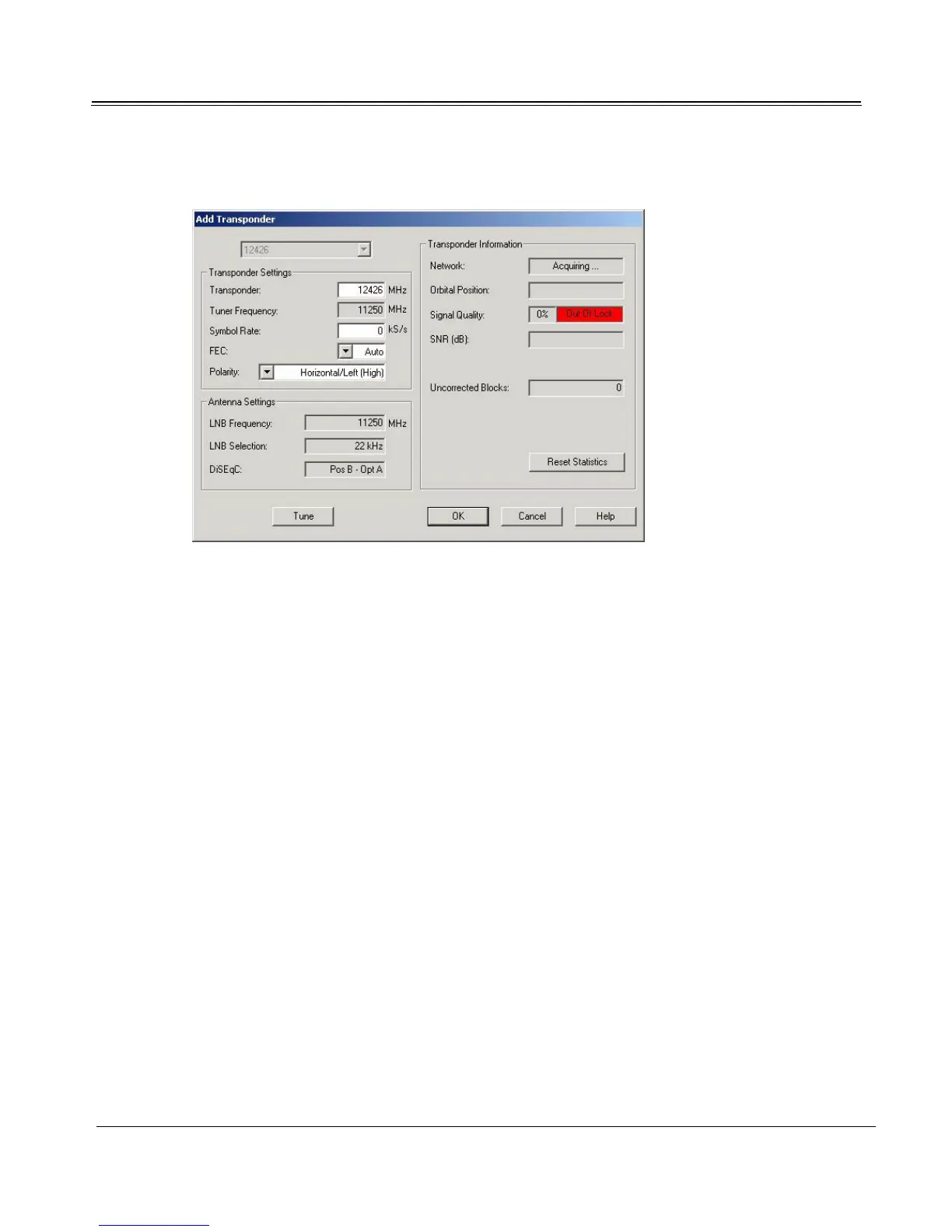
3. At the Transponder Management dialog, click Add.
4. Enter the desired channel’s transponder frequency at Transponder. Enter the transponder’s Sym-
bol Rate and Polarity. Select Auto from the FEC drop-down list.
5. Click Tune and monitor the Signal Quality indicator for green coloration and signal percentage.
6. When the signal indicator bar is green, or when you obtain maximum Signal Quality percentage,
click OK to return to the Transponder Management dialog. The new channel appears in the Tran-
sponder list.
7. Click Close to exit the Transponder Management dialog.
Editing a Channel
To edit a channel in the Transponder list, select it and click Edit. The Edit Transponder dialog is identi-
cal to the Add Transponder dialog. Follow the instructions for adding an individual channel.
Deleting a Channel
To delete a channel, select it in the Transponder list and click the Delete button. The channel will disap-
pear from the list. You are ready to delete the next channel, or click the Close button and return to the
Satellite Settings tab.
Search and Scan Feature
Search and Scan automatically updates all of the programs on TV4PC's program listings and updates
the entire Transponder list, beginning at Start Frequency (the frequency of the first channel) and ending
at End Frequency (the frequency of the last channel).



 To Next Page