LED-PRO • User’s Guide 107
4. Operation
Using the Input Position Menu
s=mçëáíáçå
On the Input Position Menu, select V Position to adjust (in lines) the start of the input
video's active area from V sync.
s=páòÉ
On the Input Position Menu, select V Size to adjust (in lines) the size of the active area.
p~îÉ=`çåÑáÖ
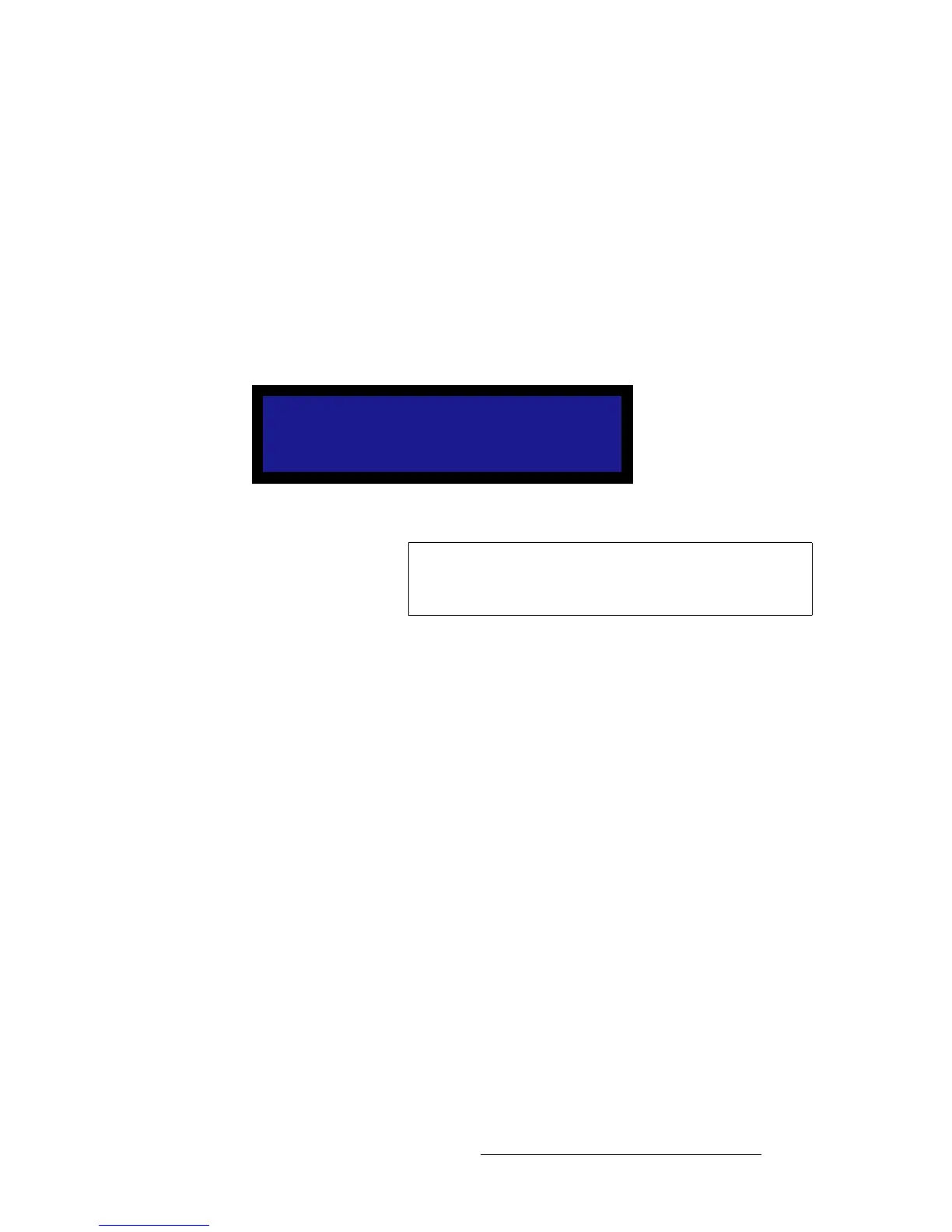
From the Input Position Menu, select Save Config to display the Save Config As Menu,
which allows you to save and name up to 64 input configurations.
Figure 4-89. Save Config As Menu (sample)
Please note the following important points regarding input configurations:
• When you save input configuration parameters, they are stored in non-volatile
memory for each input source. If you do not save the parameters, the information
will not be restored upon the next system power up sequence.
• A filename may include up to 19 characters.
To save an input configuration:
1. Scroll to the filename field (e.g., File1) and press SEL. The navigation cursor (>)
changes to the edit cursor (#), allowing you to edit the first character.
2. Choose a character by turning the knob, and “accept” it by pressing SEL. This
action also selects the next character for editing.
3. Repeat step 2 for all desired characters.
4. When data entry is complete, press SEL again. The filename will be truncated up
to the current character position.
SAVE CONFIG AS
> File1
Save Config
Note
This function is the same as the Save Config function located
in the Input Setup Menu (SETUP > Expert Mode > Input).
It is also located here for operator convenience.



 To Next Page