LED-PRO • User’s Guide 83
4. Operation
Using the Expert Mode Menu
içÅâ=íç=pçìêÅÉ
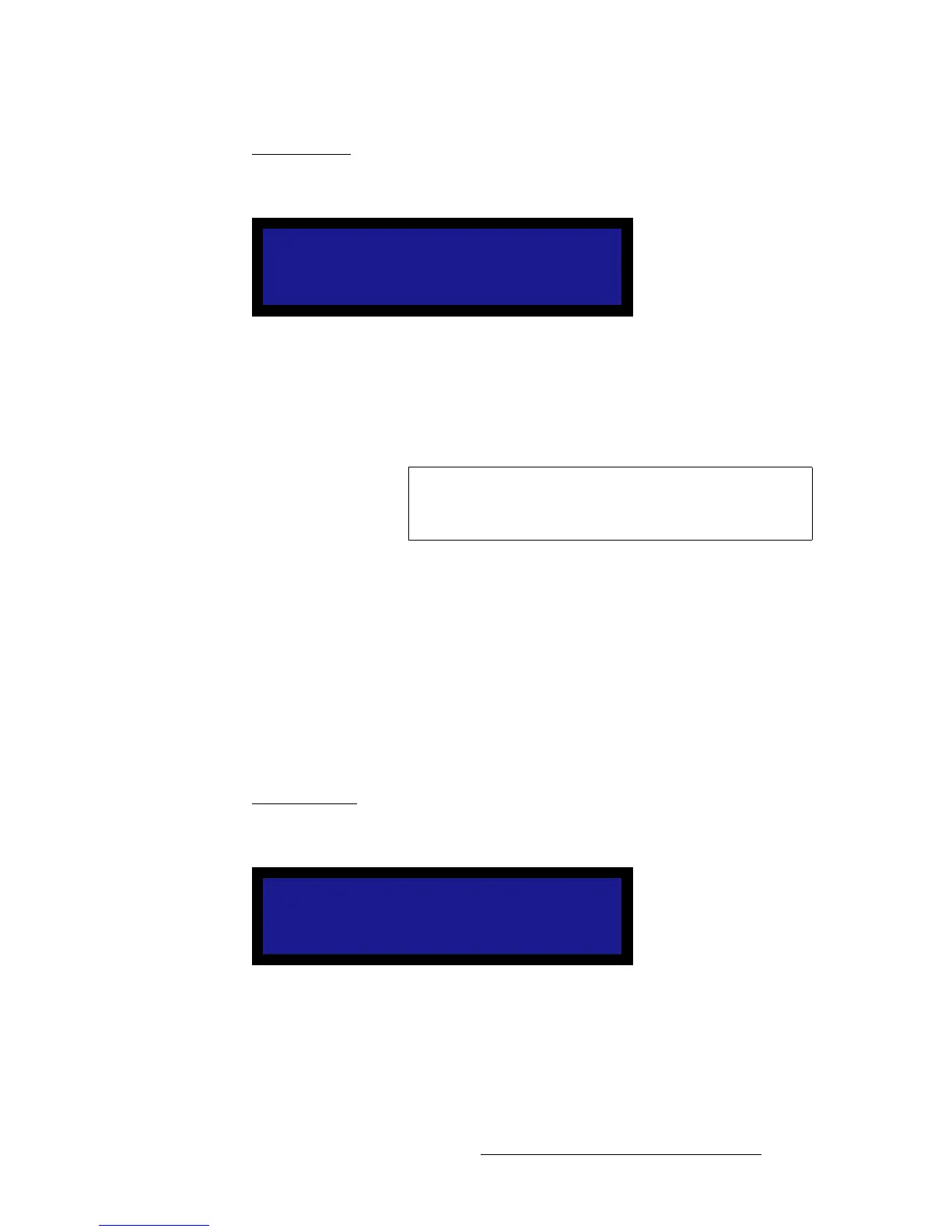
From the LED Output Menu, select Lock to Source to display the Lock To Source Menu,
which enables you to set “lock to source” parameters:
Figure 4-65. Lock to Source Menu
In order to eliminate video processing delay associated with frame rate conversion, it is
recommended that you lock the LED-PRO to the input source frame rate, using this
function. Following are descriptions of each menu function:
• Mode — enables or disables the Lock to Source mode.
• Type — selects the Lock to Source type. The choices depend on the selected
mode. If the mode is disabled, the type is n/a. The available types are:
~ V Lock — vertical lock only. This mode is always available for all input
and output resolutions.
~ HV Lock — both horizontal and vertical lock. This mode is available only
if the input and output V Totals are the same.
• H Phase — allows the output H timing to be adjusted relative to the Lock to
Source mode. Please note:
~ This selection is n/a when the type is set to V lock.
~ The range is +/- one-half the H Total.
jáåáãìã=aÉä~ó
From the LED Output Menu, select Minimum Delay to display the Minimum Delay
Menu, which enables you to minimize delay through the system if desired.
Figure 4-66. Minimum Delay Menu (sample)
Please note the following important points:
• Disable the “minimum delay” mode when LED-PRO is performing scaling and
deinterlacing — in order to convert a video format.
LOCK TO SOURCE
> Mode Disable
Type n/a
H Phase n/a
Important
When Lock to Source is enabled, LED-PRO does not allow
you to switch input channels. You can only switch to/from the
current input channel and the Black/Logo channel.
MINIMUM DELAY
> Mode On
Status: Active



 To Next Page