LED-PRO • User’s Guide 11
2. Hardware Orientation
LED-PRO Front Panel
aáëéä~ó=pÉÅíáçå
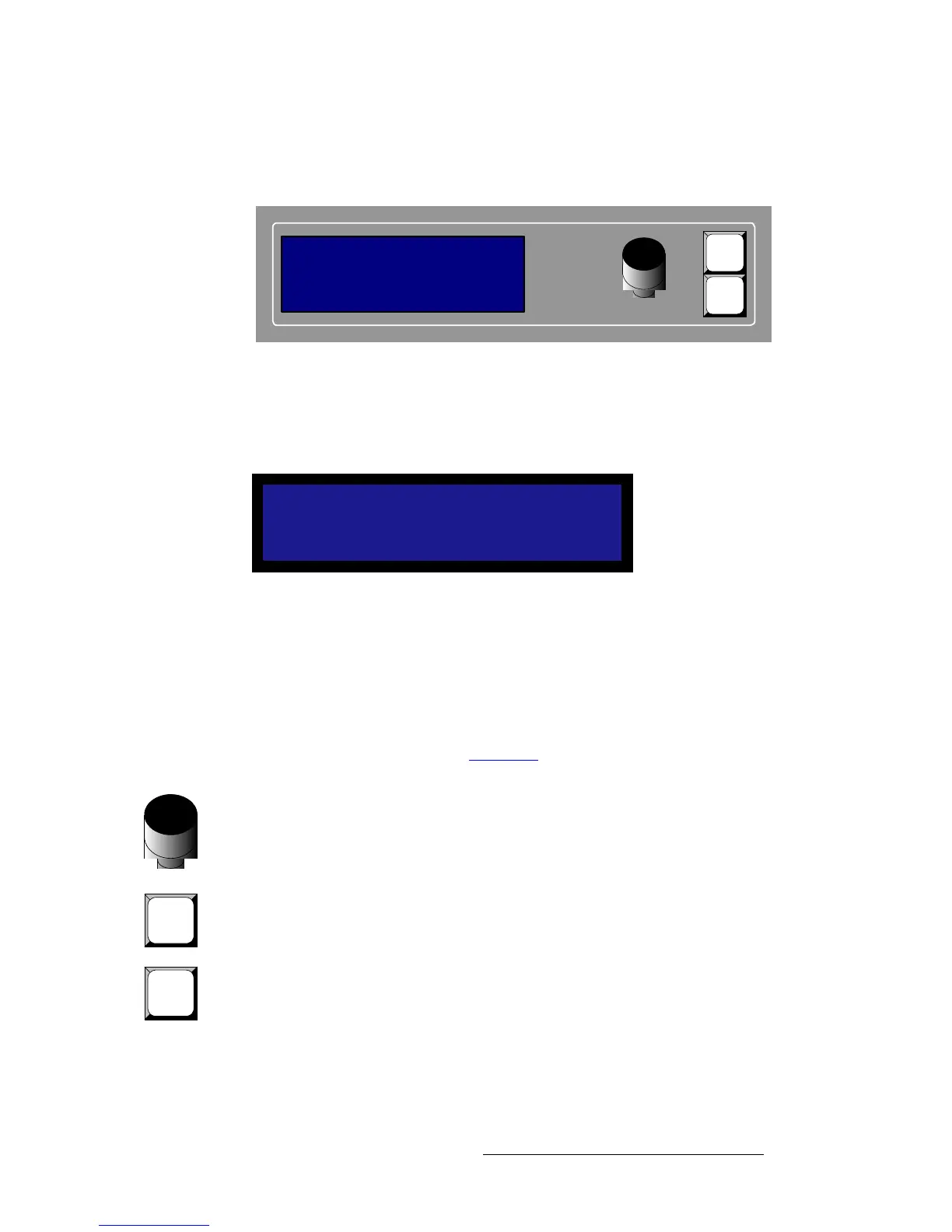
The figure below illustrates the Display Section:
Figure 2-2. Display Section
Descriptions of each button and control are provided below:
• The Menu Display is a 4 line x 20 character Vacuum Fluorescent Display (VFD)
that shows all LED-PRO menus and sub-menus. Brightness is adjustable.
Figure 2-3. Sample Menu Display (Setup Menu)
Please note:
~ The top line names the current menu, in all capital letters.
~ The navigation cursor (>) in the left-hand column indicates the current
line on which action can be taken.
~ The double arrow (>>) indicates that a sub-menu is available.
In Chapter 4, refer to the “Menu Tree” section on page 30 for complete menu
structure details.
• ADJUST — use the Adjust Knob to scroll through all system menus.
~ Turn the knob counter-clockwise (CCW) to scroll down.
~ Turn the knob clockwise (CW) to scroll up.
• SEL — press to enter a sub-menu, to change a parameter, to accept a parameter,
or to answer “Yes” to certain menu queries.
• ESC — press to exit a menu without making changes, to cancel an operation, or
to answer “No” to certain menu queries. Each press takes you back up the menu
tree by one level.
SETUP
> Setup Wizard >>
Input Wizard >>
Source Alignment >>
SEL
ESC
ADJUST
IN:
OUT:
1024x768@59.94
Freerun
Wall: Enabled
SEL
ESC



 To Next Page