LED-PRO • User’s Guide 63
4. Operation
Using the Input Wizard
5. After selecting the desired input, select Next to display the Position & Size
Menu.
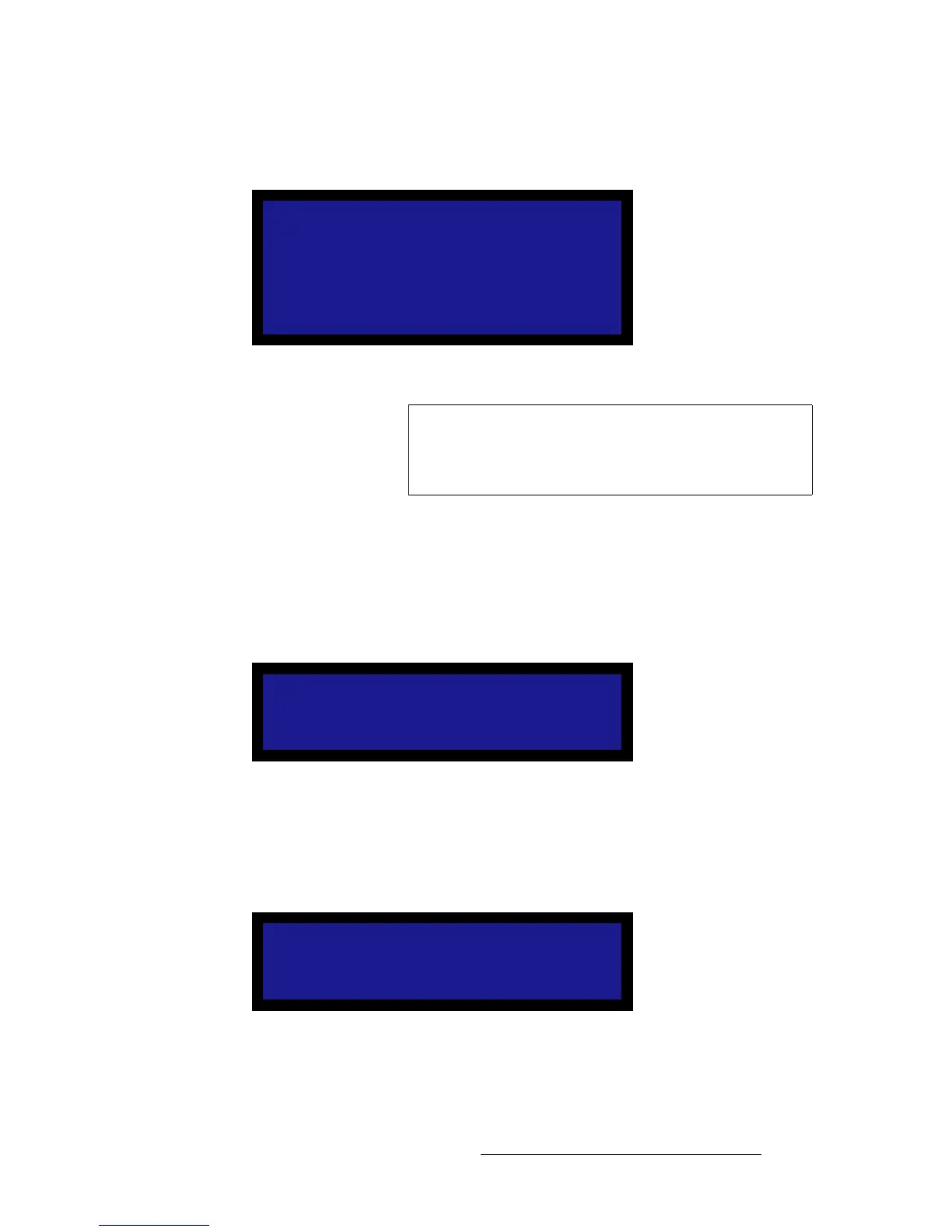
Figure 4-44. Position and Size Menu (sample)
~ Select H Position and adjust the input to fill the raster box precisely.
~ Select H Size and adjust the input to fill the raster box precisely.
~ Select V Position and adjust the input to fill the raster box precisely.
~ Select V Size and adjust the input to fill the raster box precisely.
6. Select Next to display the Wall Contrast Menu, which enables you to set the LED
wall contrast — for all inputs.
Figure 4-45. Wall Contrast Menu (sample)
~ Select the Value line, and adjust for the desired wall contrast — from 0 to
100. Press SEL to enable.
7. Select Next to display the Wall Location Menu, which enables you to set the LED
wall’s gamma — for all inputs.
Figure 4-46. Wall Location Menu (sample)
~ Select the gamma curve line, and choose the desired mode: Inside,
Outside, or Custom.
Position & Size
> H Position 216
H Size 800
V Position 27
V Size 600
Next
Previous
Tip
On the selected input source, use a full screen output signal
such as a test pattern or a “freeze frame.” In this mode, you
want to see all edges of the image clearly, with video other
than black.
Wall Contrast
> 100%
Next
Previous
Wall Location
> Inside
Next
Previous



 To Next Page