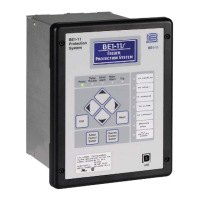
9424200996 47-3
BE1-11m BESTCOMSPlus® Software
Connect a USB Cable
The USB driver was copied to your PC during BESTCOMSPlus installation and is installed automatically
after powering the BE1-11m. USB driver installation progress is shown in the Windows taskbar area.
Windows will notify you when installation is complete.
Connect a USB cable between the PC and your BE1-11m. Apply operating power (per style chart in the
Introduction chapter) to the BE1-11m at rear terminals A6 and A7. Wait until the boot sequence is
complete.
In some instances, the Found New Hardware Wizard will prompt you
for the USB driver. If this happens, direct the wizard to the following
folder:
C:\Program Files\Basler Electric\USB Device Drivers\
If the USB driver does not install properly, refer to the Troubleshooting chapter.
Start BESTCOMSPlus® and Activate BE1-11 Plugin Automatically
To start BESTCOMSPlus, click the Start button, point to Programs, Basler Electric, and then click the
BESTCOMSPlus icon. During initial startup, the BESTCOMSPlus Select Language screen is displayed
(Figure 47-2). You can choose to have this screen displayed each time BESTCOMSPlus is started, or you
can select a preferred language and this screen will be bypassed in the future. Click OK to continue. This
screen can be accessed later by selecting Tools and Select Language from the menu bar.
Figure 47-2. BESTCOMSPlus Select Language Screen
The BESTCOMSPlus splash screen is shown for a brief time. See Figure 47-3.
Figure 47-3. BESTCOMSPlus Splash Screen


 To Next Page