30
Cameras and Control Telemetry
Camera Setup
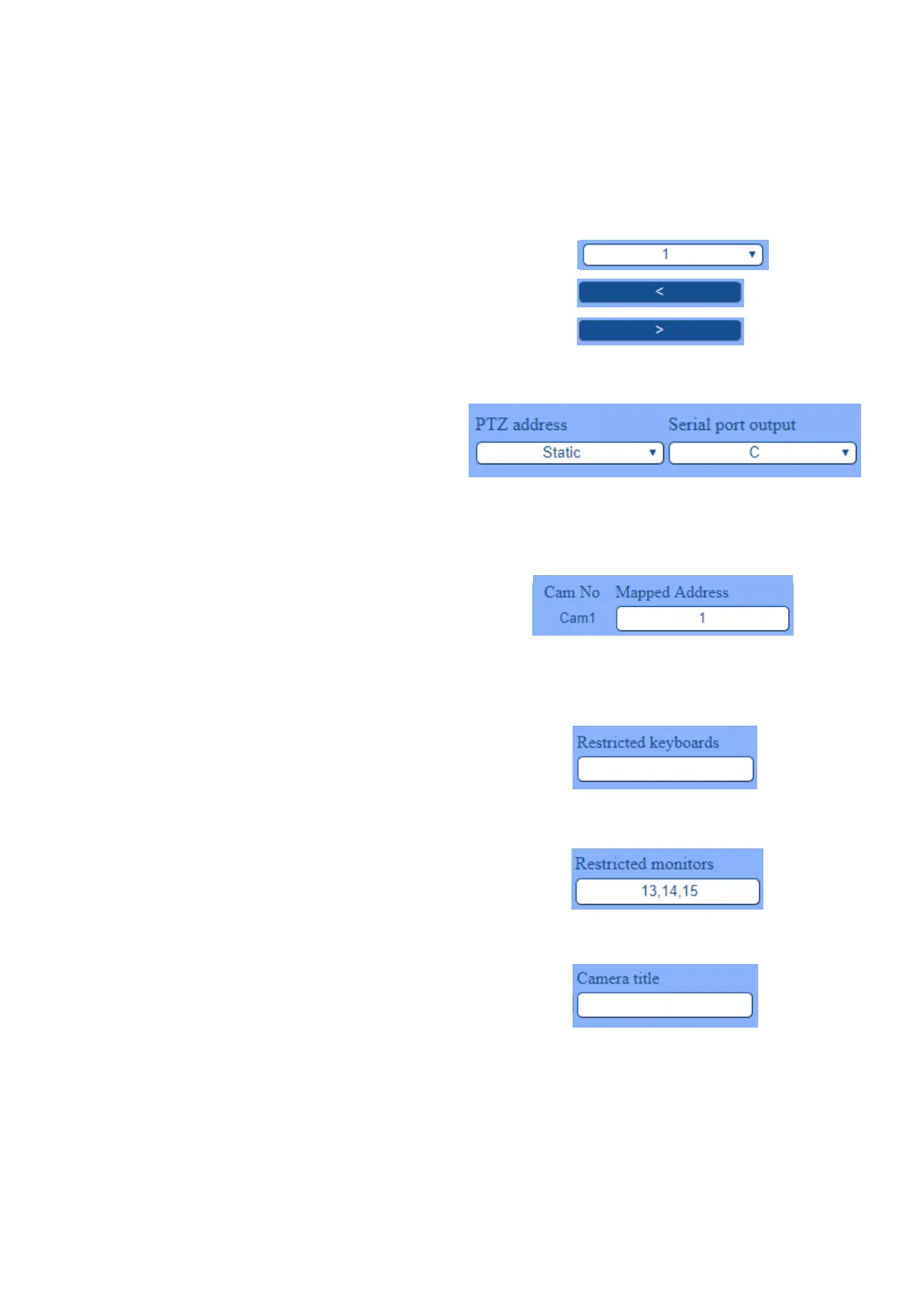
To set up a camera on mobile PTZ, select the camera number by either using:
• The dropdown box to select the exact camera number.
• The ‘<’ button to select the previous 10 cameras.
• The ‘>’ button to select the next 10 cameras.
Select Camera & Output
Next, select the camera address and output port.
On exiting the page a check is made to ensure you don’t
have 2 cameras on the same address / port combination.
So camera 5 on address 3 port C will work and translate
perfectly adequately.
Camera Title
If a personalised camera title is required, please type
this into the ‘Camera Title’ section.
Restricted Monitors
You can restrict monitors from displaying a camera/s by entering
the monitor number in the ‘Restricted Monitors’ section.
- Place a comma between each number to restrict multiple
cameras (e.g. “12,13,14”).
Restricted Keyboards
You can restrict keyboards from moving a PTZ camera
by entering the keyboard number in the ‘Restricted
Keyboards’ section.
Mapped Address
Pick your specic mapped address for each camera -
this can be any number you choose up to your specied
system (i.e. if your system is setup for maximum 244
cameras, you’ll be able to specify upto number 244).
- N.B. The Mapped Camera Address is only available if
not greyed out.
As delivered all cameras are defaulted to static.
The basic system has 4 telemetry ports: C, D, G, H. Please contact BBV if more ports are required.
The baud rate is set on the System page: 2400, 4800, 9600 – the protocol output is Pelco D.


 To Next Page