38
1. Creating a map
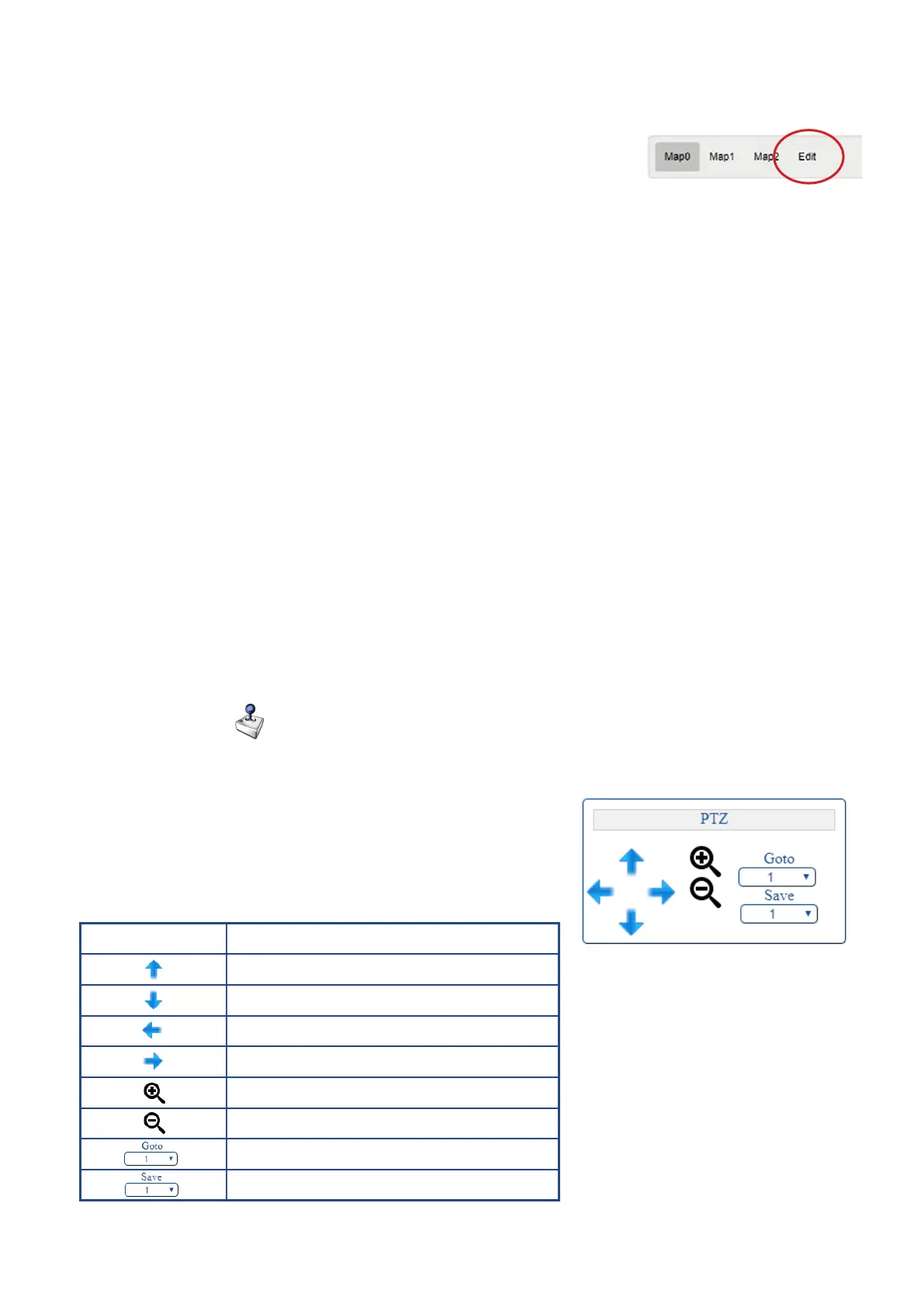
• Click the Edit button to go into Map Edit Mode (as shown in the screenshot to the right).
• To create a new map, click on the + button, enter a map name, followed by OK.
• Select the relevant image file from your computer when prompted.
2. Add camera icons
• Click on ‘add camera icon’.
• Enter camera name, then click OK.
• Click OK for large icons, or Cancel for small icons. The icon will then appear in the top-left corner of the page.
- Click on the icon to select it and move it around (the camera icon turns orange when selected).
- The R key rotates the icon.
- Place the camera where required on the map.
3. Add monitor icon
• Click on ‘add monitor icon’.
• Enter camera name, then click OK.
• Click OK for large icons, or Cancel for small icons. The icon will then appear in the top-left corner of the page.
- Click on the icon to select it and move it around. Place it on the right-hand-side (the monitor icon turns purple when selected).
4. Save Map
• Once complete, click ‘Save Map’. Unsaved changes will be lost when leaving the page.
5. ‘Back to view’
• ‘Back to view’ takes you to map control/view page.
6. Select the required video
• Select the required video by clicking on monitor, then camera (e.g. Monitor 1, Camera 1).
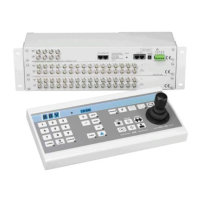
7. Click on the icon to control the tilt/pan, zoom and focus of your
chosen camera
8. Saving a Preset
• Point to a desired camera position, using the PTZ arrow controls.
• Click on Save and choose a number from the dropdown.
• Go to preset: select one of your saved presets from the
‘Goto’ dropdown.
PTZ Function Description
Tilt Up
Tilt Down
Pan Left
Pan Right
Zoom In
Zoom Out
Goto Preset
Save Preset


 To Next Page