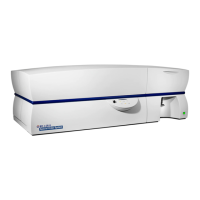
BD Accuri C6 Flow Cytometer Instrument Manual
7820018 Rev-2 21
This section provides troubleshooting and technical support information.
This section contains basic troubleshooting guidelines. Follow the procedures listed
below. If problems persist after performing troubleshooting, contact Accuri Technical
Support.
1. Make sure the power supplies and cords are plugged into an appropriate outlet.
2. Check the outlet to make sure it is functioning properly.
1. Make sure the USB cable is properly attached to the cytometer and computer. It
may take several seconds for the port to recognize the cytometer.
2. Switch the USB cable to a different port on the computer.
3. Make sure the BD Accuri C6 flow cytometer driver was properly installed on the
computer by doing the following, in order:
Double-click the BD Accuri C6 Software icon on your computer desktop to
open BD Accuri C6 Software. (See the BD Accuri C6 Software User’s Guide
or Quick Start Guide Collection for instructions on using BD Accuri C6
Software.)
Connect the USB cable from the C6 to one of the computer USB ports.
CAUTION: Do not plug the USB cable for the cytometer into any USB ports on
the computer monitor.
NOTE: Windows will attempt to auto install the BD Accuri C6 driver. The attempt
will end with a message stating “Device driver was not successfully installed.”
This is as expected.
After the C6 Device driver fails to auto install, Click the “Start” button (round
button with the Windows logo on the lower left of the screen).
Select Devices and Printers. You should see an icon labeled Cytometer that
has a yellow symbol with an exclamation point in it.
Right-click on the Cytometer icon and select Properties. Once the properties
window opens, select the Hardware tab.
With the hardware tab open, click the Properties button.
Click the Change Settings button.
When the settings window opens, click the Update Driver button.
When the driver update window opens, select Browse my computer for driver
software.







 To Next Page