BD Accuri C6 Flow Cytometer Instrument Manual
7820018 Rev-2 23
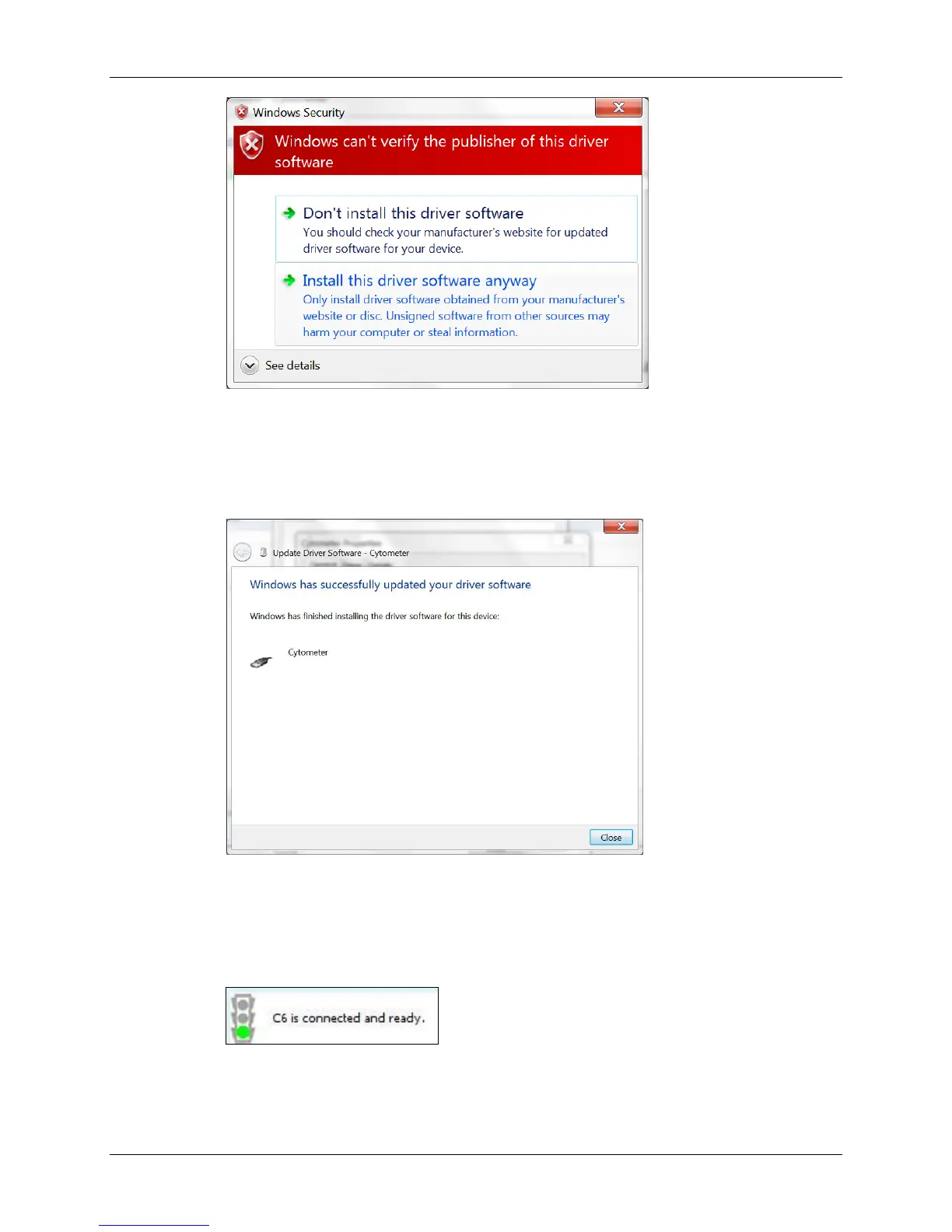
Figure 5-3. Windows Security Window
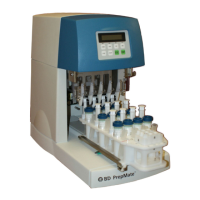
Windows will start the installation of the driver for the C6 cytometer. Once
completed, you have successfully installed the driver software. When
prompted, click the Close button.
Figure 5-4. Update Driver Software – Cytometer, Successfully updated your driver software
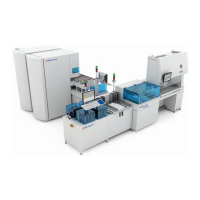
With the C6 driver installed and the USB cable properly connected, BD Accuri
C6 Software will indicate that it recognizes the C6 by displaying a green
traffic light and the message “C6 is connected and ready”.
Figure 5-5.The C6 Software Status Message Box – C6 is connected and ready







 To Next Page