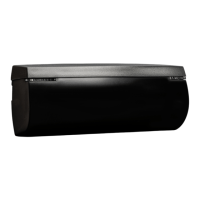
EasyManua.ls Logo

BEA LZR-MICROSCAN T - User Manual

BEA LZR-MICROSCAN T
16 pages
Print Icon
To Next Page IconTo Next Page
Loading...
75.5753.15 LZR-MICROSCAN T 20180720 Page 1 of 16
LZR-MICROSCAN T
2
1
3
5
4
8
9
6
7
Stand-Alone, Door-Mounted, Safety Sensor System
for Automatic Swing Doors* (US version)
* LZR-microscan sensors are intended to be used
with pedestrian, swing-door systems.
75.5753.15 LZR-MICROSCAN T 20180720 Page 1 of 16
ENGLISH
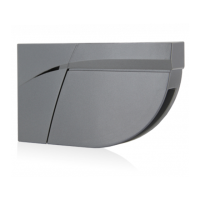
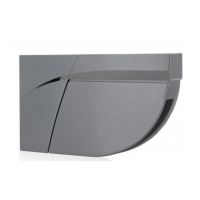
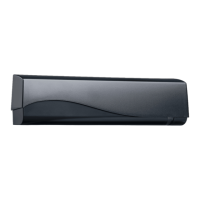
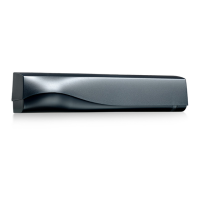
DESCRIPTION
1. tilt adjustment 4. endcaps 7. adjustment knob
2. sensor connection ports 5. optical window 8. LCD
3. sensor LED 6. plug-n-play ports 9. hub LEDs
INCLUDED KIT COMPONENTS
DESCRIPTION PART NUMBER SINGLE PAIR/DE
Left LZR-microscan T Sensor 10LZRMICROLEFTT 1 2
Right LZR-microscan T Sensor 10LZRMICRORIGHTT 1 2
LZR-microscan T Hub 10LZRMICROSCANHUBT 1 1
Master Sensor Harness 35.1326 1 2
Slave Sensor Harness 35.1327 1 2
Door Control Harness 20.5222 1 2
System Harness 20.5304 1 1
Eagle Harness 20.5096 2 2
Power Supply Harness 20.5095 1 1
Home Switch (Surface Mount) 50.5283 1 2
Door Loop / Cap Kit 70.0202 / 50.0078 1 2
On / Off / Hold Open Switch Jumper 20.5310 1 1
Left Pass-Through Sensor Endcap 41.7922 1 2
Right Pass-Through Sensor Endcap 41.7923 1 2
Sensor Spacer 70.5554 1 2
Spacer Mount Screws (Metal) 50.0048 2 4
Spacer Mount Screws (Wood) 50.5319 2 4
Sensor Mount Screws (Metal) 50.1818 4 8
Sensor Mount Scews (Wood) 50.5282 4 8
Endcap Screws 41.8632 4 4
Velcro Tabs 50.0046 2 2
LZR-microscan T Mounting Template 75.5754 1 1
LZR-microscan T User’s Guide 75.5753 1 1
LZR-microscan T Wiring Tech Bulletin 78.0053 1 1
Universal Kit
(Power Supply - 30.5558, On / Off /
Hold Open Switch - 10DOORSWITCH)
10MICROSCAN-UKIT
1 (Universal Kit ONLY) 1 (Universal Kit ONLY)
REQUIRED TOOLS
TOOL
Power Drill
Tape Measure
Magnetic Phillips #0
Phillips #2
1
⁄
8
” Drill Bit
5
⁄
16
” Drill Bit
3
⁄
8
” Drill Bit
1
⁄
2
” Drill Bit
Pencil
Center Punch / Hammer
Wire Nuts
Wire Snips
Wire Fish
KITS
DESCRIPTION PART NUMBER
Single Door
10LZRMICROSCAN1T
Pair / Dual-Egress
Door
10LZRMICROSCAN2T
Universal Single
Door
10LZRMICROSCAN1UT
Universal Pair /
Dual-Egress Door
10LZRMICROSCAN2UT
Narrow-Frame Door
10MICROSCANMOUNTT
Glass/Fire Door 10MICROSCAN-Y
Universal Kit 10MICROSCAN-UKIT

Other manuals for BEA LZR-MICROSCAN T

Questions and Answers

  • K
    Karina FrancisAug 25, 2025
    Why is the BEA LZR-MICROSCAN T hub LCD not on?
    • J
      Joseph DeanAug 25, 2025
      If the LCD on your BEA Security Sensors hub is not turning on, there could be a few reasons. First, verify the power supply connection to ensure it's properly connected. If the connection is good, check the power supply itself, ensuring it's a BEA power supply. If both of these are fine, the hub might be faulty and may require replacement.
  • R
    richdeniseAug 25, 2025
    What to do if BEA LZR-MICROSCAN T Security Sensors door(s) keep recycling (ghosting)?
    • S
      Stephanie LeblancAug 26, 2025
      If your BEA Security Sensors door(s) keep recycling or 'ghosting', it could be due to the approach-side sensors detecting motion. Try adjusting the Activation Distance and/or motion sensor settings of the approach-side sensors. Another cause might be the Home Switch not properly registering when the door is closed. In this case, adjust the Home Switch and check its wiring.
  • B
    Brandi GreenAug 26, 2025
    What does orange flashing LED on BEA Security Sensors mean?
    • J
      Jacqueline MontgomeryAug 27, 2025
      An orange flashing LED on your BEA Security Sensor indicates an error. Possible causes include: * The sensor is mounted too high or adjusted too close to the door. * The door did not fully open during the learning phase (EDPS). * The number of doors configured is incorrect (BUS config). * The sensor is obstructed by an object (boundary). * There is a loose or broken sensor harness (lost message).
  • T
    Todd DurhamAug 27, 2025
    What to do if BEA LZR-MICROSCAN T Security Sensors door never reaches “Hold Open” or “Off” states?
    • J
      Jill CarterAug 27, 2025
      If the BEA Security Sensors door never reaches the 'Hold Open' or 'Off' states, ensure that you are using an On/Off/Hold Open switch. Wire your existing switch to the jumper, or plug a BEA On/Off/Hold Open Switch into the hub.
  • S
    Shirley SotoAug 27, 2025
    What to do if BEA LZR-MICROSCAN T Security Sensors Hub shows environment error?
    • G
      Glenn ClarkAug 27, 2025
      If your BEA Security Sensors hub is showing an environment error, it could be due to several reasons. Verify the power supply voltage, ensuring it is powered by a BEA power supply. Also, the environment may be too cold or hot for the hub to operate correctly. Check that the door control is capable of monitoring and that the sensor monitoring wires are properly connected to the door control. Finally, verify that monitoring is active in the sensor settings for each door control.
  • S
    Sylvia PhillipsAug 28, 2025
    What does 'Cap LCD screen' mean for BEA Security Sensors?
    • R
      robertwalkerAug 28, 2025
      If the BEA Security Sensors display shows 'Cap LCD screen', it indicates that a learn procedure is required. Perform a re-learn to resolve this issue.
  • J
    John RiveraAug 29, 2025
    What to do if no “CLEAR AREA” during BEA LZR-MICROSCAN T Security Sensors setup?
    • H
      Heather KeyAug 29, 2025
      If you don't see a 'CLEAR AREA' message during the setup of your BEA Security Sensors, it's possible that the sensors haven't been discovered. Make sure the sensor harness connection is secure.
  • A
    ashley66Aug 30, 2025
    What to do if no Floppy Disk after BEA LZR-MICROSCAN T setup?
    • C
      Christopher ChavezAug 30, 2025
      If you don't see a 'Floppy Disk' indication after setting up your BEA Security Sensors, it could mean that the learn process has failed. Try performing a new learn. Also, verify that the Home Switch is functioning properly.
  • J
    Jacqueline RoblesAug 23, 2025
    What to do if BEA Security Sensors door(s) will not open/close?
    • M
      Molly WatkinsAug 25, 2025
      If the BEA Security Sensors door(s) will not open or close, first, ensure the door control is operational independently. Then, check that all connections are secure, including sensors and the On/Off/Hold Open switch. Verify that the 'Knowing Act' feature is disabled unless you are using compatible devices. Also, confirm the wiring from the hub to the door control is correct, and verify the monitoring settings and wiring.
  • A
    Austin FisherAug 31, 2025
    Why do BEA LZR-MICROSCAN T door(s) keep recycling (ghosting)?
    • H
      hilltaylorAug 31, 2025
      If the BEA Security Sensors door(s) keep recycling (ghosting), adjust the Activation Distance and/or motion sensor of the approach-side sensors. Also, adjust the Home Switch and verify proper wiring to ensure it is 'making' when the door is closed.

Summary

DESCRIPTION

PRECAUTIONS

LASER

INSTALLATION

MAINTENANCE

SAFETY

HOW TO USE THE LCD

Display During Normal Operation

Shows different display modes and their meanings during normal operation.

Factory Value vs. Saved Value

Explains the difference between factory default and user-saved parameter values.

Navigating in Menus

Step-by-step guide to navigating the LCD menus using buttons.

Changing a Value

Process for selecting and changing parameter values using the adjustment knob.

LED Status

Explains the color and signal meanings of the Hub and Sensor LEDs.

PREPARATION

Hub

Instructions for installing the hub in the door header, ensuring accessibility.

Sensors

Guidance on determining sensor handedness and mounting it on the door loop side.

INSTALLATION (cont.)

Sensors

Using the template to position sensors, mark holes, and drill for accurate mounting.

INSTALLATION (cont.)

Peripherals

Instructions for installing and wiring the Home Switch for door status indication.

Home Switch

Instructions for installing and wiring the Home Switch for door status indication.

On;Off; Hold Open Switch

Mounting and wiring the On/Off/Hold Open switch and understanding jumper wire functions.

INSTALLATION (cont.)

Eagle (optional)

Instructions for installing optional Eagle sensors and push plates.

Push Plates (optional)

Instructions for installing optional Eagle sensors and push plates.

Door Control Harness

Connecting the Door Control Harness for independent door controls and dual-egress systems.

WIRING

Power

Instructions for connecting the power supply to the hub and wiring to a power source.

External Monitoring

How to use monitoring wires for external system status checks.

SET-UP

OVERVIEW OF SETTINGS

Menu 1 (BASIC)

Details basic parameters like Door Type, Detection Zone, and Guiderail settings.

Menu 2 (ADVANCED)

Explains advanced settings such as Monitoring, KnowingAct, and AdvanceSafe options.

OVERVIEW OF SETTINGS (cont.)

Menu 3 (DIAGNOSTICS)

How to view door status, active devices, and system parameters through diagnostic menus.

TROUBLESHOOTING

General

Solutions for common issues like no hub LCD, no clear area, or sensor errors.

TROUBLESHOOTING (cont.)

Set-up Errors

Covers errors like incorrect mounting height, angle, or sensor visibility during setup.

TROUBLESHOOTING (cont.)

Runtime Errors

Solutions for boundary errors, environmental factors, and communication loss.

TROUBLESHOOTING (cont.)

Orange LED (Sensor) Errors

Explains errors indicating internal or external faults, power supply, or temperature issues.

TECHNICAL SPECIFICATIONS

BEA INSTALLATION;SERVICE COMPLIANCE EXPECTATIONS

Notes on installer qualifications, safety inspections, and compliance with standards.

BEA LZR-MICROSCAN T Specifications

General IconGeneral
BrandBEA
ModelLZR-MICROSCAN T
CategorySecurity Sensors
LanguageEnglish

Related product manuals