46 Menu functions
User Mode
Management
The functions are only available when “Picture Mode” is set to
“User”.
• Load Settings From
Allows you to manually adjust a preset picture mode and make it
an available option on the picture mode list.
1. Go to Picture > Picture Mode. Then, select User.
2. Press to select User Mode Management and press
.
3. On the User Mode Management window, select Load
Settings From and press .
4. Press / to select a picture mode that is close to
your need.
5. When done, press and to return to the Picture
menu.
6. Press to select other submenus you want to make
changes and use / to adjust the values. The
adjustments define the selected user mode.
• Rename User Mode
Select to rename the customized picture mode (User).
1. Go to Picture > Picture Mode. Then, select User.
2. Press to select User Mode Management.
3. On the User Mode Management window, select
Rename User Mode and press .
4. On the Rename User Mode window, use / / /
to select desired characters for the selected mode.
5. When done, press and to exit.
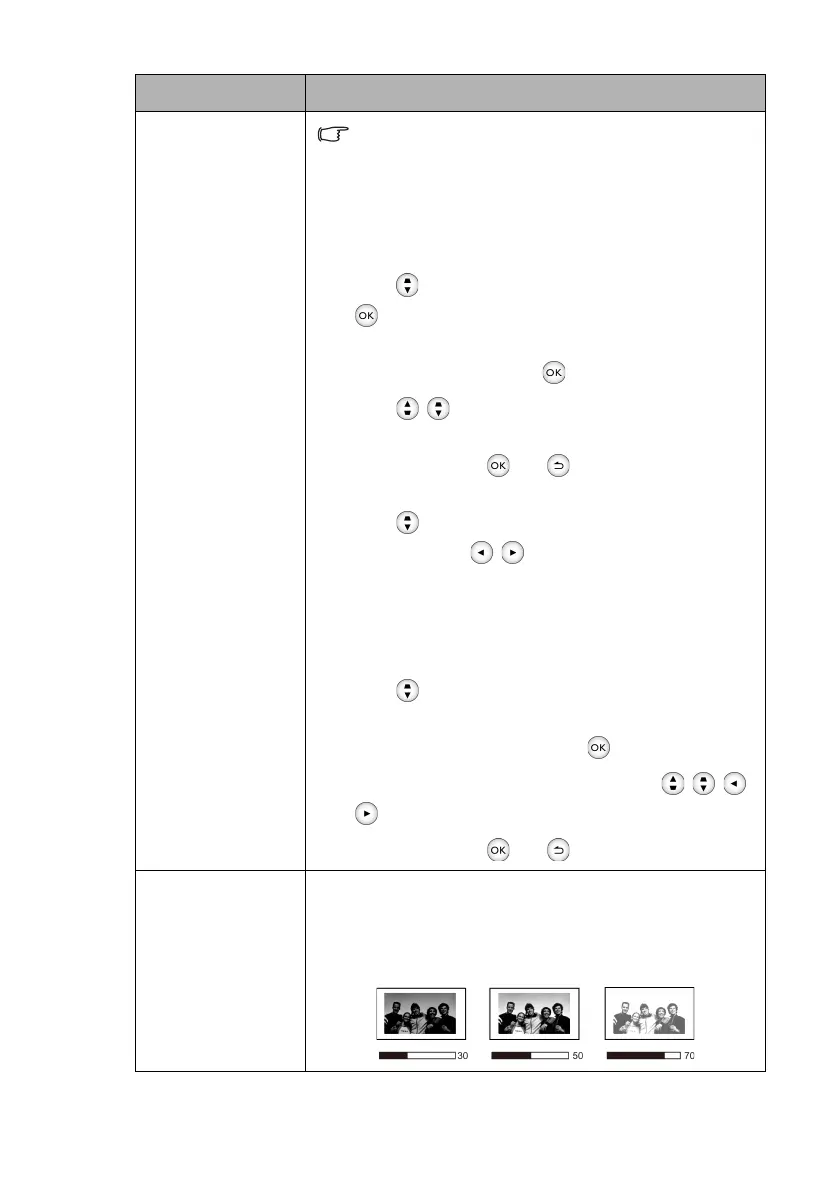
Brightness
Adjusts the brightness of the picture. When adjusting this
control, the black areas of the picture appear just as black and
details in the dark areas are visible.
The higher the value, the brighter the picture, while the lower
the value, the darker the picture.
Submenu Functions and Descriptions
CH100_EN.book Page 46 Wednesday, March 2, 2016 11:54 AM






 To Next Page