Operation 35
Switching input signal
The projector can be connected to multiple devices at the same time. However, it can only
display one full screen at a time.
You can also manually cycle through the
available input signals.
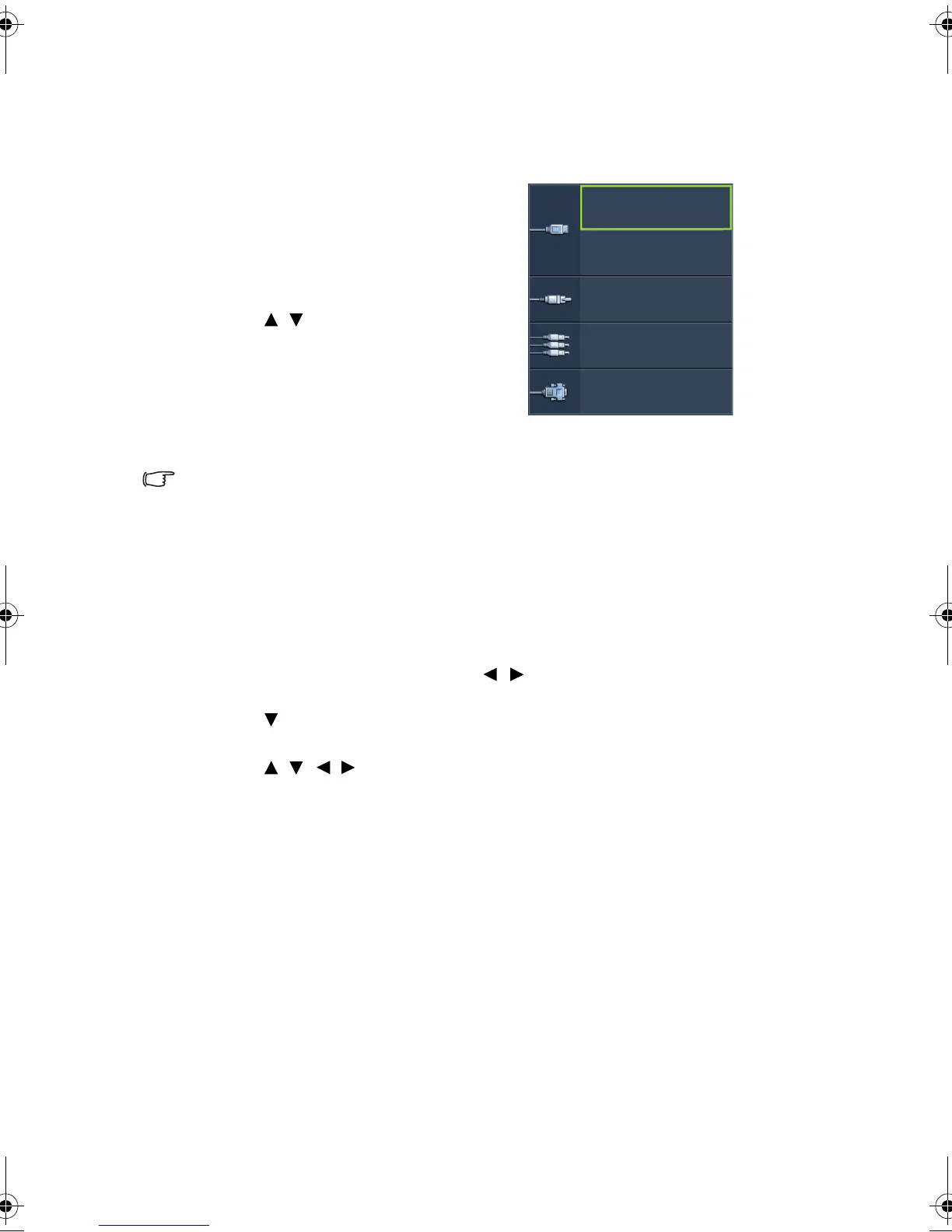
1. Press SOURCE on the projector or
press input source directly from the
remote control. A source selection bar
displays.
2. Press / until your desired signal is
selected and press MODE/ENTER.
Once detected, the selected source
information will display on the screen for
seconds. If there is multiple equipment
connected to the projector, repeat steps
1-2 to search for another signal.
• The brightness level of the projected image will change accordingly when you switch
between different input signals. Data (graphic) "PC" presentations using mostly static
images are generally brighter than "Video" using mostly moving images (movies).
• The native display resolution of this projector is in a 16:9 aspect ratio. For best display
picture results, you should select and use an input signal which outputs at this resolution.
Any other resolutions will be scaled by the projector depending upon the 'aspect ratio'
setting, which may cause some image distortion or loss of picture clarity. See "Selecting the
aspect ratio" on page 43 for details.
You can also rename the source:
1. Press MENU/EXIT and then press / until the System Setup: Basic menu is
highlighted.
2. Press to highlight Source Rename and press MODE/ENTER. The Source
Rename page displays.
3. Press / / / until your desired character is selected and press
MODE/ENTER.
• If you want the projector to automatically search for the signals, select On in the
System Setup: Basic > Auto Source Search menu.
HDMI 1
HDMI 2
VIDEO
PC
COMPONENT
BenQ W1300.book Page 35 Thursday, August 29, 2013 2:07 PM



 To Next Page