OM0001_L2_R_WM_USAv2.1 17
Step 2 — Time and Date Setup
A. Set the time, date, time zone, and Daylight Savings
You can choose to either set the time and date on your Blink charging system yourself, or allow the
Blink system to set it automatically.
Note: If you use the automatic function (turned on by default), you will not be able to change the
date and time fields unless you turn the automatic function off.
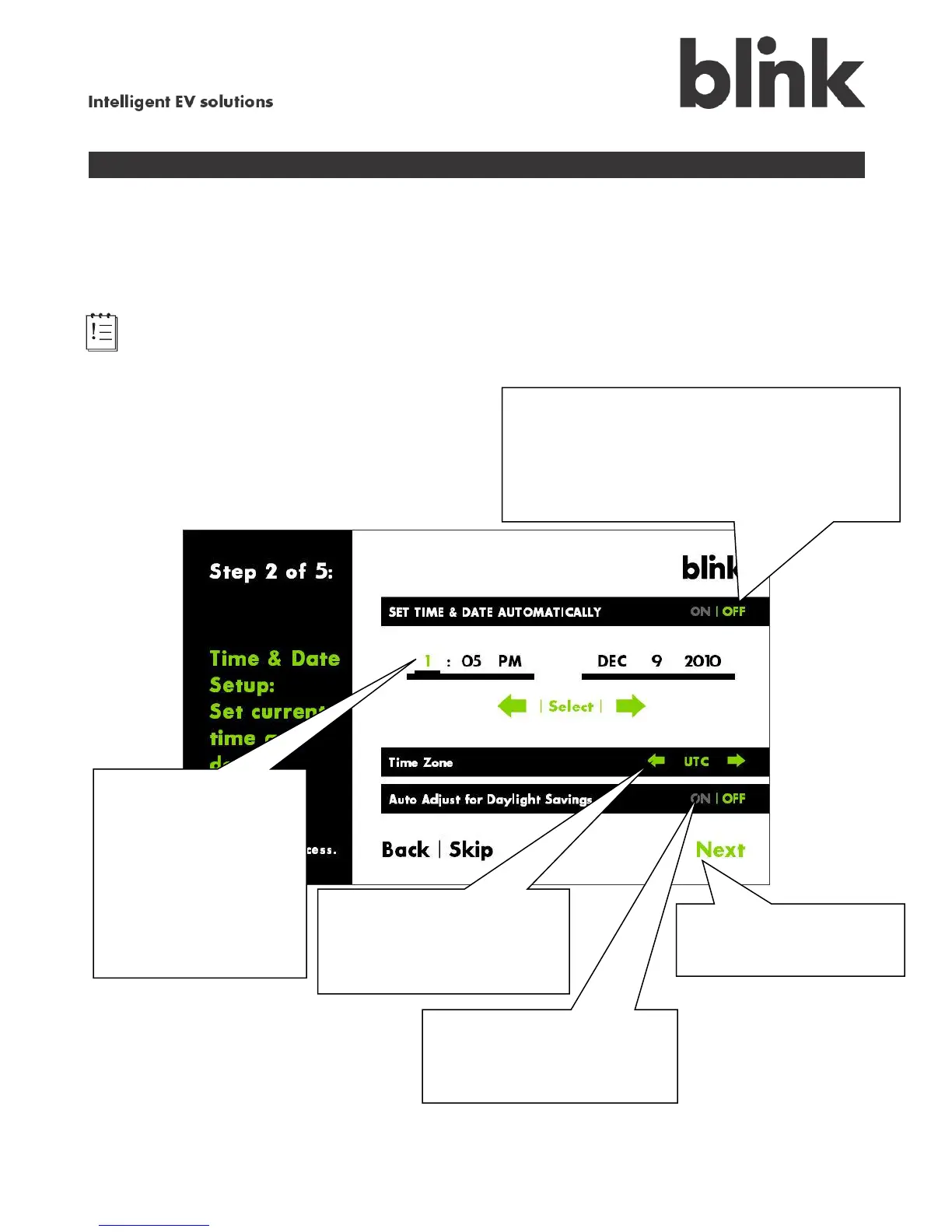
To use the automatic feature, touch ON and
skip to , or
To turn off the automatic time/date feature and
set the time and date yourself, touch OFF.
Use the green
arrows to scroll to the
current hour then touch
Select or touch the
minutes. Continue these
steps to enter the
minutes, AM or PM,
month, day, and year.
Touch these arrows to
scroll to your local Time
Zone, for example,
US/Pacific.
Touch ON to have the
time change for Daylight
Savings automatically.
Touch Next to
continue.


 To Next Page