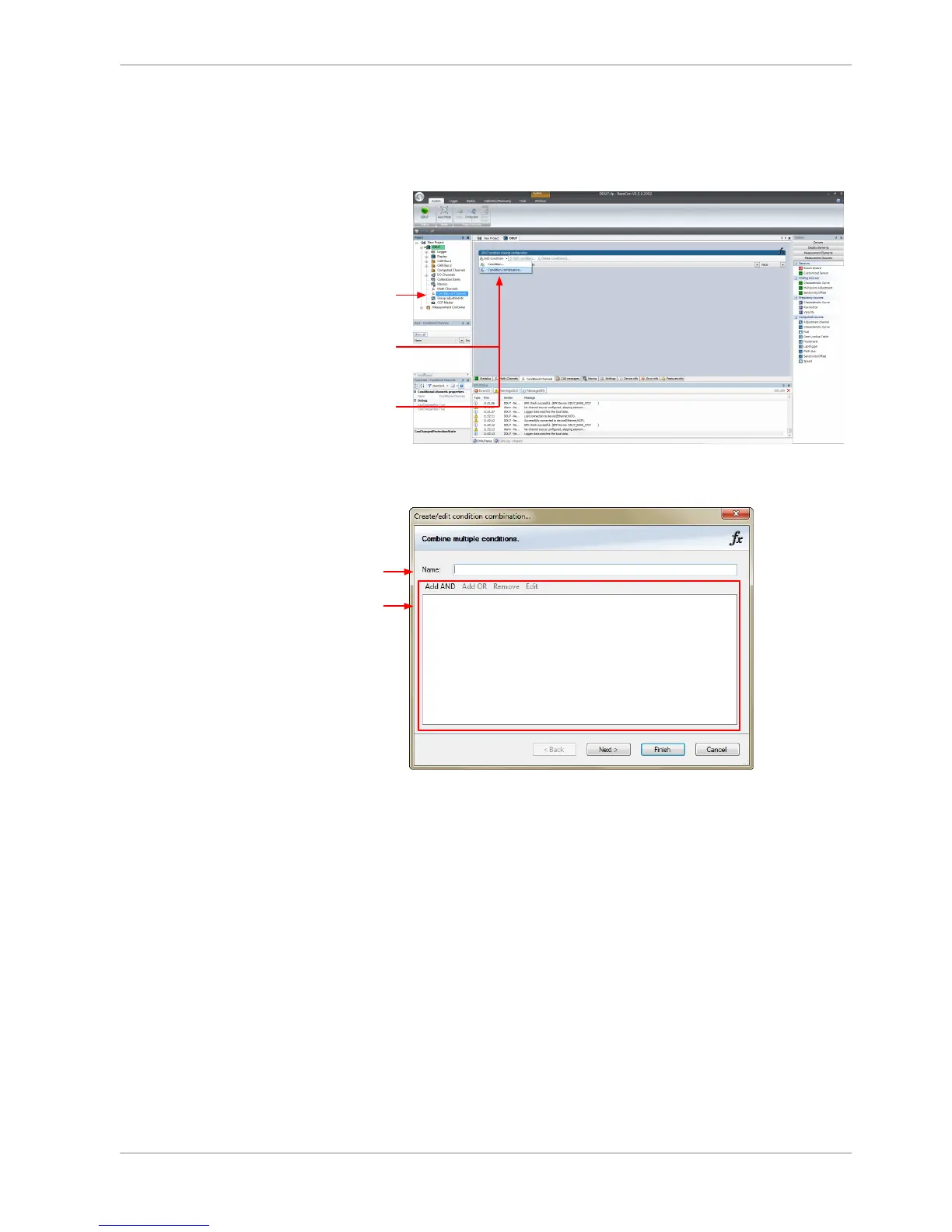
Creating a new condition combination
Follow the steps shown in the screenshot.
1st: Double-click
on 'Conditional
Channels'
in Project Tree
2nd: Click on
the dropdown
arrow beside 'Add
condition'
3rd: Choose
'Conditional
combination'
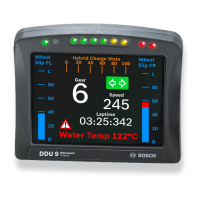
The ‘Create/edit condition combination‘ window appears. Define the condition
combination using the following configuration possibilities:
a)
b)
a) Enter the name of the condition combination.
b) Create the condition combination in the window.
- Choose a channel (condition, conditional function, math, measurement channel with binary values)
to be compared.
- Combine multiple conditions by adding 'AND' or 'OR' relations.
- To negate a condition, right-click on the condition and select 'Negation (!)'.
- Combine several (up to 16) conditions.
Click ‘Next’ to go to the next page. Choose the output setting of the result:
▪ Constant TRUE/FALSE: Result is as a constant with the value TRUE or FALSE.
▪ Blinking: Result is a blinking if the condition is fulfilled.
▪ Pulse: Result is a short one‐time pulse if the condition is fulfilled.
▪ Toggling output: Result is a pulse that lasts until the next condition is fulfil‐
led.
Click ‘Finish’ when done. The conditional combination is displayed in the condi‐
tion channel window.
8.7.2
Display Configuration | 8
Bosch Motorsport DDU S2 PLUS Manual 65 / 136






 To Next Page