BBP
®
85 Label Printer
User’s Manual
C-31
Right to Know (RTK)
Create RTK Labels
Create RTK Labels
The selected label format determines the options that are available. See Table C.1
“Available RTK Formats and Options” on page C-33 for a list of formats and
options that are available from the RTK menu.
To create a new RTK label:
1. From the Right To Know panel, select Create New File .
Note: Depending on the defaults selected in the Setup menu, the defaults
selected will vary. To change the selected defaults, see “Setting RTK
Preferences” on page C-27.
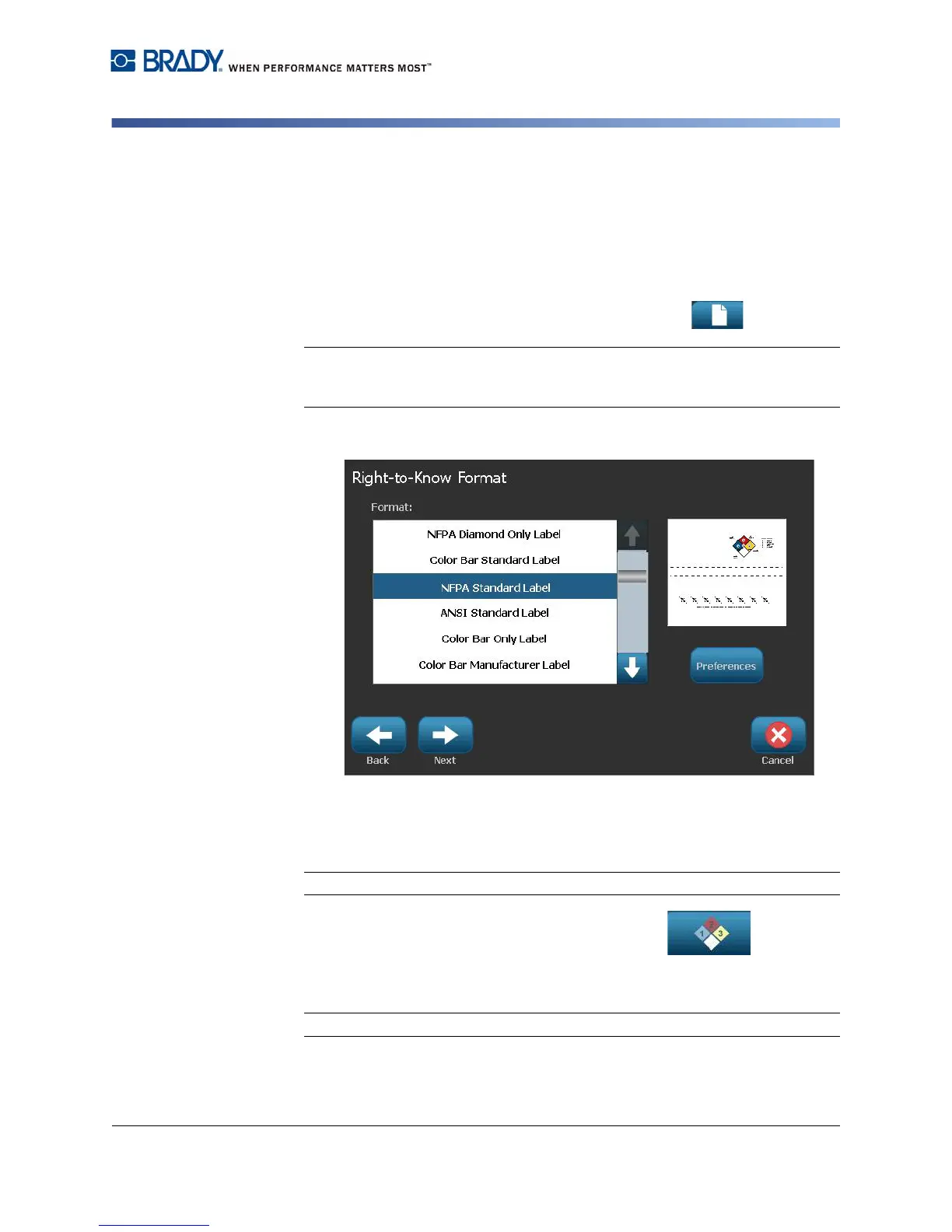
2. Select a new label format, or click Next to continue with the default selection.
3. Select or enter data for each of the dialogs that display for your label format.
The dialogs that display depend on the label format you selected.
4. When done, select Finish. The label is generated and displayed in the Editor.
Note: Before printing, install the supply that matches the label you are creating.
5. To edit or change the objects, select Edit RTK Data .
6. In the dialog(s) that display, select or enter the new data, then click Next or
Finish.
Note: The format cannot be edited after a label has been created.



 To Next Page