4-10 BBP
®
85 Label Printer
User’s Manual
Working with Object Colors
Date/Time Objects
Working with Object Colors
Use this procedure to print single-color objects (text, barcodes and graphics) in
any of the colors available in the color palette. You cannot change the color of
multi-colored graphics (the Color button is disabled). Imported graphics can only
be a single color.
Note: When using a multi-color paneled ribbon, you can choose from the colors
available on that paneled ribbon and also from the range of other colors available.
To change object color:
1. In the Editor, select the object(s) you want printed in a specific color.
2. In the Control Panel, select Color .
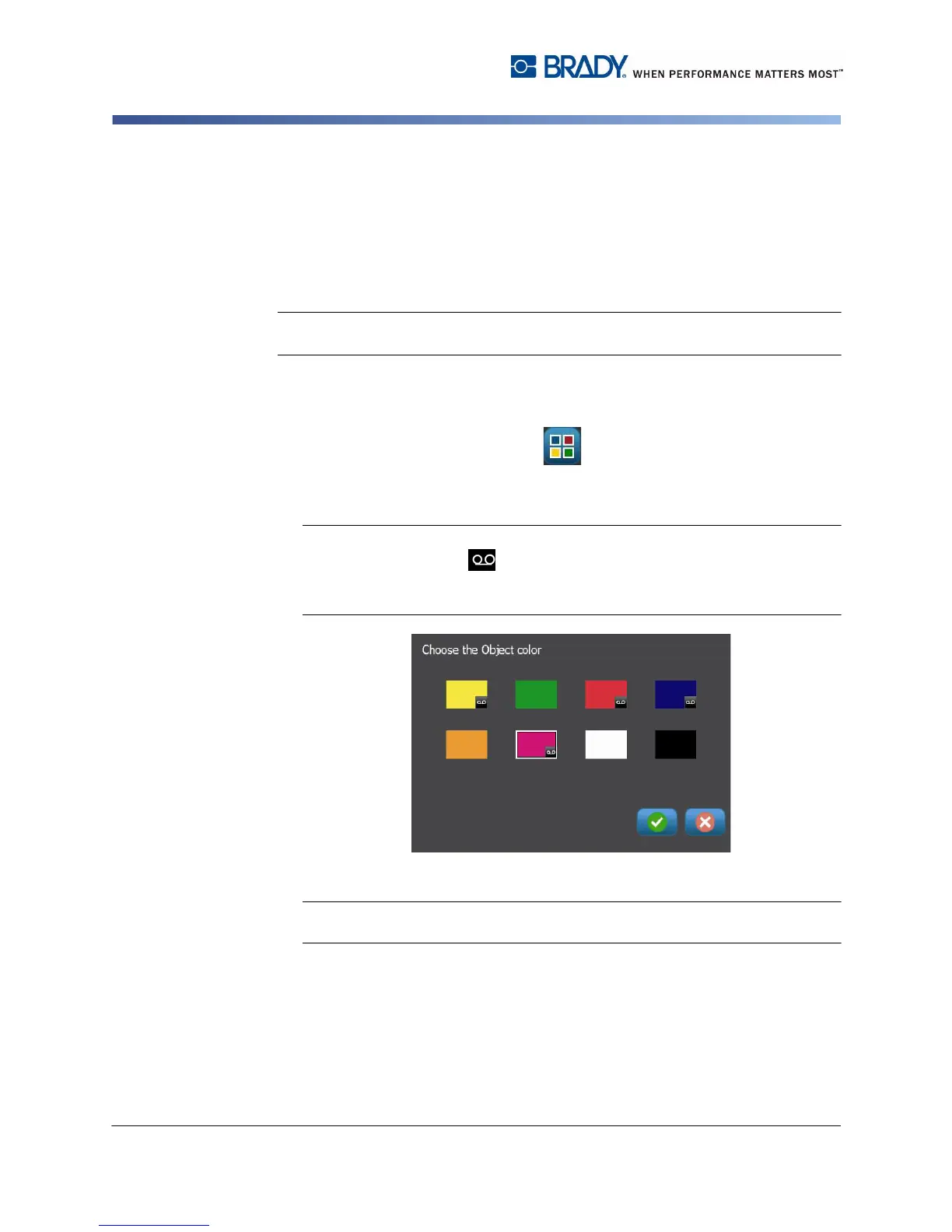
3. In the Choose the Object Color popup, touch the color you want used for the
selected object(s).
Note: The color selection pop-up window displays the currently-installed ribbon
colors (indicated by the icon) and the available colors. If you select a color
that is not installed, a message will indicate that you will be asked to install it
during printing.
4. Select OK to accept the change or Cancel to close without saving.
Note: At print time, if the selected color is not installed, you will be prompted to
install the required color or override and print wih the currently-installed color.



 To Next Page