English
10 Auto-Dispensing (AUTO-DISP)
HandyStep® touch, HandyStep® touch S 997486
Operating manual
85
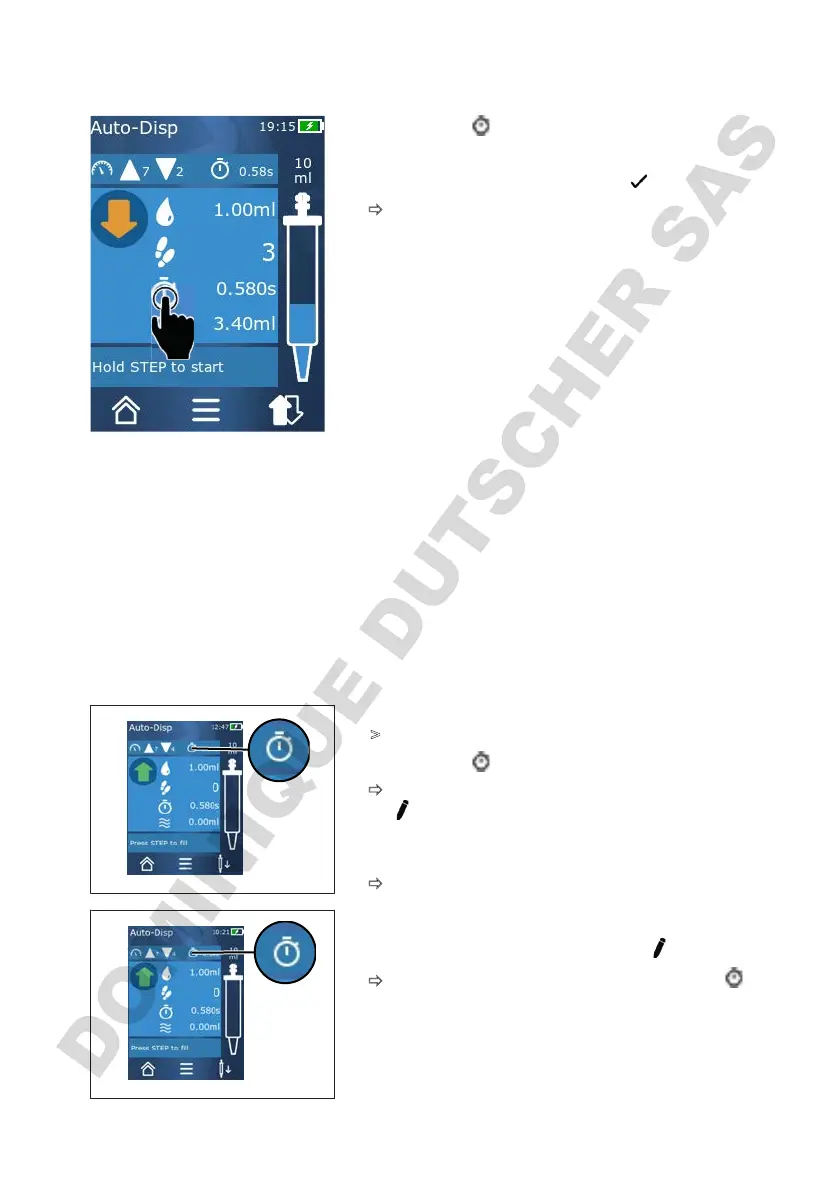
10.3 Setting the pause time manually
a. Tap on the button.
b. Set the pause time.
c. Confirm the setting by tapping the button.
ð
The pause time is set. By holding down the STEP button
the next time you dispense a liquid, the liquid will be
dispensed after the pause time has expired.
Alternatively, you can also use the learn function.
10.4 Setting the pause time automatically (learn function)
With the learn function, the device determines the average pause time after dispensing 3 or more
times. When the user holds the STEP button after the learn function has ended, the device automati-
cally dispenses liquid after the determined pause time has expired. This way, repetitive dosing tasks
can be more easily managed by the user. Setting the pause time is also easier since it is calculated for
the current dosing task.
10.4.1 Executing the learn function
Prerequisite:
>
You have already filled the tip.
a. Tap on the button.
ð
The learn function is activated. This is indicated by the
…symbol.
b. Dispense liquid at least 3 times, by briefly pressing the
STEP button.
ð
You can immediately dispense liquid by holding down
the STEP button. The learned pause time changes as
long as the learn function is not stopped.
c. Stop the learn function by tapping the … button.
ð
Afterwards, the average time appears next to the
symbol.
You can also save the learned pause time in Favorites.


 To Next Page