Name Description
TeraStation Name
Browse Shares Opens the TeraStation's shared folder "share".
Settings Opens Settings for the selected TeraStation.
Properties Opens the TeraStation's properties page.
Map Share Assigns the TeraStation's shared folder as a network drive.
Disconnect Share Unmaps the network drive.
Create Shortcut
Creates a shortcut icon on the desktop to the shared
folder "share".
I'm here
*
Causes your TeraStation to beep.
Refresh Refreshes list of NAS devices on the network.
Browse Shares Shows a list of shared folders on the selected NAS device.
Exit Exits NAS Navigator2.
*"I'm here" is available on TS1400D and TS1400R models. When clicked, the TeraStation will beep and its power,
function, and drive status LEDs will blink red.
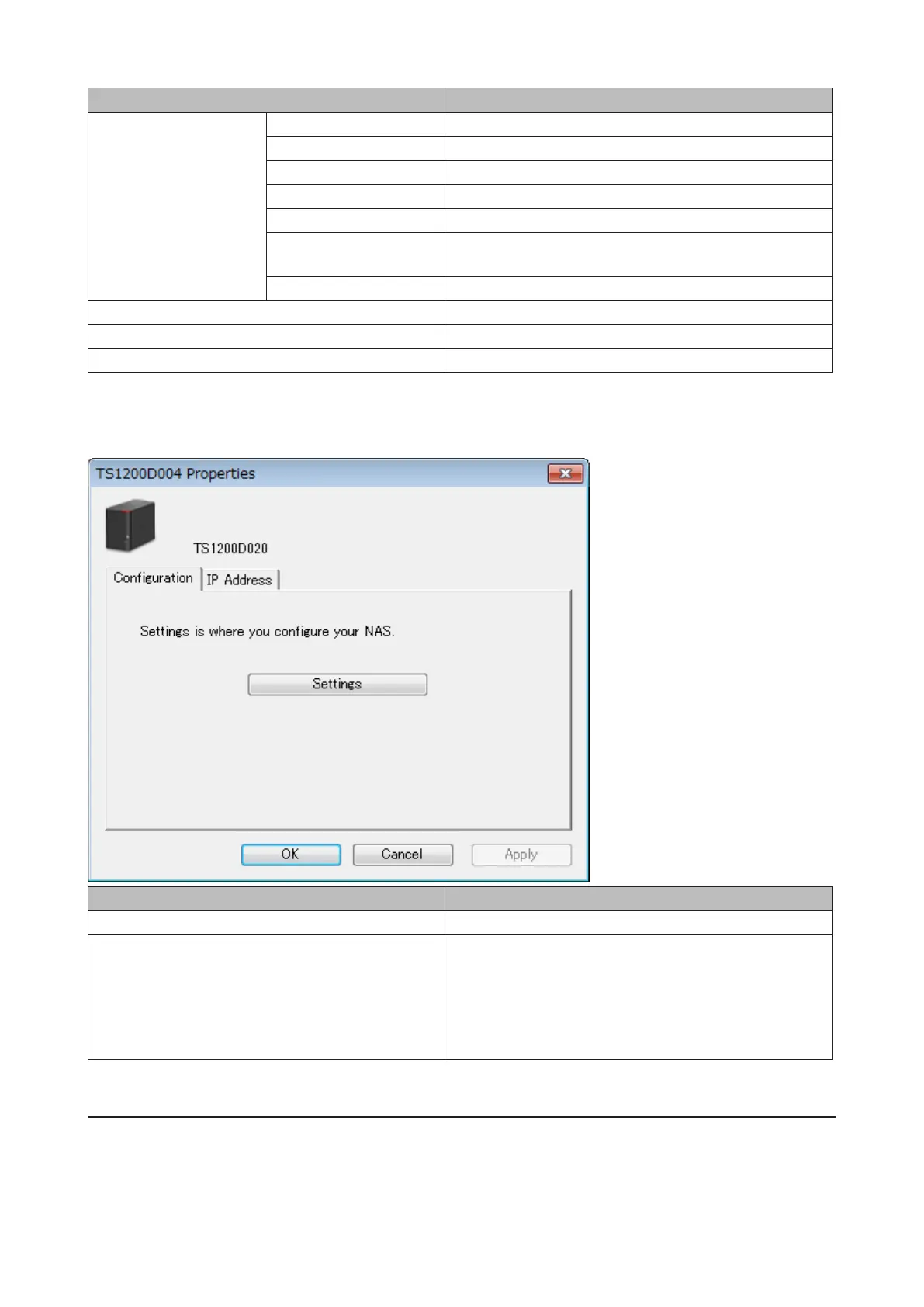
The following tasks may be performed from the TeraStation's properties page.
Name Description
Configuration Click Settings to open the configuration interface.
IP Address
Check Use DHCP to assign an IP address from the DHCP
server automatically. If there is no DHCP server on the
network, you cannot use this function. Check Renew IP
address to obtain an IP address from the DHCP server.
Uncheck Use DHCP and enter an IP address, subnet mask,
and default gateway to manually configure them.
Mount as Network Drive
You can easily map a shared folder as a network drive using NAS Navigator2.
112



 To Next Page