If an NTP is not used, enter the time and date manually. Click Use Local Date/Time to import the time and date
from your computer.
Notes:
• The internal clocks of the TeraStation and other devices on your network may run at slightly different speeds.
Over a long period of time your network devices may show somewhat different times, which can cause network
problems. If clocks on your network vary by more than 5 minutes it may cause unexpected behavior. For best
results, keep all clocks on the network set to the same time by adjusting them regularly, or use an NTP server to
correct them all automatically.
• Disconnecting the AC cable from the TeraStation, even if it is not powered on, may cause the TeraStation's time
settings to become incorrect. This will affect scheduled settings such as backup jobs or sleep mode. If this occurs,
correct the time settings.
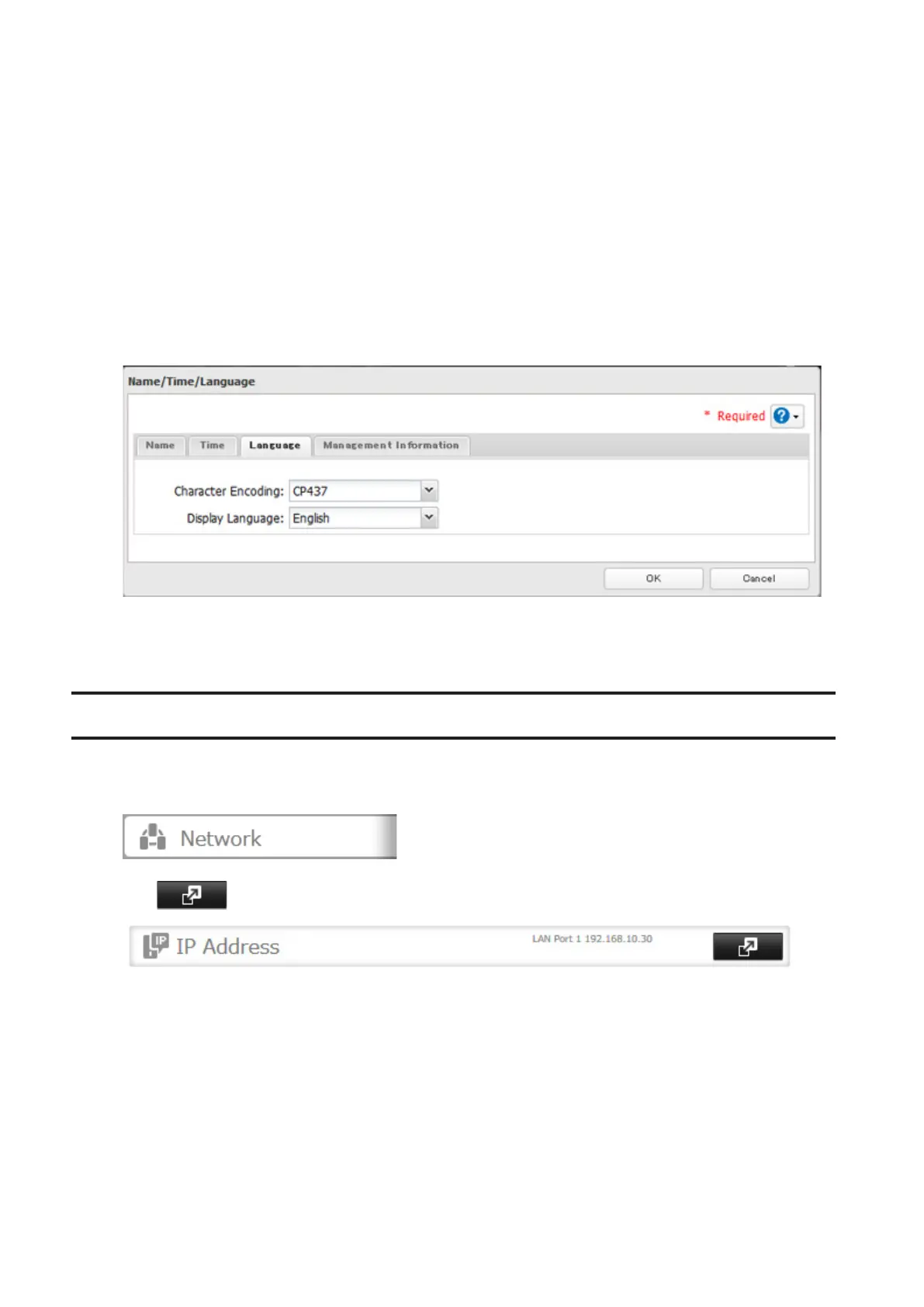
6 Click the Language tab. Select the language to be used and click OK.
Note: This tab changes the language used by the TeraStation for email notifications, DLNA, and other functions. To
change the language displayed in Settings, go to Advanced Settings or Easy Admin and click Language in the menu
bar. Choose your desired language from the drop-down menu.
Jumbo Frames
If your other network devices support jumbo frames, you may be able to increase network performance.
1 In Settings, click Network.
2 Click to the right of "IP Address".
3 Click the LAN port where the jumbo frames will be used.
106



 To Next Page