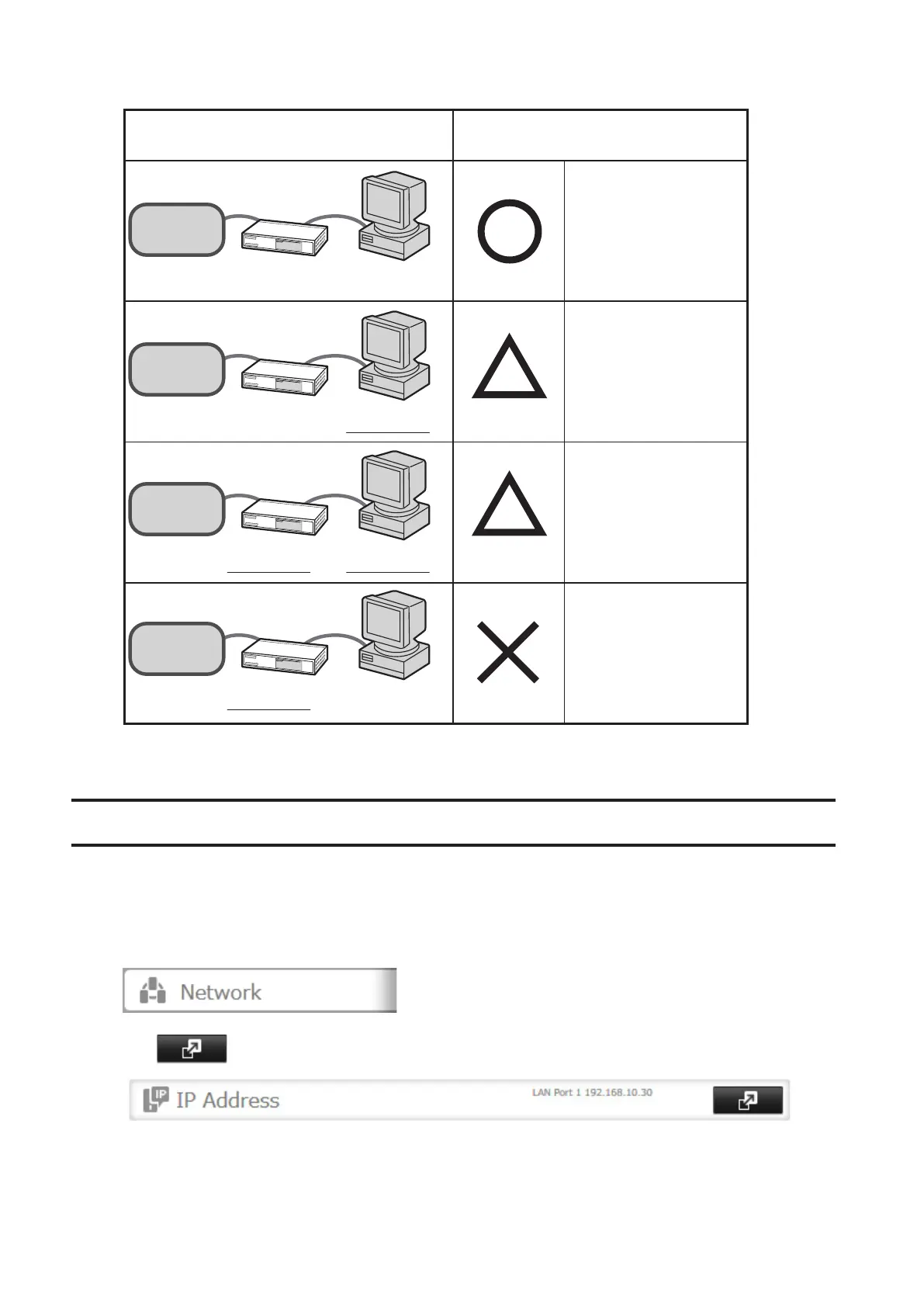
TeraStation
TeraStation
TeraStation
TeraStation
Connection Transmission
Jumbo Frame
Jumbo Frame
Compatible Hub
Jumbo Frame
Compatible PC
Jumbo Frame
Jumbo Frame
Incompatible Hub
Jumbo Frame
Incompatible PC
Jumbo Frame
Jumbo Frame
Incompatible Hub
Jumbo Frame
Compatible PC
Transfer data in
jumbo frames.
Jumbo Frame
Jumbo Frame
Compatible Hub
Jumbo Frame
Incompatible PC
Transfer data not
using jumbo
frames.
Transfer data not
using jumbo
frames.
Any data cannot be
transferred.
Note: Make sure the TeraStation's Ethernet frame size is smaller than the hub or router's. Larger frame sizes may not
transfer the data to the TeraStation correctly.
Changing the IP Address
Normally, the TeraStation's IP address is set automatically from a DHCP server on your network. If you prefer, you can
set it manually. An easy way to do this is to change it from NAS Navigator2 running on a computer connected to the
same router (subnet) as the TeraStation. The procedure to change the IP address in Settings below.
1 In Settings, click Network.
2 Click to the right of "IP Address".
3 Click the LAN port where the IP address will be changed.
108



 To Next Page