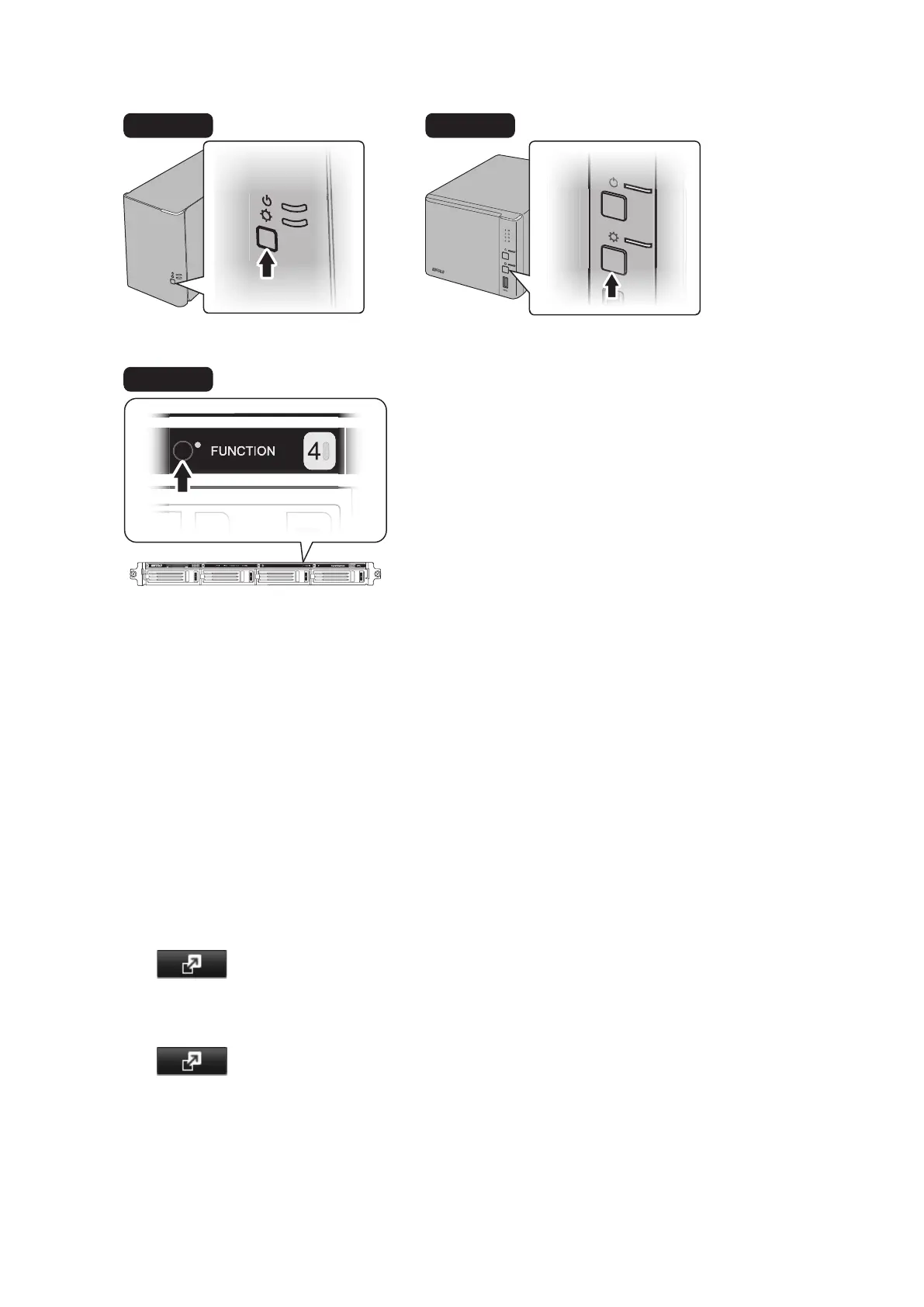
3 Hold down the function button on the front of the TeraStation for 3 seconds.
TS1400R
4 The drive will be formatted as an individual drive. Create a shared folder on the drive before use.
Using RAID 0
Drives in a RAID 0 array do not automatically turn off in the event of a malfunction. Before replacing the failed drive,
either dismount the drive from Settings, or shut down the TeraStation.
This section describes the process of recreating a RAID 0 array with the TeraStation on.
1 Follow the drive replacement procedure described above and replace a failed drive with a new drive.
2 When the replacement drive is recognized, the I32 message will be displayed in NAS Navigator2.
3 In Settings, navigate to Drives - RAID.
4 Select the RAID array and click Delete RAID Array.
5 Click to the right of "Drives".
6 Click Format Disk to format the new drive.
7 Click to the right of "RAID".
8 Choose a RAID array.
9 Select a RAID 0 in the RAID mode drop-down menu and the drives to be used, then click Create RAID Array.
10 The "Confirm Operation" screen will open. Enter the confirmation number, then click OK.
54



 To Next Page