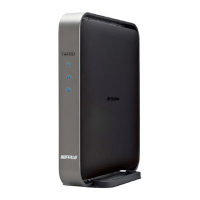
WZR-HP-AG300H User Manual
102
Chapter 5 Connect to a Wireless Network
Other Devices (e.g. Game Console)
If you are using a game machine which supports AOSS or WPS, refer to that device’s manual to
initiate AOSS/WPS. When instructed, hold down the AOSS button on the AirStation for 1 second.
When the 2.4 GHz and 5 GHz LEDs on the front of the AirStation stop ashing and glow steadily, the
connection is complete.
Manual Setup
You can also connect to the AirStation without installing Client Manager V or Client Manager 3 by
using the utility built-in to Windows. The procedure varies depending on which version of Windows
you are using.
Note: · If the AirNavigator CD is used to perform setup when making the initial settings of AirStation, the
wireless connection settings for the AirStation are completed during the Setup process. As a result, you
do not need to make the settings below. After setup is complete, once the LAN cable is removed, you
can connect from your wireless client to the AirStation.
· Before performing setup, make the settings to enable the wireless client of the computer.
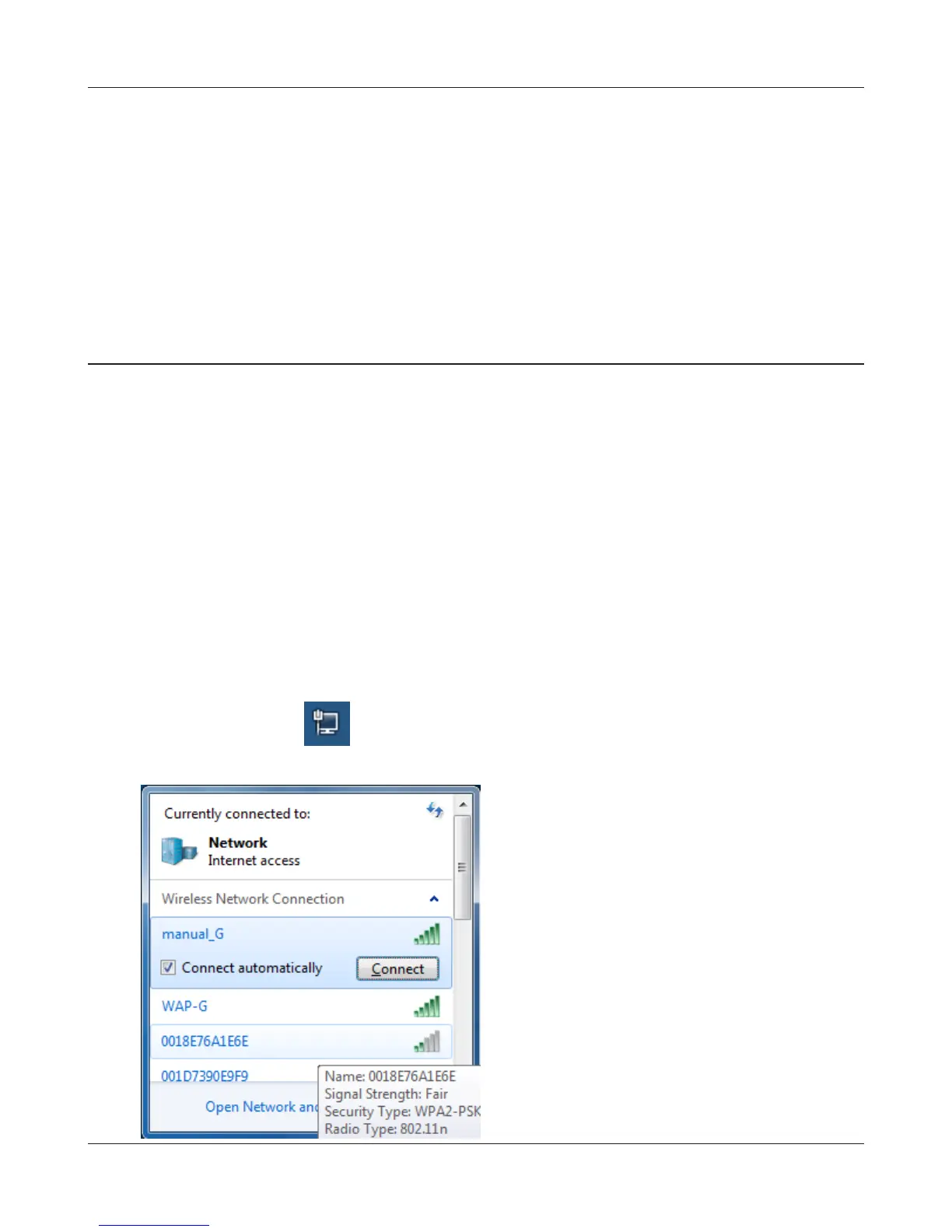
Windows 7 (WLAN AutoCong)
With Windows 7, use WLAN AutoCong to connect to the AirStation.
1
Click on the network icon in the system tray.
2
Select the target AirStation and click
[Connect]. If you will be connecting to this
device in the future, checking [Connect
automatically] is recommended.


 To Next Page
 Loading...