2. Configuration via the Web Interface
The router contains an integrated web server that provides an easy to
use web interface. It allows configuration, administration, and status
checking in a simple but effective way.
When accessing the web GUI for the first time, change the default
username and password. By default, the router’s status page can be
accessed without authentication, but this can be disabled.
The web interface was successfully tested on the following browsers:
- Internet Explorer 7.x and newer versions
- Firefox 2.x and newer versions
- Safari 2.x and newer versions
2.1. Preparation
Connect your PC to the router and power the router on as described in
1.2.2. After the router has loaded its operating system, you can
communicate with it via your LAN network interface.
The easiest way to test if your PC can communicate with the router is
to ping 192.168.11.1.
2.2. Web Interface Access
Open a browser window. Enter the address http://192.168.11.1 into the
address bar. The status page will be displayed.
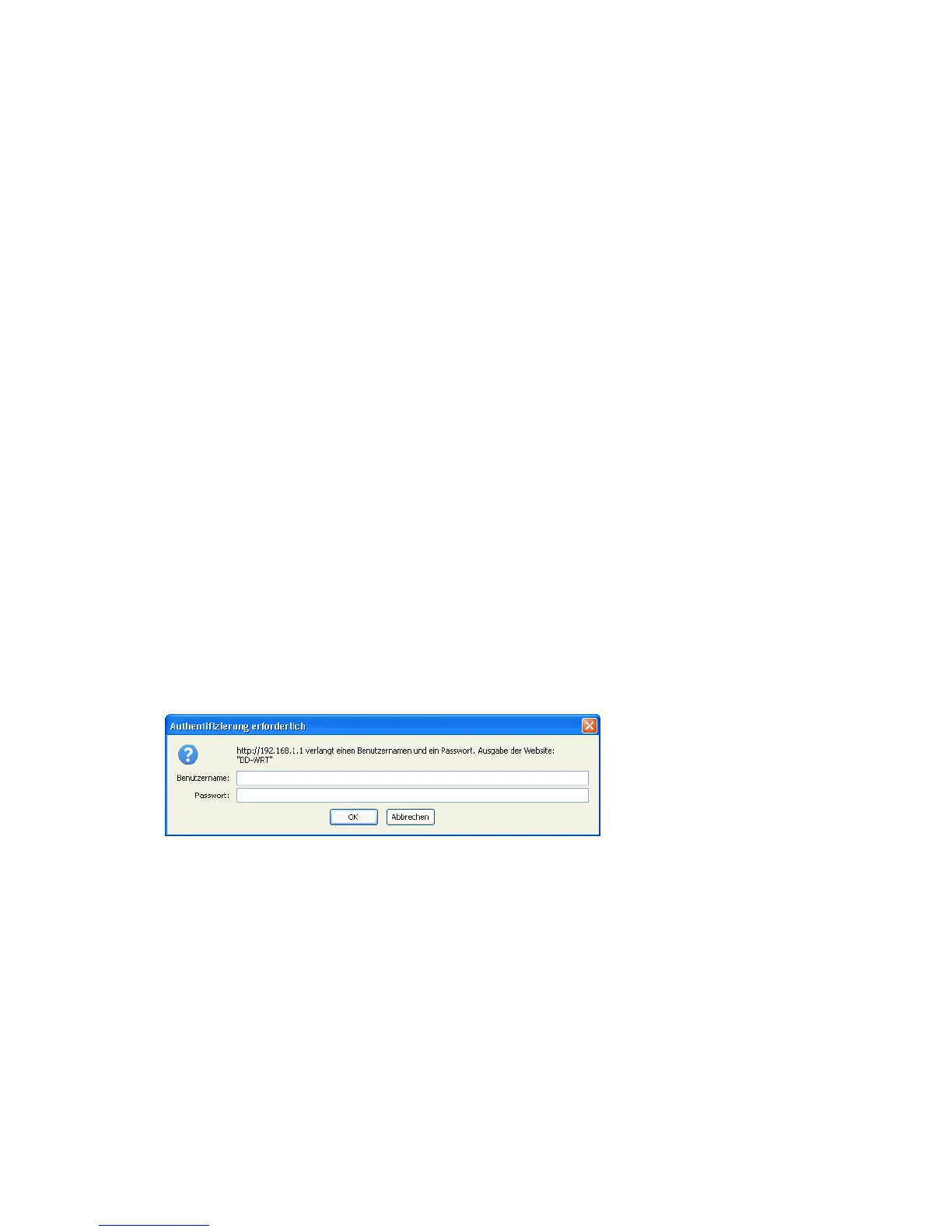
When you click on a tab, the login window will pop up. Enter the
username and password you previously set.
- 4 -


 To Next Page
 Loading...