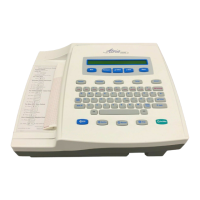
Transmission using the optional USBD (device) port to a PC
The USBD port permits transmission of stored patient records to a PC using a direct USB cable. The patient records
will be transmitted to an ELI Link application (requires V3.10 or later) and then exported and saved in various
formats (see the ELI Link user manual).
Connecting the ELI 280 to a PC
When connecting the device to a PC for the first time, the proper USB driver will need to be installed prior to use.
Use a USBD cable to connect the device to a PC.
When properly connected, the PC will automatically detect the device and automatically install the drivers.
You will be required to power the ELI 280 on by pressing the On/Off button for a period of three seconds.
Transmitting Patient Records to ELI Link
Create both an Input folder and Output folder on the PC.
Configure ELI Link to the individual Input and Output folders.
Connect the ELI 280 to the PC.
“USB Device ready” will appear on the device display; a “Removable Disk” message will display on the
PC.
Using the PC mouse, select Records from the removable disk window displayed on the explorer window.
Select the patient record(s) to be copied.
Place the copied record(s) into the Input folder on the PC.
After a period of 5 seconds, select the copied record(s) to view on the PC or print via PDF from the Output
folder.
NOTE: Requires ELI Link V3.10 or later. See ELI Link user manual for further detail on settings.
NOTE: User must create an Input and Output folder for records to be stored or retrieved for use in
ELI Link.
NOTE: Patient records transmitted to ELI Link are not marked as transmitted by the device.
WARNING: Do not change or modify any information existing in any of the ELI 280 folders that
are visible on the PC in the removable disk file.
CAUTION: To assure consistent operation and avoid confusion, connect only one ELI 280 using
the USB device port to a PC at a time.
Unplug the USBD cable and power the ELI 280 On.



 To Next Page