©2020 CAE 905K640152 v1.1 45
Setup
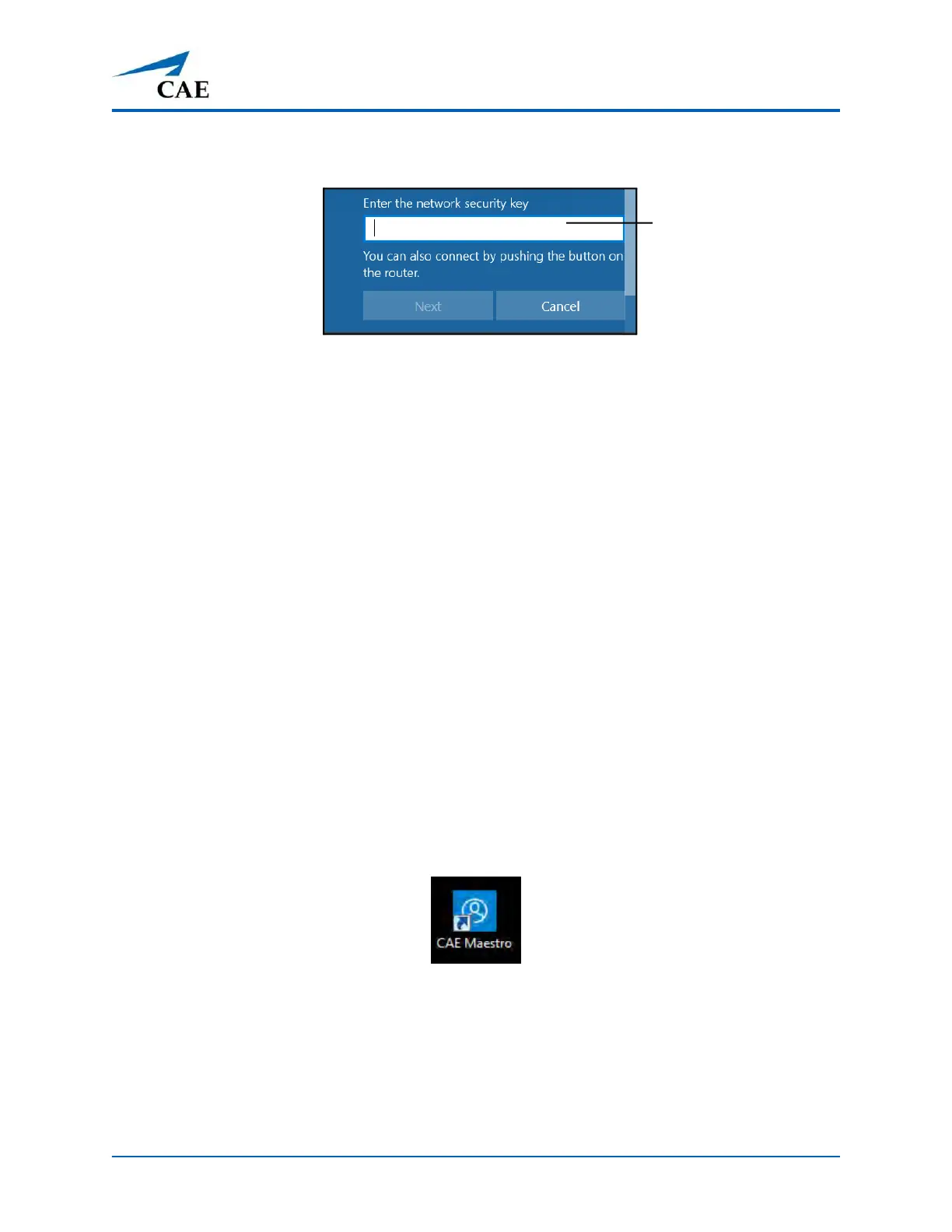
The Enter a network security key window appears.
Entering the Security Key (Password)
g. Tap in the Enter the network security key text field.
h. Tap the Keyboard icon in the taskbar in the lower-right corner of the screen.
The on-screen keyboard appears.
i. Enter caeadmin in the text field.
j. Tap the X in the upper-right corner of the keyboard to exit.
k. From the Enter a network security key window, tap Next.
The Connecting message appears, then disappears when the tablet is
finished connecting to the simulator network.
Step 12: Set Up TouchPro Monitor (Optional)
For instructions on setting up the TouchPro monitor, see the TouchPro Getting Started Guide included
with the MSI monitor shipment. For more information on how to use the TouchPro software, see the
Maestro for Ares User Guide.
Step 13: Launch Maestro
To launch Maestro, tap the CAE Maestro icon on the tablet desktop screen.
The Maestro App Icon
The Maestro app opens and the Maestro start screen appears.
For additional information on Using Maestro, see the Maestro for Ares User Guide.
Enter the Security key
(password)



 To Next Page