Setup
40 ©2020 CAE 905K640152 v1.1
CAEAres
Step 9: Power on Ares
To power on Ares:
a. Connect the manikin's power supply to the DC IN connection on Ares’ right side.
b. Plug the power supply into a grounded outlet.
c. Press the ON/OFF button on Ares’ right side and hold it for three (3) seconds to initiate
the boot-up process. When Ares is ready for operation, the simulator will say, “Hello”
within approximately three minutes of pressing the ON/OFF button.
Step 10: Power on the Instructor Tablet
To power on the instructor tablet, press and hold the Power button located on the top of the tablet.
Step 11: Connect to Simulator’s Network (Optional)
If the instructor tablet does not automatically connect to the simulator’s network, use the following
instructions to connect the tablet to the simulator’s router.
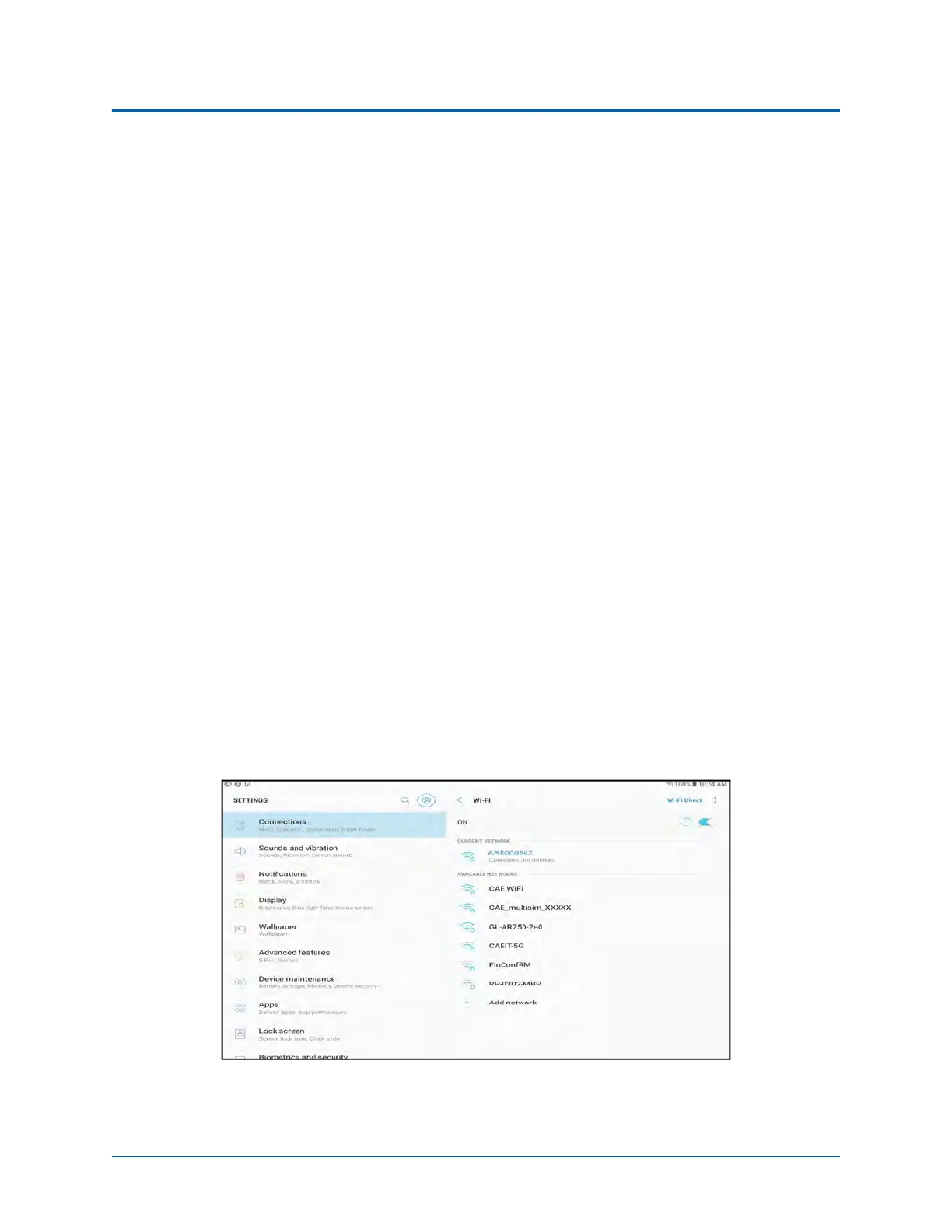
To connect to the simulator's network on the Samsung Galaxy S3 tablet:
a. From the Home screen, swipe up to view the All Apps screen.
b. Tap the Settings (Gear) icon.
The Connections tab will display by default.
c. Locate the network for the simulator. For Ares, the network name is ARE00XXXX (where
XXXX is the last 4 digits of Ares’ serial number).
ARE00XXXX WiFi Network



 To Next Page