CANNON Instrument Company | Initial Software Settings
Initial Software Settings
Before running TE-BBR tests, setup information must be entered.
1. Turn on computer and load the BBRw software.
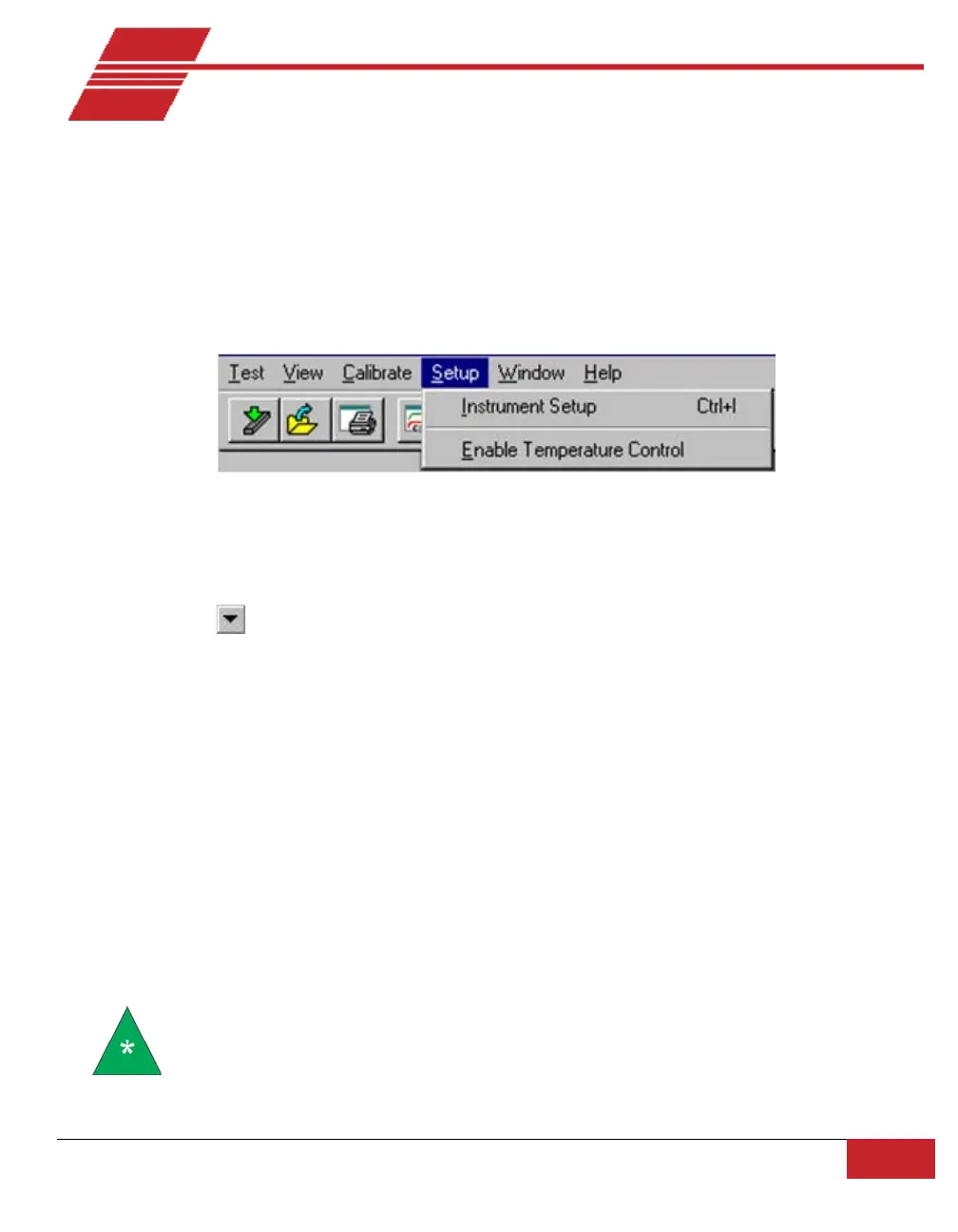
2. Select Instrument Setup from the BBRw menu options. Refer to Figure 16.
Figure 14: Instrument Setup
3. Set the COM port:
a. Click on Port from the tab options on the Instrument Setup menu.
b. Click on (down arrow) from the Serial Port page to display the port selection options.
c. Click on the Serial Port setting which corresponds with the port for the RS-232 cable
connection between the BBR and your PC.
4. Input equipment data, including thermistor calibration constants:
a. Click on Equipment from the tab options on the Instrument Setup property sheet.
b. Input an alphanumeric identifier for your BBR instrument (up to 30 characters in length) in
the Apparatus ID field.
c. Input the thermistor probe values (constants) for S/N, A0, A1 and A2 from the calibration
certificate shipped with the probe. Use the tab key or mouse to select the appropriate fields
for data entry. Make sure to include negative signs (-) and decimal points as indicated on the
calibration certificate.
Note: Once set, the thermistor constants should only be changed if replacing the
thermistor.


 To Next Page