power switch towards MODE and release
it,
or move the power switch to _
and back to ON.
a
Aboutthe
LCD and
viewfinder
screen: The screens are produced using
extremely high-precision manufacturing techniques, with more than
99.990/0
of
the pixels operating to specification. Less than
0.01
% of the pixels may
occasionally misfire or appear as black, red, blue or green dots. This has no
effect
on
the recorded image and does not constitute a malfunction.
a When
using
a
tripod:
Do
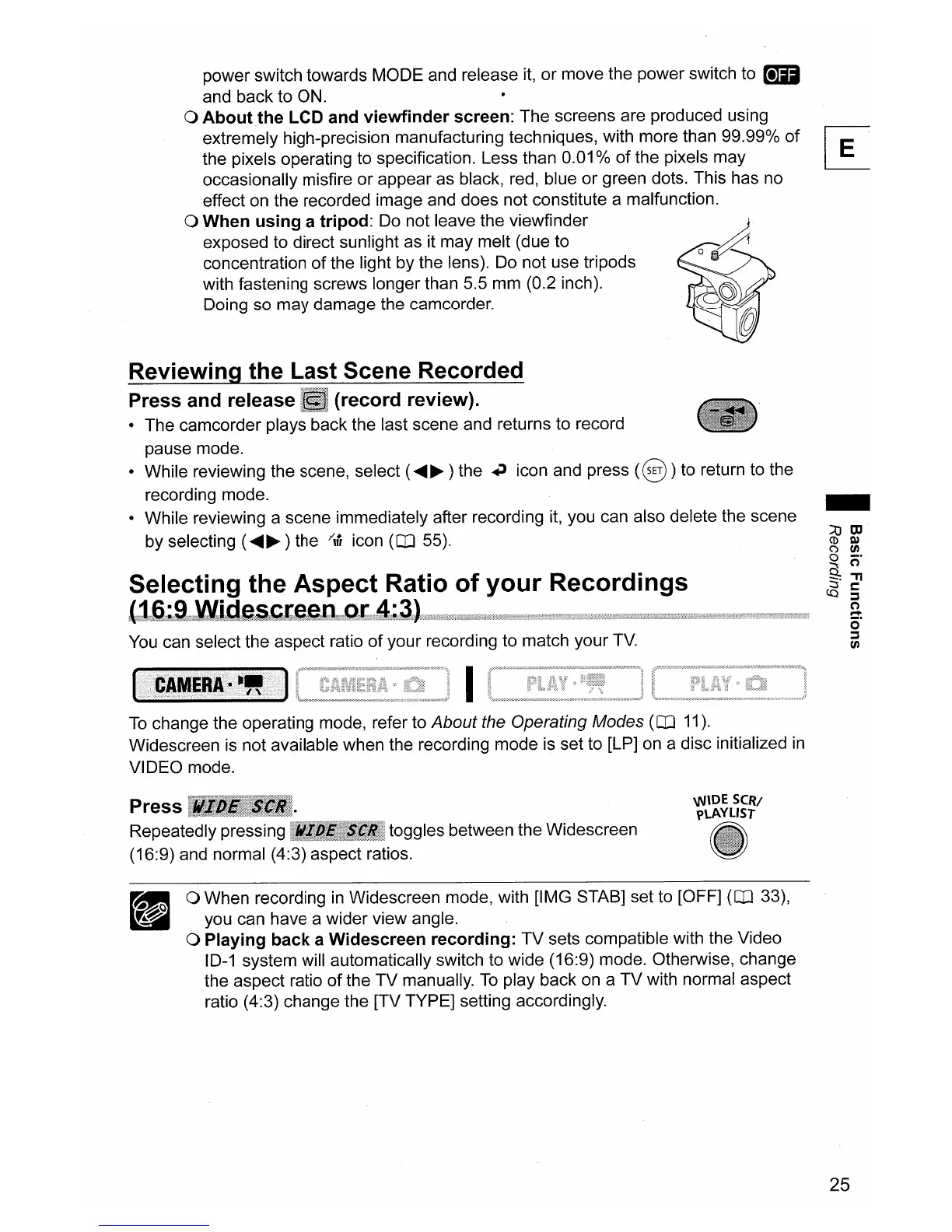
not leave the viewfinder
exposed to direct sunlight as it may melt (due to
concentration
of
the light by the lens).
Do
not use tripods
with fastening screws longer than 5.5 mm (0.2 inch).
Doing so may damage the camcorder.
Reviewing
the
Last
Scene Recorded
Press and release (record review).
• The camcorder plays back the last scene and returns to record
pause mode.
• While reviewing the scene, select (
.....
~
) the .;J icon and press (@)to return to the
recording mode.
• While reviewing a scene immediately after recording
it,
you can also delete the scene
by selecting (
.....
~
) the
7\(,
icon
(OJ
55).
Selecting
the
Aspect
Ratio
of
your
Recordings
\'.i3K6i';i9Ki~.i}de&;{;.te!ejCMKQ;t
...
i.';3i)'.·····'
You
can select the aspect ratio
of
your recording to match your
TV.
I
To
change the operating mode, refer to About the Operating Modes
(OJ
11).
Widescreen is not available when the recording mode is set to [LP]
on
a disc initialized
in
VIDEO mode.
-
Press
~~!':~~illli.1
Repeatedly pressing toggles between the Widescreen
(16:9) and normal (4:3) aspect ratios.
,,'''DE
seRf
p\.A.YLlST
a When recording
in
Widescreen mode, with [IMG STAB] set to [OFF]
(OJ
33),
you can have a wider view angle.
a Playing
back
a Widescreen
recording:
TV
sets compatible with the Video
10-1 system will automatically switch to wide (16:9) mode. Otherwise, change
the aspect ratio
of
the TV manually.
To
play back
on
a TV with normal aspect
ratio (4:3) change the [TV TYPE] setting accordingly.
25



 To Next Page