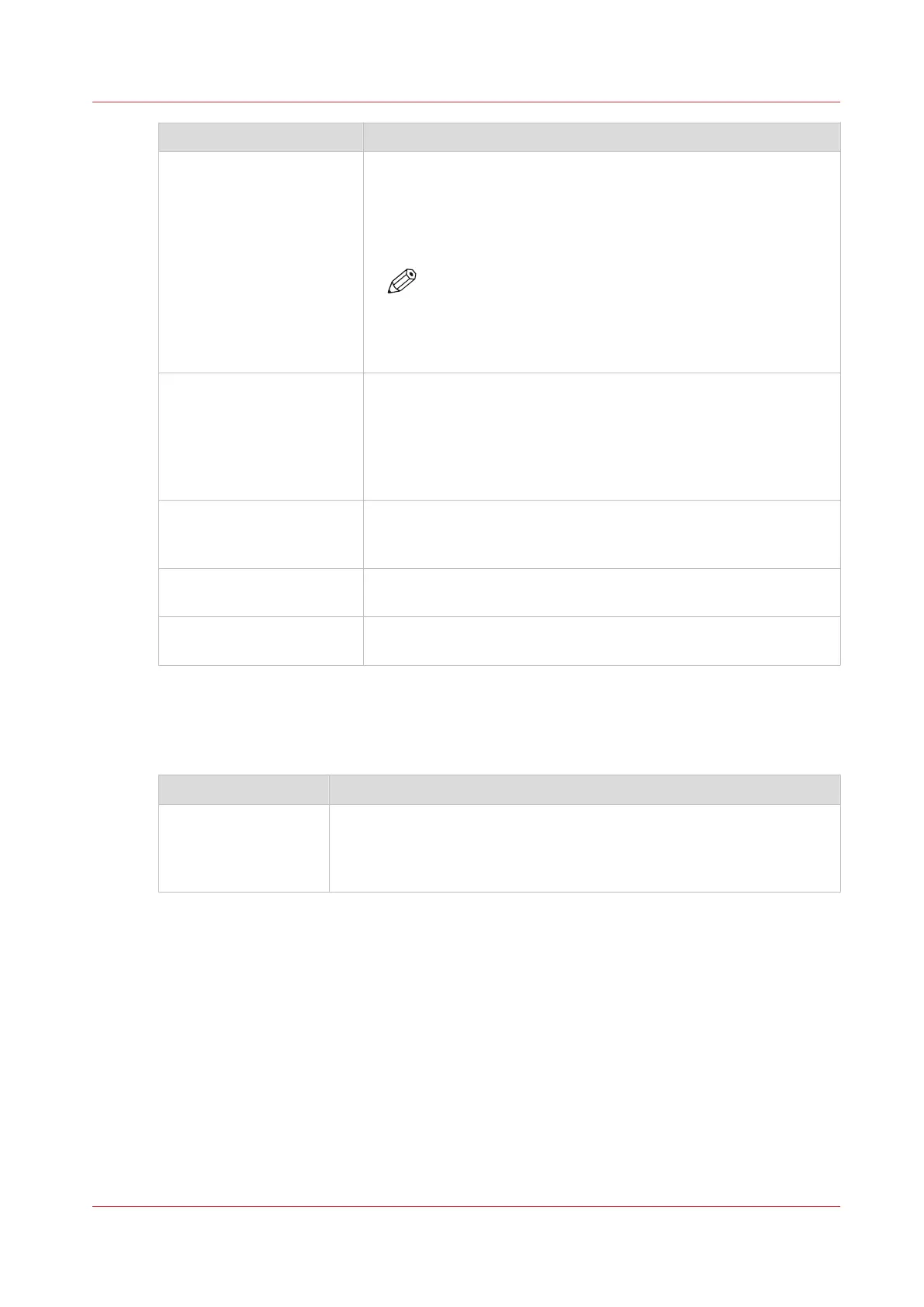
Setting Description
[Océ Finishing Assistant] This setting is only available when a folding device is configured
and enabled.
Enable the setting to automatically detect the legend in an image
and rotate and align the image so the legend will be on the cover
page of the folded package.
NOTE
• When a legend cannot be detected, the document is
not folded.
• The Océ Finishing Assistant overrules the rotation
and alignment settings.
[Rotation] Select any option to rotate the image counterclockwise.
When you want to print faster, select [Automatic landscape]. You
can print faster due to less media transport.
Select [Automatic media saving] to use the media in the most effi-
cient way.
For more information, see
Set the rotation mode
on page 134.
[Alignment] Select any of the options to define where to align the image on the
media.
For more information, see
Set the alignment mode
on page 135.
[Horizontal shift] Define how much you want the image to shift horizontally in the
chosen alignment position.
[Vertical shift] Define how much you want the image to shift vertically in the
chosen alignment position.
Overview of the [Print job defaults] - [Image] settings
Open the [Preferences] - [Print job defaults] tab. Go to [Image] and click Edit in the upper right-
hand corner.
Setting Description
[Print quality] • [Standard] is the default value.
• Select [Lines/text] for line drawings. The lines are sharpened.
• Select [Photo] for large photos. The printed output is optimized for
large gray areas.
Set the print job default settings
Chapter 3 - Define your Workflow with Océ Express WebTools
61









 To Next Page