Fold settings
Introduction
You can set the fold options in the fold template under the [Preferences] - [Fold] tab. For more
information on how to create a template see,
Create a new template
on page 98.
When you set the fold options, make sure you set them accordingly to operate the folding device
in a correct way. Use the settings overview explanation below.
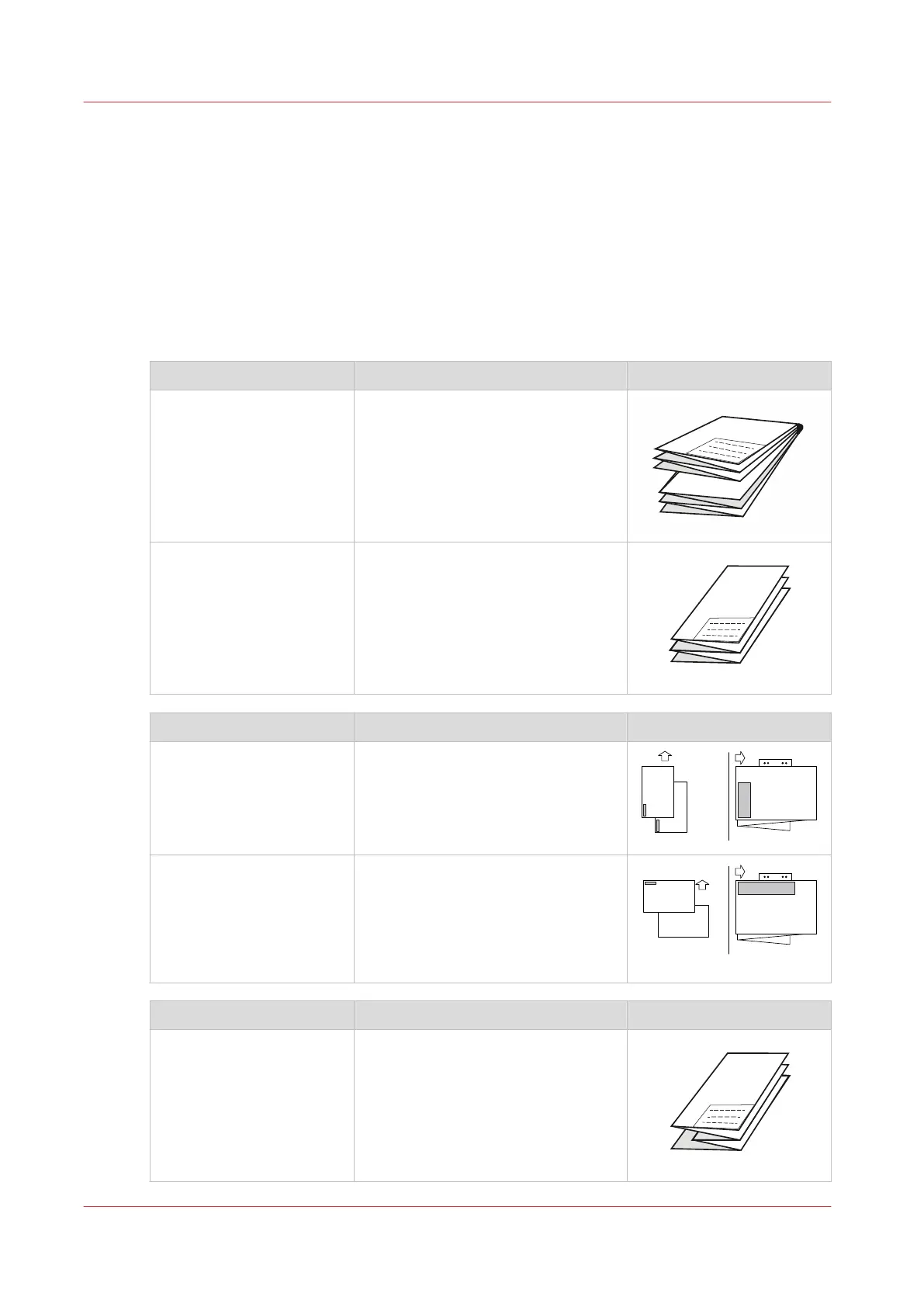
Folding
[Folding package] Description Example
[Full fold] Folded with first (Z-fold) and second
fold (cross fold).
[First fold only] Folded only with the first fold (Z-
fold).
[Package type] Description Example
[Standard] The default value. This setting is suit-
able for most situations, in order to
fold a DIN drawing (A) to a DIN pack-
age with the legend on top (B).
[Alternative] This setting is suitable for a non-
standard situation, in order to fold a
drawing with the legend located on
the left of the leading edge, seen
from the printer (A), to a package
with the legend on top (B).
[Folding method] Description Example
[With same size back] (DIN-
B).
Folded package, but the last fold
(rear) is over the full width.
The previous fold could be shorter.
4
Fold settings
104
Chapter 3 - Define your Workflow with Océ Express WebTools









 To Next Page