2-13
Step 3 Perform Initial Setting of the Camera
Initial Setting and Installation of Camera
Check the Video Captured by the Camera
When the initial setting is complete, check the video captured by the camera using VB-C500
Viewer. At this time, set the network options on the PC according to the IP address and subnet
mask set in the camera.
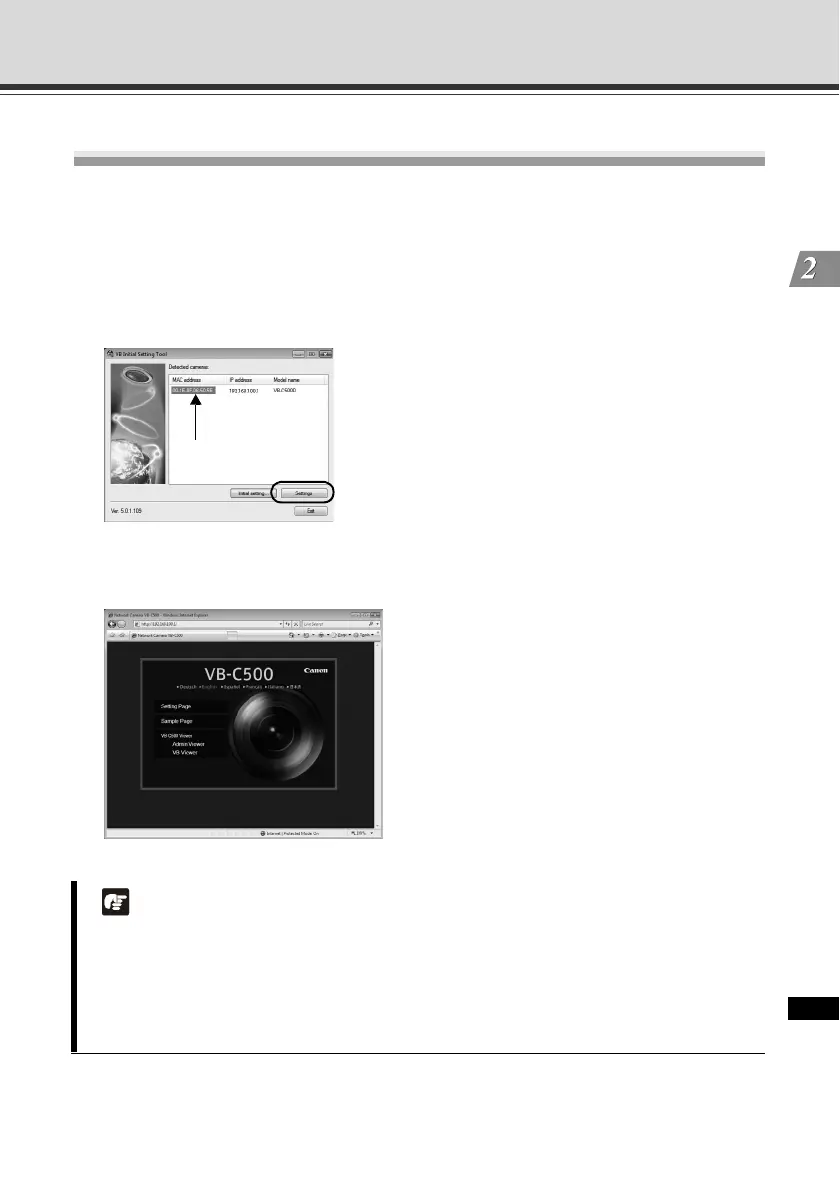
1. Click the MAC address of the camera whose operation you want to check, and then click
[Settings].
2. The web browser starts and the top page of the camera is displayed. Click [VB Viewer] from
[VB-C500 Viewer].
Note
There may be cautionary information that should be heeded depending on your operating
environment. Before the initial setting, refer to "Notes on Operating Environment" ( P. 1-12).
To open the setting page using the [Settings] button, do not change the HTTP port of the
camera from 80. For information on setting the HTTP port number, see "HTTP Server"
( Operation Guide).
Click to select.



 To Next Page