2-17
View Restriction Setting Tool
VBAdmin Tools
Setting View Restrictions
You can set view restrictions by entering values in the view restriction setting entry boxes, or by
changing the current settings in the view restriction preview frame or from the camera angle in
Admin Viewer. Select appropriate settings according to the environment in which the camera is
operated or based on your preference.
Changing Settings from View Restriction Preview Frame
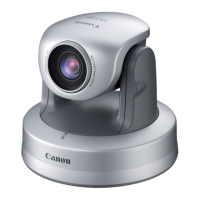
Use the preview frame on the panorama image to set view restrictions.
How to Set
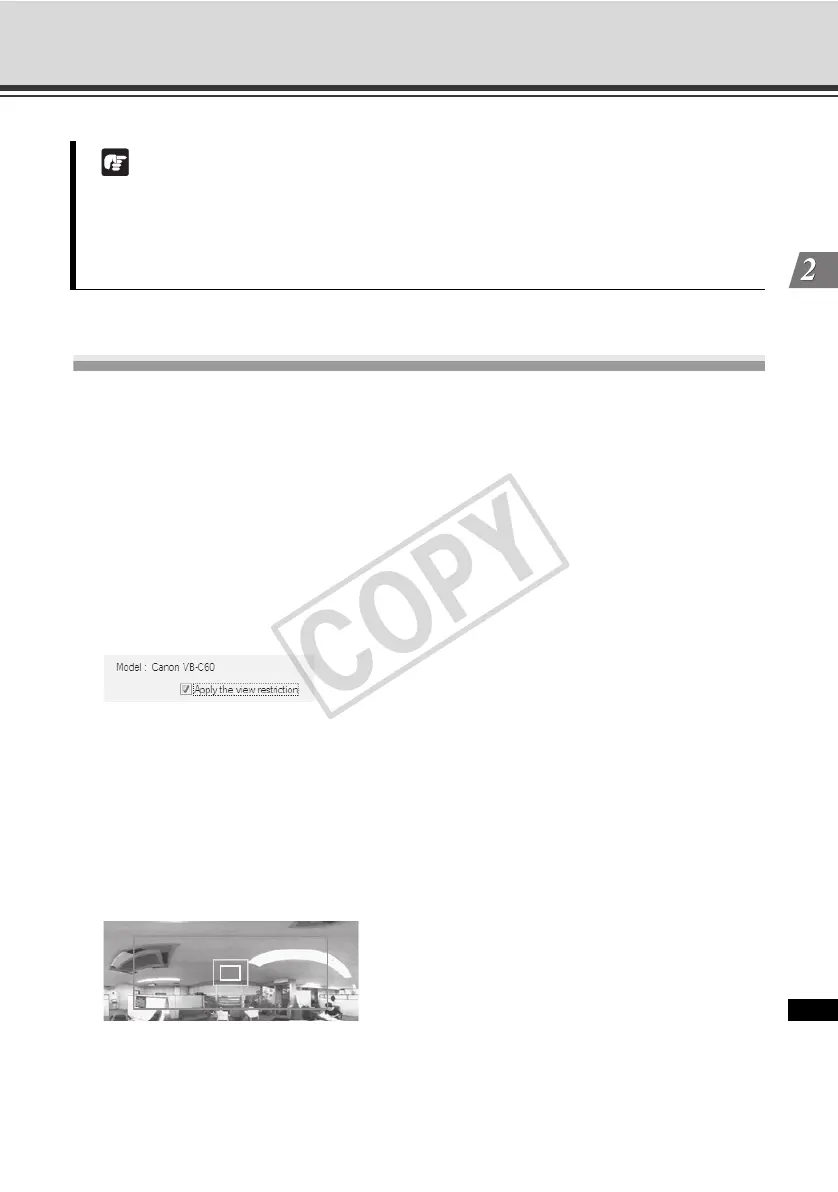
1. Select the [Apply the view restriction] check box.
2. Drag to change the Pan/tilt preview frame (red frame), Telescopic preview frame (yellow frame)
or Wide-angle preview frame (green frame) displayed on the panorama image to set view
restrictions.
When the telescopic/wide-angle preview frames are enlarged/shrunk, the aspect ratio
remains the same.
At this time, you can also enter view restrictions by entering values in the view restriction
setting entry boxes.
Note
z Clicking the [Apply] button alone does not save the edited results in the camera. To make
the edited results effective, click the [Save view restriction settings] button.
z If connection is made by entering the IPv6 address, Admin Viewer cannot be used on
Internet Explorer 6.


 To Next Page