EasyManua.ls Logo

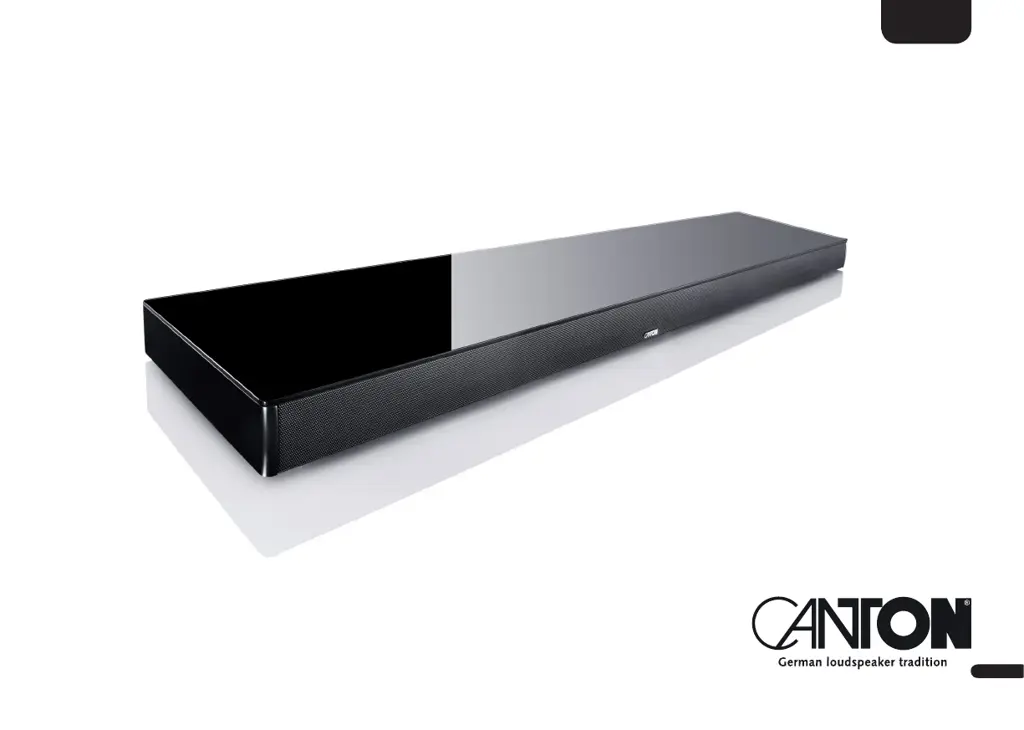
Canton Smart Sounddeck 100 - User Manual

Canton Smart Sounddeck 100
58 pages
Print Icon
To Next Page IconTo Next Page
Loading...
3
1
English
Smart Sounddeck 100
OPERATING INSTRUCTIONS

Other manuals for Canton Smart Sounddeck 100

Questions and Answers

  • H
    Heather SandersSep 4, 2025
    Why don't my paired wireless speakers turn on with my Canton Smart Sounddeck 100 Speaker System Sounddeck 100?
    • U
      ujenningsSep 4, 2025
      If your paired wireless speakers aren't turning on with the Sounddeck 100, they might not be paired to the Sounddeck 100 yet; pair all slave speakers according to chapter Wireless Pairing [WSP]. Additionally, if the parameter Standby [STB] is set to ECO [ECO], each speaker must be switched on separately with the remote control; to switch all speakers on together, set the parameter to NSB, MAN, or AUT.
  • A
    amanda07Sep 18, 2025
    What does [WLS] on my Canton Speaker System (slave) speaker mean?
    • T
      traci46Sep 18, 2025
      If a (slave) speaker shows [WLS] in the display, it might be operated without the Sounddeck 100. Turn on the Sounddeck 100. Alternatively, the (slave-) speaker might not be paired anymore; pair the (slave-) speaker with the Sounddeck 100 according to chapter Wireless Pairing [WSP].
  • D
    douglas74Sep 16, 2025
    Why doesn't the Canton Speaker System Sounddeck 100 show up in the app on my phone?
    • L
      Lisa PorterSep 16, 2025
      If the Sounddeck 100 isn't showing up in the app on your mobile device, ensure that your mobile device and the Sounddeck 100 are connected to the same network (e.g., not a guest network).
  • S
    simmonsblakeSep 14, 2025
    Why isn't my WiFi network showing up during setup of my Canton Smart Sounddeck 100?
    • S
      Sarah AlexanderSep 14, 2025
      If your WiFi network isn't displayed during setup, the network connection for the Sounddeck 100 might be set to Ethernet [ETH]. Change the setting to WiFi [WIF] in the menu Network Select [NWC].
  • T
    Troy MeyerSep 12, 2025
    How do I increase the volume limit on my Canton Smart Sounddeck 100?
    • J
      Joshua HoustonSep 12, 2025
      If the volume is limited to a value less than 70, a maximum volume less than 70 was likely selected in the Max Volume [VOL] menu. Increase the value according to chapter Max. Volume [VOL].
  • J
    Jennifer HillSep 12, 2025
    Why can't I select an input on my Canton Speaker System using the input buttons?
    • M
      Matthew DunnSep 12, 2025
      If an input cannot be selected via the Input buttons, it might be deactivated in the Input Config [INP] menu. Activate the input according to chapter Input Config [INP].
  • C
    Christine GoodmanSep 9, 2025
    Why can't my Canton Smart Sounddeck 100 Sounddeck 100 connect to the network router?
    • D
      Dr. Tracy MorganSep 9, 2025
      If you can't establish a connection between the network router and the Sounddeck 100, the DHCP server might be deactivated in the router. Activate the DHCP server according to the router's instructions. Alternatively, a filter for MAC addresses might be enabled; deactivate the MAC Address Filter or add the address of the Sounddeck 100. Your router might also be incompatible with Chromecast built-in. Routers that are demonstrably compatible can be found in the web link in the chapter “Using Chromecast built-in for audio”. However, there are more compatible routers.
  • J
    Jorge JuarezSep 7, 2025
    How do I stop my Canton Smart Sounddeck 100 Speaker System from automatically playing from my mobile device?
    • K
      kjohnsonSep 7, 2025
      If playback from a mobile device starts automatically when the Sounddeck is switched on, the automatic playback function AutoPlay [APL] is activated. Set AutoPlay [APL] to OFF to disable this function.
  • L
    lisawyattSep 5, 2025
    Why is there no sound from the subwoofer on my Canton Speaker System?
    • C
      carrollmandySep 5, 2025
      If the subwoofer isn't reproducing sound on your Canton Speaker System, it might not be paired yet. Pair the Smart subwoofer with the Sounddeck 100 according to chapter Wireless Pairing [WSP]. If the subwoofer is connected via RCA cable, ensure that Sub Out is activated in the Sub Out menu [SUB].
  • J
    jason50Aug 20, 2025
    What to do if my Canton Speaker System has no sound?
    • K
      Kristin JonesAug 20, 2025
      If your Canton Speaker System isn't producing sound, several factors could be the reason. First, ensure the sound format selected on your source device is correct. Next, check if the player is muted or the volume is set to zero; unlock the digital output on the source device and increase the volume. Also, verify the cable connections between the player and the Sounddeck 100, replacing the cable if necessary. Finally, make sure the protective caps on the connectors of the optical cable (TOSLINK) are removed.

Summary

Important Safety Instructions

Risk of Electric Shock

Warnings regarding electric shock hazards and unauthorized device opening.

Danger of Explosion and Life

Warnings about battery hazards, explosion risks, and potential life threats.

Unpacking and Delivery

Delivery Content

Lists all items included in the product box for verification.

Initial Operation

Running In Phase

Information on the initial operating phase for optimal sound development.

Remote Control Setup

Instructions on activating and using the remote control.

Connection Terminal Overview

Physical Inputs and Connectors

Details of physical connectors and their on-screen display designations.

ARC Functionality Note

Explanation of the ARC function and its requirements for TV support.

Remote Control Functions

LED and Display Indicators

LED Status Meaning

Explains the meaning of different LED states for device status.

OSD Navigation Guide

How to use the TV screen for settings and navigation.

Using Chromecast Built-in

Chromecast Setup Requirements

Lists necessary prerequisites for using Chromecast functionality.

Chromecast Setup Procedure

Step-by-step guide to install and configure Chromecast.

Google Assistant Integration

Connecting to Google Home

Instructions for integrating with Google Assistant via Google Home.

Voice Control Notes

Notes on using voice control features with Google Home.

Spotify Connect Usage

Automatic Firmware Updates

Bluetooth Wireless Playback

Bluetooth Playback Requirements

Lists prerequisites for Bluetooth audio streaming.

Bluetooth Pairing Process

Step-by-step guide for pairing mobile devices via Bluetooth.

Bluetooth Device Operation

How to play audio via Bluetooth after pairing.

Preset Button Functionality

Storing Input and Tone Settings

How to save input and sound settings to preset buttons.

Storing Spotify Playlists

How to save Spotify playlists to preset buttons.

1. Speaker Setup [SPS]

Channel Level [CHL]

Adjusting volume levels for individual speaker channels.

Speaker Distance [DST]

Setting the distance for optimal spatial sound effects.

Equalizer [EQ]

Selecting equalizers to match room conditions.

Voice Clarity [VOI]

Function to improve speech intelligibility in audio.

Channel Level Adjustment

Speaker Distance Setting

Equalizer Settings

Voice Clarity Function

2. System Setup [SYS]

Sleep Timer [SLP]

Setting the device to automatically shut down after a period.

IR Menu [IRM]

Menu for infrared remote control functions and learning.

IR Menu Functions

IR Learn [IRL]

How to learn IR codes from other remotes for device control.

IR Learn Procedure

Direct Input Learn [DIL]

Assigning specific input selection to remote keys.

IR Clear [CLR]

HDMI CEC [CEC]

Standby Mode [STB]

Input Configuration [INP]

Input Name [NAM]

Assigning custom names to physical inputs.

Input Name Assignment

Analog Gain [OFS]

Adjusting analog input playback level relative to digital sources.

Input Select [SEL]

Sub Out [SUB]

Sub Phase [PHA]

Lipsync [LIP]

Max Volume [VOL]

Compression [DRC]

3 D Audio [3 D]

Language [LAN]

Playmode [PLM]

Factory Reset [RES]

3. Network Setup [NWS]

Network Select [NWC]

Choosing between wireless (WIF) or wired (ETH) network connection.

Network Select Configuration

Network Reset [NWR]

Resetting all stored network settings on the Sounddeck.

4. Wireless Setup [WIS]

Wireless Pairing [WSP]

Wireless Pairing Procedure

Wireless Reset [WRE]

Deleting all stored wireless settings and connections.

Transmission Power [TXP]

RF Channel [CHN]

Bluetooth [BT]

BT Pairing [BTP]

Configuring how the Sounddeck initiates Bluetooth pairing requests.

BT Pairing Configuration

BT Select [BTS]

Automatic switching to BT input upon detecting audio signal.

BT Reset [BRE]

AutoPlay [APL]

5. System Info [INF]

Firmware Info [FWI]

Network Info [NWI]

Troubleshooting

Sounddeck 100 Remote Control Issues

Solutions for when the remote control does not function.

No Sound Output Troubleshooting

Troubleshooting steps for when no audio is produced.

Sound Reproduction Too Soft

Solutions for low volume issues.

Sounddeck 100 Power On Issues

Troubleshooting steps if the device fails to power on.

Troubleshooting Automatic Power Control

Not Turning On Automatically

Solutions for when the device doesn't turn on by itself.

Unintentional Power Off

Troubleshooting steps for unexpected device shutdown.

Failure to Turn Off Automatically

Solutions for when the device fails to turn off automatically.

Troubleshooting Audio and Input Issues

Sounddeck Buzzing Sound

Solutions for humming or buzzing sounds from the device.

Unintentional BT Input Switching

Solutions for unexpected switching to Bluetooth input.

Unintentional Power On

Causes and solutions for the device turning on unintentionally.

Troubleshooting Bluetooth Connectivity

Input Selection Problems

Resolving problems with selecting the Bluetooth input manually.

Automatic BT Input Switching Issues

Troubleshooting automatic switching to Bluetooth input.

Bluetooth Playback Problems

Solutions for no playback or interrupted playback via Bluetooth.

Troubleshooting Wireless Speaker & Input Issues

AutoPlay Function Issues

Resolving problems with the automatic playback function.

Wireless Speaker Pairing Failures

Solutions if pairing wireless speakers or subwoofers fails.

Stereo Channel Assignment Errors

Correcting issues with wireless speakers playing the same channel.

Automatic Input Change Errors

Solutions for Sounddeck not changing inputs automatically.

Troubleshooting Input & Volume Control

Unintentional Input Changes

Solutions for the Sounddeck unintentionally changing its input source.

Paired Speakers Not Powering On

Solutions if paired wireless speakers do not power on with the Sounddeck.

Disabled Input Selection

Activating inputs that cannot be selected via buttons.

Volume Limit Resolution

Increasing volume when it's limited to a value less than 70.

Troubleshooting Wireless & Network Issues

Slave Speaker Display Issues

Solutions for when a slave speaker shows [WLS] in the display.

Subwoofer Sound Problems

Troubleshooting if the subwoofer does not reproduce sound.

Network Connection Problems

Solutions for establishing a connection between router and Sounddeck.

WiFi Network Not Displayed

Solutions if the WiFi network is not visible during setup.

App Device Not Indicated

Solutions if the Sounddeck is not found in the mobile app.

Technical Data

Power Supply Specifications

Details on operating voltage, frequency, and power consumption.

Decoder and Virtualizer Specs

Supported audio formats and virtualizer technology.

Dimensions, Weight, and Bluetooth Specs

Physical specifications and Bluetooth details.

Signal Level and Temperature

Input signal levels and operating temperature range.

EU - Declaration of Conformity

Further Important Information

Intended Use Guidelines

Guidelines for the proper and intended use of the Sounddeck.

CE Marking and Disposal Instructions

Information on CE mark and environmentally friendly disposal.

Guarantee Information

Canton Smart Sounddeck 100 Specifications

General IconGeneral
Audio decodersDolby Atmos
RMS rated power- W
Audio output channels- channels
Audio Return Channel (ARC)Yes
Wi-Fi-
HDCP version2.2
HDMI ports quantity4
Connectivity technologyWired
Product colorBlack
Wall mountableNo
Audio formats supportedDTS
Weight and Dimensions IconWeight and Dimensions
Width- mm
Soundbar weight- g

Related product manuals