9
Vehicle Settings
Vehicle Settings
Vehicle SettingsVehicle Settings
Vehicle SettingsVehicle Settings
Vehicle SettingsVehicle Settings
Vehicle SettingsVehicle Settings
Vehicle SettingsVehicle Settings
Vehicle SettingsVehicle Settings
Vehicle SettingsVehicle Settings
Introduction to the AFS Pro 1200
™
Display
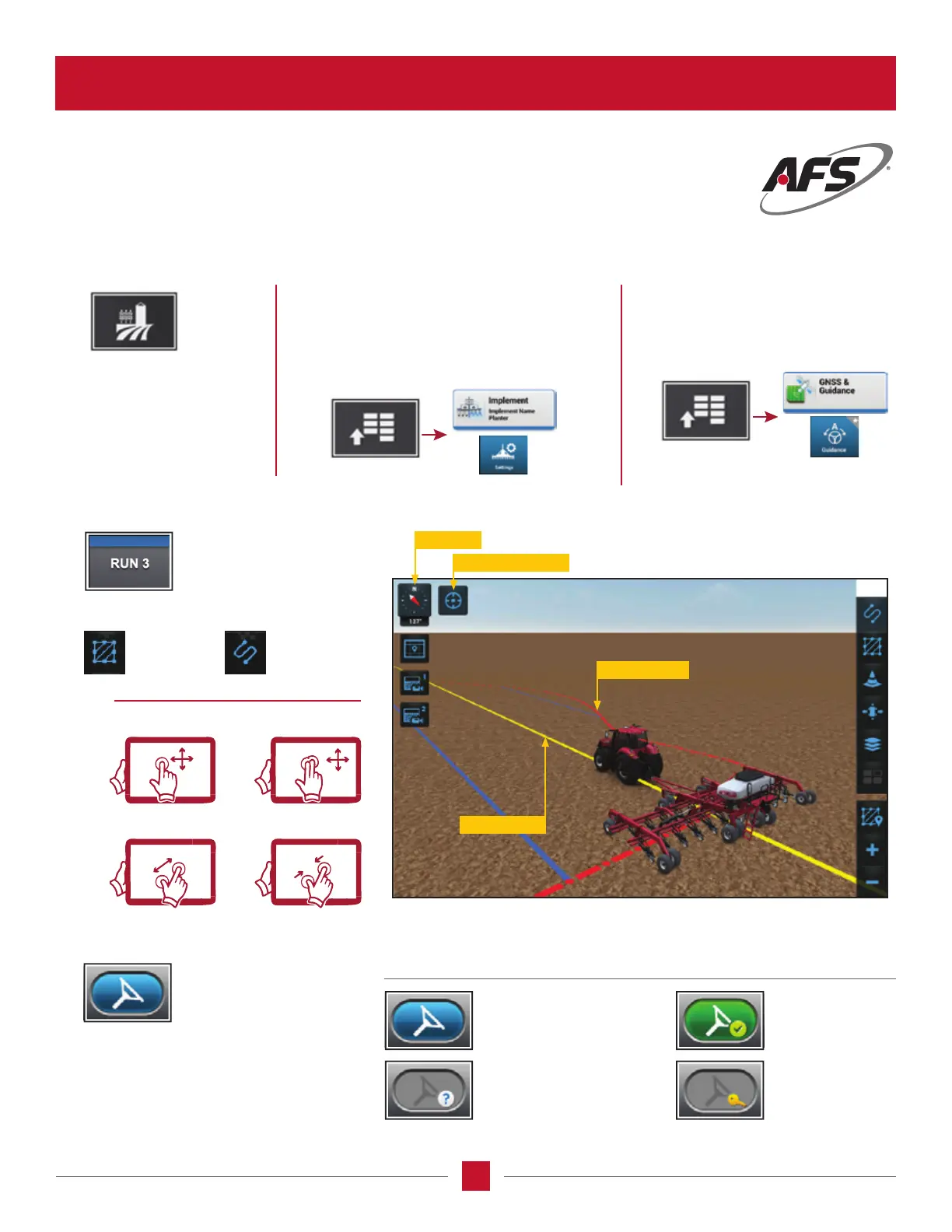
Press the Operations Screen
and select your Grower,
Farm, Field, Crop, and
Task; select your vehicle,
implement, and vehicle
implement conguration.
Select the Run Screen
that contains your
3D Map User Dened
Windows (UDW).
Press the Engage Autoguidance
button on the Top Bar, or
press the Engage Autoguidance
button on the MultiFunction
handle, to begin operation.
Autoguidance conditions
met; Autoguidance is
ready to engage.
Autoguidance is
currently active and
steering the vehicle.
Manual control of steering.
One or more reasons that
guidance cannot
be engaged.
Autoguidance
has not yet
been activated.
Guidance Engage Button Status
Record your vehicle path information:
Boundary
PAN
ZOOM IN
ROTATE
ZOOM OUT
Swath
Management
Press the Vehicle and Implement Settings button on
the top tool bar and select one of the menu cards –
Settings, Diagnostics or Productivity to observe and
set the tractor functions.
To create implement congurations, go to:
Select your guidance and
GNSS conguration.
To create implement
congurations, go to:
GETTING STARTED WITH AUTOGUIDANCE
1. Setup your Field Information and Vehicle / Implement.
2. Record your eld boundary and swath type.
3. Engage Autoguidance.
Compass
Center on Vehicle
Active Swath
Boundary Line



 To Next Page